

Best for internal meetings

Microsoft 365 Copilot
Visit Website →$30/user/month (annual); Business $21
- No bot: built into Teams meetings
- Notes stay in OneDrive and SharePoint
- Controlled by your existing Teams policies
Best bot-free note taker

Granola
Visit Website →Free plan; Business $14/user/month
- Captures Teams audio without a bot
- Windows and Mac desktop apps
- Enterprise SSO, SCIM and enforced notice
Best hybrid capture
Read AI
Visit Website →Free plan; Pro $15/user/month (annual)
- Bot or bot-free desktop capture
- Teams app in Microsoft AppSource
- SAML and SCIM on Enterprise+
Based on our testing of 15 AI note takers in Teams meetings, Microsoft 365 Copilot leads our ranking of the best AI note takers for Microsoft Teams because it needs no meeting bot, keeps native recordings and transcripts inside Microsoft 365, and uses your existing meeting policies.
However, its enterprise add-on costs $30 per user per month (billed annually) on top of your Microsoft 365 license. It also doesn’t work in meetings hosted outside your organization.
Below, I compare each tool’s capture method, pricing, and drawbacks so you can choose one that fits your tenant’s rules.
Key Takeaways
- Copilot wins for internal meetings: No bot to admit, with native recordings and transcripts stored in OneDrive or SharePoint
- Paid plans range from about $8 to $46 monthly with annual billing: Notta and Otter.ai sit at the low end
- Bots depend on the host: Teams holds detected bots in the lobby by default; automatic blocking began rolling out in September 2026
- Bot-free tools cover external calls: Granola and Jamie capture from your device, but you must tell attendees and follow organizational policy
- Choose Jamie for EU-hosted external meeting notes: Jamie says it hosts data in the EU, stores no audio, and doesn’t train on your meetings
Our ranking gives Teams fit and admin control the greatest weight, ahead of recap quality and privacy. Price and platform coverage complete the framework.
I focus on who hosts the meeting, because that determines whether Copilot works and whose rules control bot admission. The methodology below explains how those differences shape our ranking.
See Our Best AI Note Takers for Microsoft Teams
Choose by capture method first, then compare our ranked picks:
- Microsoft 365 Copilot: Best for Internal Meetings (native, no bot)
- Granola: Best Bot-Free Note Taker (no bot)
- Read AI: Best Hybrid Capture (optional bot)
- Fireflies.ai: Best for Enterprise Controls (bot)
- Otter.ai: Best for Back-to-Back Meetings (bot)
- Notta: Best Budget Pick (optional bot)
- Jamie: Best for EU Data Residency (no bot)
For client-hosted calls, start with the bot-free options. Your own Teams administrator cannot override another organization’s bot-admission policy.
AI Note Taker Comparison Table
Compare capture routes before seat prices: Teams holds detected bots in the lobby by default, so a subscription doesn’t guarantee entry to a client’s call.
Prices use annual billing unless noted. Granola’s billing term is unspecified. Copilot requires an eligible base license; advanced identity controls can also require a higher tier or minimum seat purchase.
| Tool | Best for | Joins as bot | Starting paid price | Free plan or trial | Capture route | Top admin tier |
|---|---|---|---|---|---|---|
| Microsoft 365 Copilot | Internal meetings | No (native) | $30/user/mo annually; Business $21 annually | Free Copilot Chat cannot read meeting transcripts | Built into Teams | Teams policies and Purview |
| Granola | Bot-free notes | No | $14/user/mo; billing term unspecified | 30 days of history | Windows, macOS, iOS, Android | Enterprise $35: SSO, SCIM |
| Read AI | Hybrid capture | Yes with bot; no with desktop | $15/user/mo annually | 5 meetings/mo, 1 hour maximum | Bot, Teams app, desktop app | Enterprise+ $29.75 annually: SAML, SCIM, 5+ seats |
| Fireflies.ai | Enterprise controls | Yes | $10/seat/mo annually | Limited AI summaries | Teams guest bot; other capture apps available | Enterprise $39 annually: SSO, SCIM, HIPAA |
| Otter.ai | Overlapping meetings | Yes | $8.33/user/mo annually | 300 min/mo, 30 min/conversation | OtterPilot bot | Enterprise: custom |
| Notta | Budget | Yes with bot; no with desktop | $8.17/mo annually | 120 min/mo, 3 min/conversation | Bot, desktop app, Chrome | Enterprise: SAML SSO, 51+ seats |
| Jamie | EU data residency | No | Team $37/seat/mo annually | 10 notes/mo, 30-minute maximum | Device app | Enterprise: SAML SSO, SCIM |
1. Microsoft 365 Copilot: Best for Internal Meetings
- Best for: Internal Teams meetings
- Price from: Microsoft 365 Copilot Business $21/user/month; enterprise $30 (billed annually), plus an eligible base license
- Free plan: Copilot Chat cannot read meeting transcripts
- Joins as bot: No
- Works in external meetings: No, when another organization hosts
Copilot is my top recommendation because nothing needs admitting from the lobby. Native recordings stay in the organizer’s OneDrive, or SharePoint for channel meetings, rather than moving into another vendor’s workspace.
The catch: Granola covers client-hosted calls that Copilot cannot. Copilot’s enterprise add-on also costs twice Read AI’s $15 Pro seat, both billed annually.
Pros
- Native capture: No external bot or separate vendor app approval
- Microsoft 365 storage: OneDrive and SharePoint, with applicable Purview controls
- Regional commitments: EU Data Boundary for eligible EU and EFTA tenants
- Admin control: Meeting policies govern Copilot and transcription
Cons
- Additional license: Enterprise add-on costs $30/user/month (billed annually)
- External-host limitation: Unavailable in another organization’s meetings
- Availability limits: No GCC High; lasting recaps require saved meeting content
What’s new with Microsoft 365 Copilot?
Copilot Business adds a $21/user/month option (billed annually). Its $18 promotion runs from July 1 to December 31, 2026, for the first year of an annual commitment by eligible existing Microsoft 365 Business customers.
Teams’ automatic-block option for detected external bots began rolling out in September 2026 and is off by default. Copilot avoids that restriction because it isn’t a bot.
Why use Microsoft 365 Copilot in 2026?
I recommend Copilot when keeping meeting content inside Microsoft 365 matters more than maintaining a separate notes workspace. Microsoft’s EU Data Boundary has eligibility conditions, including an exclusion for Multi-Geo tenants.
Choose the organizer setting carefully:
- During and after the meeting: Requires transcription
- Only during the meeting: Uses temporary speech-to-text without saving it afterward
- Off: Also disables native recording and transcription for that meeting
My Microsoft 365 Copilot testing notes
My main distinction is live assistance versus a lasting recap. “Only during the meeting” supports live questions, but its temporary speech-to-text disappears afterward. Don’t choose that mode expecting a saved transcript.
For post-meeting use, I check both Copilot and transcription policies. If transcription is disabled for you, “During and after” cannot work until a permitted participant starts transcription.
I also separate the organizer’s meeting options from the assigned admin policy. Check the policy rather than assuming a universal default, and decide whether to enable explicit recording consent, which is off by default.
How Much Does Microsoft 365 Copilot Cost?
These are US storefront prices; regional availability varies. Teams Premium is the cheaper native option if you only need intelligent recap, rather than free-form meeting questions.
| Plan | Monthly price (billed annually) | Monthly price (billed monthly) | What you get |
|---|---|---|---|
| Copilot Chat | $0 | $0 | Chat, not meeting-transcript access |
| Teams Premium | $10 | Annual only | Intelligent recap, AI notes, chapters |
| Copilot Business add-on | $21; eligible $18 first-year promotion through December 31, 2026 | $25.20 | Copilot for eligible SMB plans |
| Business Standard with Copilot | $23.50 | $28.20 | Microsoft 365 bundle |
| Copilot enterprise add-on | $30 | $31.50, annual commitment | Copilot in Teams meetings |
| Business Premium with Copilot | $32 | $38.40 | Microsoft 365 bundle |
Best for: Internal meetings under Microsoft 365 governance. Skip if: Clients host most of your calls.
Try Microsoft 365 Copilot: Visit Microsoft 365 Copilot
2. Granola: Best Bot-Free Note Taker
- Best for: Bot-free notes for client calls
- Price from: Granola Business $14/user/month; billing term unspecified
- Free plan: Yes, with 30 days of meeting history
- Joins as bot: No
- Works in external meetings: Yes, through permitted device capture
Granola is my preferred bot-free option because it supports Windows and Mac without adding a meeting participant. It captures device audio, so a client’s bot lobby doesn’t determine whether capture starts.
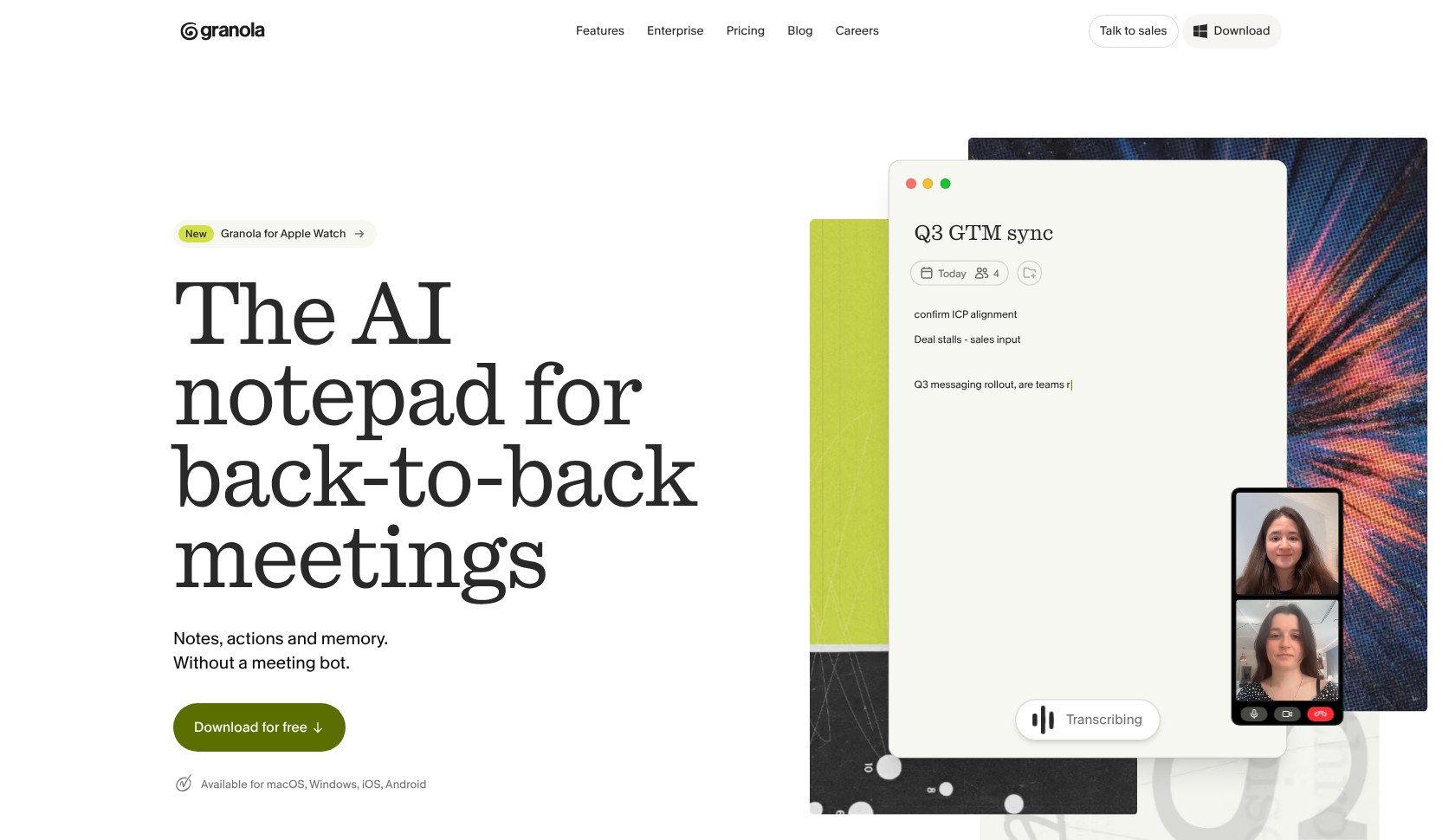
Unlike Copilot, though, Granola sends notes outside your Microsoft tenant. Granola says its storage is US-hosted and anonymized-data training is enabled by default outside Enterprise, with an opt-out.
Pros
- No lobby dependency: Capture meetings you attend without admitting a bot
- Desktop coverage: Windows 10+ and macOS 13+
- No retained recording: Granola stores transcripts and notes, not desktop meeting audio
- Enterprise notice: Admins can enforce notification that Granola is in use
Cons
- Limited free history: Only 30 days
- Training default: Opt out on non-Enterprise plans
- Audio routing risk: Mismatched devices can lose one side of the conversation
What’s new with Granola?
Granola’s Windows app launched in June 2025, ending its Mac-only desktop limitation. That makes it a practical option for Teams organizations standardizing on Windows laptops.
Its Enterprise plan includes:
- Identity management: SSO and SCIM
- Data handling: Organization-wide auto-deletion and workspace training controls
- Notice: Admin-enforceable notification
- Sensitive workflows: HIPAA workspaces
For a closer alternative comparison, see our Granola vs Fathom guide. Fathom’s bot-free beta is Mac-only, so Granola is the more practical starting point for Windows users.
Why use Granola in 2026?
Granola fills Copilot’s external-host gap without depending on a client admitting your assistant. Its human-guided notes also suit people who want to jot down priorities rather than accept an entirely automatic summary.
But bot-free capture isn’t permission-free capture. Teams’ native consent prompt doesn’t cover Granola, so explain that you’re taking AI notes and follow the host’s rules before starting.
My Granola testing notes
For Granola, I focus on Teams desktop and matching audio devices. Granola warns that browser audio routing can be less reliable, so I recommend the desktop app for this workflow.
Match your operating system’s default microphone and speakers with Teams > Settings > Devices. A headset selected only inside Teams can leave Granola capturing one side, even when the resulting notes look complete.
My privacy check comes before capture: review the training opt-out rather than waiting until notes are shared. Granola says training is off by default on Enterprise; mobile capture can temporarily cache audio before transcription.
How Much Does Granola Cost?
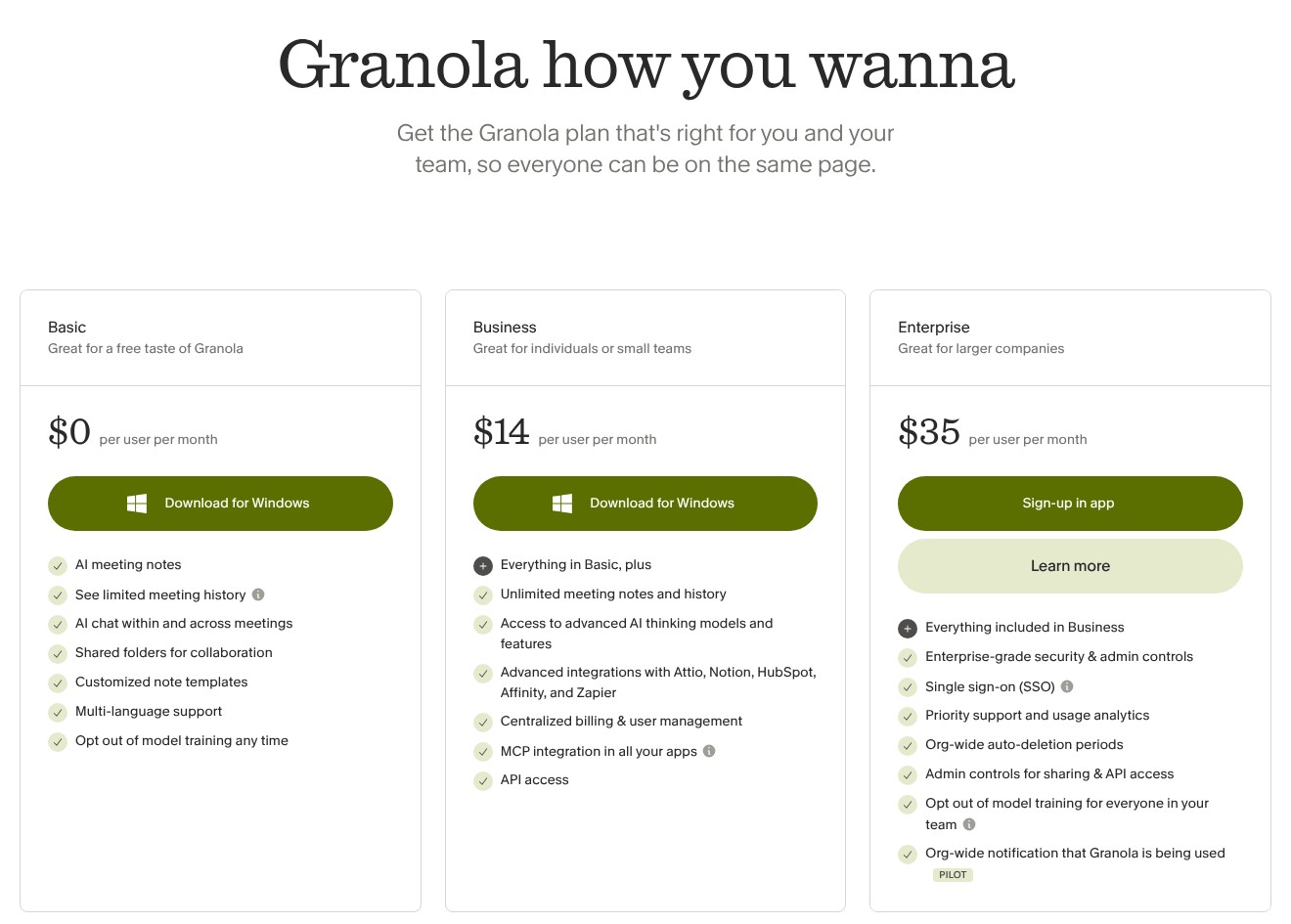
Granola quotes monthly per-user prices, but the billing term isn’t specified. Confirm the commitment before paying, especially if you’re comparing its $14 Business plan with annual subscriptions elsewhere.
| Plan | Price per user per month | What you get |
|---|---|---|
| Basic | $0 | 30 days of history, individual training opt-out |
| Business | $14 | Unlimited history; Attio, Notion, HubSpot, Affinity, Zapier, MCP, API integrations |
| Enterprise | $35 | SSO, SCIM, HIPAA workspaces, auto-deletion, workspace training controls, enforced notice |
Quick comparison: Jamie keeps data in the EU; Granola has the clearer published Enterprise control package for centralized deployment.
Try Granola: Visit Granola
3. Read AI: Best Hybrid Capture
- Best for: Switching between bot and bot-free capture
- Price from: Read AI Pro $15/user/month (billed annually)
- Free plan: 5 meetings/month, 1 hour maximum
- Joins as bot: Yes in bot mode; no with desktop capture
- Works in external meetings: Desktop capture, or bot admission by the host
Read AI earns its place because bot and bot-free desktop capture share one service. You can use the bot where it’s approved and the desktop app where the host won’t admit it.

If you mostly need bot-free capture, I prefer Granola. Read AI’s free allowance is only 5 meetings monthly, and its strongest identity controls require Enterprise+.
Pros
- Capture choice: Bot and bot-free desktop modes
- App coverage: Windows, macOS, Android, and iOS
- Paid entry: Pro at $15/user/month (billed annually)
- Enterprise controls: SAML, SCIM, and custom retention on Enterprise+
Cons
- Small free allowance: 5 meetings monthly, each capped at 1 hour
- Bot admission: The Read.ai bot can be held in the Teams lobby
- Seat minimum: Enterprise+ requires at least 5 licenses
What’s new with Read AI?
Read AI promotes its desktop app as capturing meetings “with no bot necessary,” including in-person conversations. That provides an alternative capture route without requiring a completely separate notes product.
Its Teams app is available through Microsoft AppSource, but app approval doesn’t guarantee bot entry. Teams’ detector can still hold the assistant in the lobby until someone admits it.
The current lineup has four tiers, with Enterprise+ separating advanced controls from the lower-priced Enterprise plan. Don’t assume the Enterprise name alone means SAML and SCIM are included.
Why use Read AI in 2026?
Read AI makes sense when meeting policies vary across your working week. An internal department might approve bots while a client blocks them, leaving a bot-only subscription useful for just part of your calendar.
However, switching capture routes doesn’t change your responsibility for consent. Local capture still needs permission and notice, and the host’s organizational rules still apply.
If EU residency is mandatory, ask Read AI to confirm storage and processing regions contractually before deployment. A Teams integration doesn’t place its notes inside Microsoft’s regional commitments.
My Read AI testing notes
I treat the desktop app as a planned capture route, not an emergency substitute after a bot misses the start of a call. Decide which mode the host permits before the meeting begins.
My free-plan check is the 1-hour meeting limit. A short-call trial can establish how capture works, but it doesn’t establish whether the allowance covers a longer workshop.
Our Read AI review covers the broader product. For Teams, my deciding factor is capture flexibility in one service, not the presence of a Teams app alone.
How Much Does Read AI Cost?
Read AI’s Enterprise+ seat minimum matters if a small group needs identity controls. Budget for at least 5 licenses rather than comparing its headline price with a single Pro seat.
| Plan | Monthly price (billed annually) | Monthly price (billed monthly) | Key limits |
|---|---|---|---|
| Free | $0 | $0 | 5 meetings/month, 1 hour maximum |
| Pro | $15 | $19.75 | Paid individual tier |
| Enterprise | $22.50 | $29.75 | Team tier |
| Enterprise+ | $29.75 | $39.75 | 5+ licenses, HIPAA, SAML, SCIM, domain capture, custom retention |
The verdict: Choose Read AI when you need both capture modes, rather than paying for flexibility you won’t use.
Try Read AI: Visit Read AI
4. Fireflies.ai: Best for Enterprise Controls
- Best for: Approved bots with contractual data controls
- Price from: Fireflies.ai Pro $10/seat/month (billed annually)
- Free plan: Unlimited transcription, limited AI summaries
- Joins as bot: Yes, as a Teams guest
- Works in external meetings: Subject to the host’s guest and bot policies
Fireflies is my strongest bot recommendation for Enterprise-level identity and retention controls. Its top plan combines SSO and SCIM with private storage and custom retention.
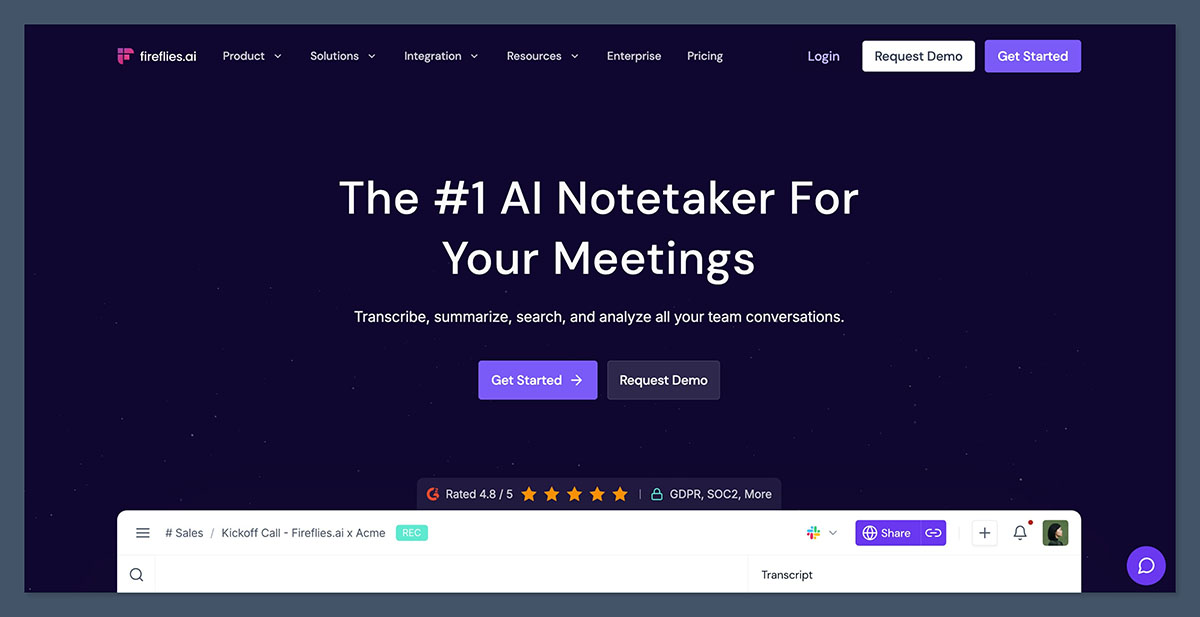
By contrast, Copilot avoids Fireflies’ guest-access dependency entirely. Fireflies’ Teams setup guidance includes disabling bot detection, a security trade-off I don’t recommend accepting automatically.
Pros
- Free transcription: Unlimited transcription, subject to storage and summary limits
- Language coverage: Fireflies advertises 100+ transcription languages
- Training commitment: Fireflies says it doesn’t train on customer data by default
- Enterprise package: SSO, SCIM, private storage, and HIPAA arrangements
Cons
- Guest dependency: Teams must permit the bot to enter
- Lobby blind spot: No recording while the assistant waits outside
- Control costs: SSO and SCIM require Enterprise at $39/seat/month (billed annually)
What’s new with Fireflies?
Fireflies includes ISO 42001 in its stated security credentials, alongside SOC 2 Type II. It also states GDPR and HIPAA compliance, with a BAA available on Enterprise.
Its 2026 Teams setup guidance addresses Microsoft’s bot-detection controls directly. That reveals the conflict between convenient bot entry and a tenant’s chosen security settings.
I recommend having IT decide whether organizer approval is sufficient, rather than disabling detection across the organization to remove an onboarding obstacle. A vendor’s preferred setup isn’t automatically the right policy for your meetings.
Why use Fireflies in 2026?
Fireflies suits teams that want shared bot-based capture without installing a recorder on every participant’s computer. Enterprise gives security teams more controls to evaluate than the basic paid plans.
Its Enterprise features include:
- Identity: SSO and SCIM
- Administration: Admin activity logs and super-admin controls
- Data handling: Private storage and custom retention
- Healthcare arrangements: HIPAA support and a BAA
However, private storage doesn’t establish EU residency by itself. Confirm storage and processing regions before approving sensitive EU meeting data.
My Fireflies testing notes
My first check is whether the bot entered, not whether the calendar integration shows the meeting. A scheduled assistant cannot record the discussion while it remains in the lobby.
I keep guest access separate from app access when assessing setup. Installing a Teams app doesn’t override the host’s lobby rules or bot-detection policy.
I don’t recommend broad lobby bypass just to make capture automatic. Manual admission preserves the host’s decision, although someone must handle it at the beginning of each meeting.
How Much Does Fireflies Cost?
Fireflies’ free plan has 400 minutes of storage per team, so unlimited transcription doesn’t mean unlimited retained history. Check the summary allowance as well before using Free as your team’s ongoing meeting archive.
| Plan | Monthly price (billed annually) | Monthly price (billed monthly) | Key extras |
|---|---|---|---|
| Free | $0 | $0 | Unlimited transcription, limited summaries, 400 storage minutes/team, 20 AI credits |
| Pro | $10 | $18 | Paid individual and team tier |
| Business | $19 | $29 | Higher team tier |
| Enterprise | $39 | Annual only | SSO, SCIM, admin activity logs, HIPAA, private storage, custom retention |
Best for: Approved enterprise bot deployments. Skip if: Your host policies prohibit bots or the required controls exceed your budget.
Try Fireflies: Visit Fireflies
5. Otter.ai: Best for Back-to-Back Meetings
- Best for: Overlapping meeting schedules
- Price from: Otter.ai Pro $8.33/user/month (billed annually)
- Free plan: 300 minutes/month, 30 minutes per conversation
- Joins as bot: Yes, through OtterPilot
- Works in external meetings: If the host admits the bot
Otter earns its place because Pro supports 2 concurrent meetings and Business supports 3. That’s useful when calendar clashes make attending every call impossible.
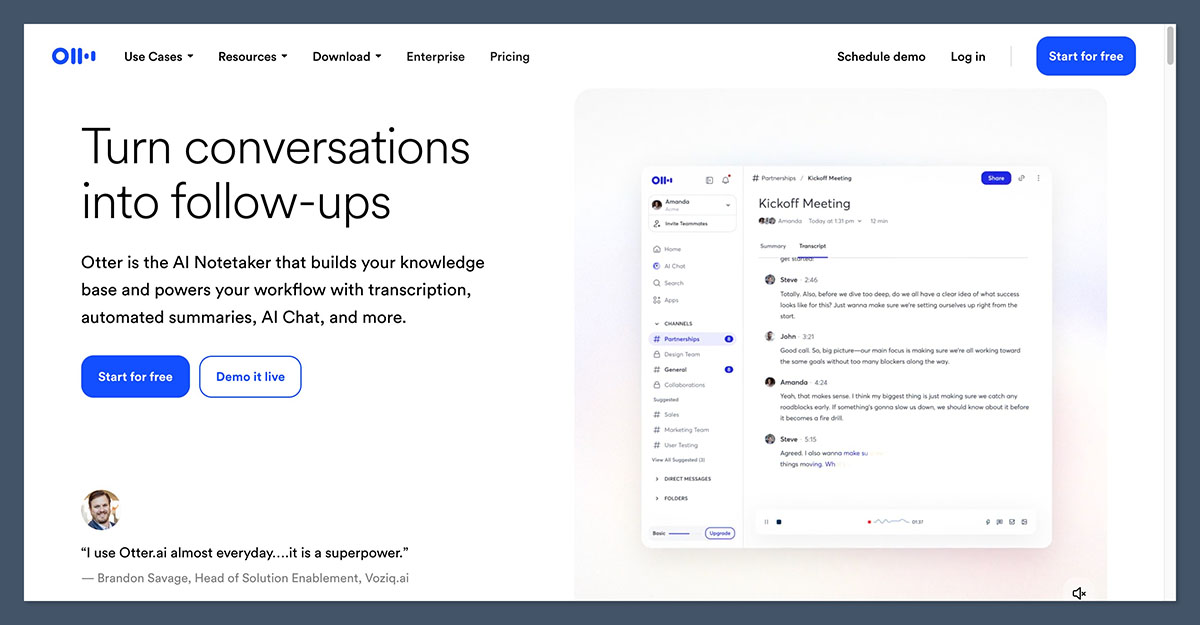
However, Fireflies has the clearer no-training default commitment. Otter says it trains on de-identified customer data, and its calendar auto-join needs careful configuration before you connect external meetings.
Pros
- Concurrent coverage: 2 meetings on Pro, 3 on Business
- Affordable Pro: $8.33/user/month (billed annually)
- Teams feature: Recording permission capture
- Governance options: SSO and a HIPAA add-on; confirm plan requirements
Cons
- Training policy: Otter says de-identified data is used for model training
- Auto-join risk: Calendar access can send the bot into unintended meetings
- Free limits: 30-minute conversations and 25 recent conversations visible
What’s new with Otter.ai?
Otter includes MS Teams recording permission capture in its feature set. Confirm how it operates on your selected plan rather than treating it as blanket attendee consent.
The Brewer v. Otter.ai class action, filed in August 2025, challenges attendee consent and the effectiveness of de-identification. These are allegations, not findings that establish wrongdoing.
Teams’ bot-detection policy adds another constraint: OtterPilot can wait in the lobby, even when a connected calendar tells it to join.
Why use Otter.ai in 2026?
Otter’s strongest reason to buy is concurrent meeting coverage, not simply automatic summaries. A local recorder on your laptop doesn’t provide the same independent bot attendance.
But the host must still approve that attendance, and your absence doesn’t remove consent responsibilities. Configure which meetings Otter can join before relying on it for a crowded calendar.
Otter lists these transcription languages:
- English
- Spanish
- French
- German
- Japanese
- Chinese
For multilingual teams, check this language list before subscribing. Concurrent attendance doesn’t compensate for missing support for your working language.
My Otter.ai testing notes
My priority is auto-join configuration before calendar connection. Removing OtterPilot from one meeting doesn’t necessarily prevent it returning through the next calendar invitation.
For a clean stop:
- Disable auto-join: Open Otter’s Meetings > Notetaker settings
- Revoke calendar access: Remove the connected permission in your Microsoft account
- Remove unused integrations: Delete the Teams app or browser extension
- Ask IT: Request admin help if it keeps returning
Our Otter.ai review covers the broader assistant. For Teams, I recommend intentional meeting selection over blanket auto-join, especially when your calendar includes client invitations.
How Much Does Otter.ai Cost?
Business’s annual figure is about $19.99/user/month. Pro’s annual total is $99.99 per user, and its conversation-duration limit remains relevant even when monthly minutes are available.
| Plan | Monthly price (billed annually) | Monthly price (billed monthly) | Limits |
|---|---|---|---|
| Free | $0 | $0 | 300 min/month, 30 min/conversation, 25 recent conversations |
| Pro | $8.33 | $16.99 | 1,200 min/month, 90 min/conversation, 2 concurrent meetings |
| Business | About $19.99 | $30 | Unlimited meeting minutes, 4 hours/conversation, 3 concurrent meetings |
| Enterprise | Custom | Custom | Contact sales |
Best for: Approved overlapping calls. Skip if: You cannot establish attendee consent and acceptable training terms.
Try Otter: Visit Otter
6. Notta: Best Budget Pick
- Best for: Affordable bot and desktop capture
- Price from: Notta Pro $8.17/month (billed annually)
- Free plan: 120 minutes/month, 3 minutes per conversation
- Joins as bot: Yes in bot mode; no with desktop capture
- Works in external meetings: Desktop capture, or bot entry with host approval
Notta is my budget recommendation because $8.17/month buys 1,800 transcription minutes and access to both bot and bot-free capture. The annual total is $97.99.
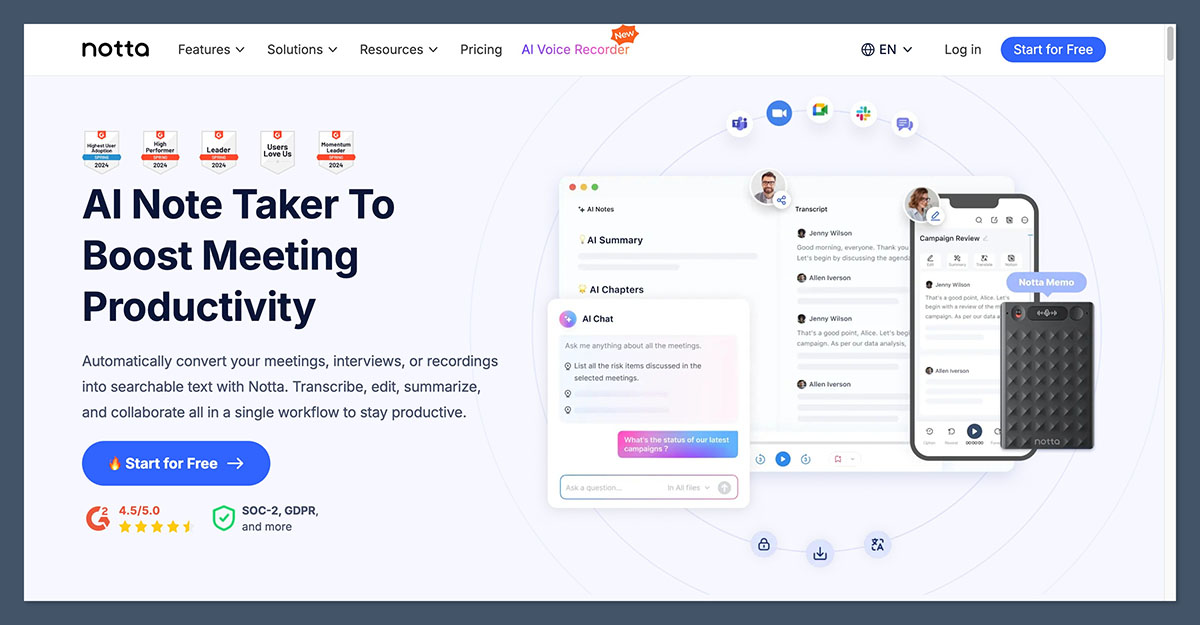
However, Read AI reaches advanced identity controls at a smaller seat minimum. Notta’s SAML SSO and admin activity logs sit on Enterprise, which starts at 51 seats.
Pros
- Two capture routes: Bot and Mac or Windows desktop recorder
- Pro allowance: 1,800 minutes monthly, up to 5 hours per recording
- Language workflow: Bilingual transcription
- Business connections: CRM and Zapier integration
Cons
- Restrictive free conversations: Just 3 minutes each
- Integration upgrade: CRM and Zapier require Business
- Enterprise threshold: 51 seats for SAML SSO and admin activity logs
What’s new with Notta?
Notta’s current Business tier combines unlimited transcription and web meeting video recording for $16.67/month (billed annually). That’s the relevant upgrade if Pro’s minute allowance or integration access becomes restrictive.
Enterprise adds SAML SSO and admin activity logs, but its 51-seat starting point changes the buying decision for small organizations. A low individual price doesn’t make the governed deployment equally inexpensive.
Notta advertises 40% savings with annual billing. Check the final commitment and selected plan rather than choosing solely from the discount headline.
Why use Notta in 2026?
Notta lets you evaluate both capture approaches for less than a third of Copilot’s $30 enterprise add-on. That’s useful when your meetings alternate between internal calls and client-hosted sessions.
One warning: the free plan isn’t a realistic full-meeting trial. Its 3-minute conversation limit suits checking the basic workflow, not judging how a complete planning meeting turns into useful notes.
I recommend Pro for individuals who need affordable capture flexibility. If centralized identity management is mandatory, compare Enterprise seat thresholds first, before comparing per-user subscription prices.
My Notta testing notes
My first Notta decision is bot or desktop recorder before the meeting. The bot depends on host admission; the desktop route depends on your device and permission to capture the discussion.
Both routes support the same service, but neither bypasses organizational policy. Tell participants when using local capture, particularly when you’re joining another company’s meeting as an external guest.
Our Notta review covers the broader product. My main caution for Teams buyers is monthly allowance versus meeting length: 120 free monthly minutes still come in conversations capped at 3 minutes.
How Much Does Notta Cost?
The figures below use annual billing. Pro and Business yearly totals reflect the quoted annual charge rather than multiplying rounded monthly figures; don’t treat the displayed monthly equivalent as a monthly cancellation option.
| Plan | Monthly price (billed annually) | Yearly total | What you get |
|---|---|---|---|
| Free | $0 | $0 | 120 min/month, 3 min/conversation, 10 AI summaries |
| Pro | $8.17 | $97.99 | 1,800 min/month, up to 5 hours/recording |
| Business | $16.67 | $199.99 | Unlimited transcription, CRM, Zapier, web meeting video |
| Enterprise | Custom | Custom | From 51 seats, SAML SSO, admin activity logs |
My recommendation: Start with Pro for affordable hybrid capture, not Free for complete meeting coverage.
Try Notta: Visit Notta
7. Jamie: Best for EU Data Residency
- Best for: EU-hosted notes across internal and external meetings
- Price from: Jamie Team $37/seat/month; Pro $46/month (billed annually)
- Free plan: 10 notes/month, 30-minute meeting limit
- Joins as bot: No
- Works in external meetings: Yes, through permitted device capture
Jamie is my recommendation for EU-hosted notes outside your Microsoft tenant because it combines bot-free capture with explicit data-handling commitments. Jamie says it hosts data in the EU, stores no audio, and doesn’t train models on your meetings.
However, Copilot offers EU Data Boundary coverage for eligible internal workflows. Jamie’s $46 individual Pro plan is harder to justify unless external or cross-platform meetings create the gap.
Pros
- Bot-free capture: No assistant waiting in a Teams lobby
- Privacy commitments: Jamie states EU hosting, no audio storage, and no training
- Broad coverage: Teams, Zoom, Google Meet, and in-person conversations
- Enterprise identity: SAML SSO and SCIM
Cons
- Individual cost: Pro is $46/month (billed annually)
- Free duration cap: 30 minutes per meeting
- Notice responsibility: Local capture doesn’t add an attendee to the roster
What’s new with Jamie?
Jamie’s current lineup includes Team at $37/seat/month (billed annually), below the individual Pro price. Enterprise adds contractual and administration features for organizational deployment.
Jamie highlights these Enterprise provisions:
- Identity management: SAML SSO and SCIM
- Contractual terms: Data processing agreements
- Security evidence: ISO 27001 documentation
- Financial-sector positioning: DORA alignment
However, DORA alignment isn’t blanket approval for your organization. Have the responsible team check whether Jamie’s terms meet your obligations before capturing regulated discussions.
Why use Jamie in 2026?
A note taker doesn’t inherit Microsoft’s regional commitments just because it captures Teams audio. Its own storage and processing arrangements matter once meeting content leaves Microsoft 365.
Jamie is my EU-hosting choice in this shortlist for external and cross-platform calls. It also avoids depending on the host’s bot-admission settings, which matters when a client controls the meeting.
But regional hosting and attendee consent solve different problems. EU-hosted local capture still needs an approved purpose and appropriate notice, particularly when another company hosts the discussion.
My Jamie testing notes
My first check is meeting duration on Jamie Free. Its 30-minute limit doesn’t cover a longer planning session, even if unused notes remain in the monthly allowance.
Because Jamie captures on your device, nothing joins the meeting to announce it. I recommend opening the call by explaining that you’re using AI notes and confirming that the host permits capture.
Jamie advertises 99+ languages, but I recommend checking your actual working languages before committing annually. Language count alone doesn’t establish whether technical terminology will appear correctly in your recap.
How Much Does Jamie Cost?
Jamie’s Team price is per seat, while Pro is the individual plan. Both figures below require annual billing, so compare the full commitment with your expected external-meeting use.
| Plan | Monthly price (billed annually) | What you get |
|---|---|---|
| Free | $0 | 10 AI notes/month, 30-minute meeting limit |
| Pro | $46 | Individual plan |
| Team | $37 per seat | Team workspace |
| Enterprise | Custom | SAML SSO, SCIM, DPAs, ISO 27001 documentation |
The verdict: Choose Jamie when EU hosting and external-meeting coverage justify its premium, not simply because you want bot-free notes.
Try Jamie: Visit Jamie
How Do I Choose the Right AI Note Taker for Microsoft Teams?
Start with who hosts your meetings. Copilot or Teams Premium suits internal calls; client-hosted meetings need another route, governed by the client’s policies.
For remote and distributed teams, approved bot-free capture can fill that gap. Before buying, ask:
- Bot access: Will IT permit a bot?
- Meeting ownership: Do other organizations host most calls?
- Storage: Will transcripts stay in Microsoft 365 or a vendor’s cloud?
- Training: Is model training enabled, and can I opt out?
- Administration: Which plan and seat minimum unlock SSO and SCIM?
- Consent: How will attendees know capture is happening?
Configure Teams access before rollout:
- External bots: Open Teams admin center > Meetings > Meeting policies > Meeting join and lobby > Manage external bots and their access to meetings. Keep approval required, or enable automatic blocking where available. Blocking is off by default; organizers can mark misclassified participants “This is not a bot.”
- Lobby admission: Limit admission to organizers and co-organizers rather than allowing presenters to admit assistants.
- Apps: Use Teams apps > Permission policies, or app-centric management where enabled. Blocking an app doesn’t necessarily stop a calendar-driven guest bot.
- Copilot and transcription: Check both policies. “During and after” needs a permitted participant to start transcription.
- Consent: Explicit recording consent is off by default and covers Teams-native recording and transcription, not vendor bots or local capture.
One-party consent rules don’t settle every participant’s legal or organizational requirements. Explain your use of AI notes at the start.
Can I Switch AI Note Takers Without Losing My Meeting History?
Native recordings remain in OneDrive or SharePoint, subject to retention policies. However, switching vendor workspaces isn’t painless: export what you need before cancelling, especially with Granola’s 30-day free history or Otter’s 25 recent free conversations.
For a clean exit:
- Turn off auto-join in the old tool
- Revoke calendar access in your Microsoft account
- Remove the Teams app or extension
- Ask IT to remove persistent access if the assistant keeps returning
Changing subscriptions doesn’t migrate your meeting history or automatically disconnect the old assistant.
How We Test and Rank the Best AI Note Takers for Teams
Teams access carries the most weight because a useful summary cannot compensate for missing the meeting. Our ranking narrows 15 candidates to seven picks covering distinct Microsoft 365 workflows.
I assess native, bot, and device capture separately. Internal meetings and client-hosted calls have different access requirements, so the ranking doesn’t assume one capture method suits every reader.
Our framework uses these weights:
- Teams fit and admin control (30%): We assess capture routes, lobby dependencies, bot detection, and administrator controls
- Notes and recap quality (25%): We assess summary structure, action items, speaker labels, and search
- Privacy, consent, and data handling (20%): We examine storage locations, training defaults, attendee notice, and vendor security commitments
- Price per seat (15%): We compare billing terms, free allowances, and minimum purchases for administration features
- Platform coverage (10%): We consider Windows and Mac support, Teams desktop versus browser workflows, and mobile availability
Prices current as of October 2026.
Fritz.ai doesn’t sell a note taker. Most rankings for this search are written by note-taker vendors that put their own product first. Ours names the weaknesses of every pick, including Copilot.
My recommendation remains Copilot for internal meetings and Granola for approved client-call capture. Check vendor commitments against your organization’s contract and configuration before deployment, particularly when regional storage or retention requirements determine the purchase.
Final Verdict: Which AI Note Taker Do I Recommend?
Microsoft 365 Copilot is my first choice for internal Teams meetings because it avoids bot admission and keeps native meeting content in Microsoft 365. For client-hosted calls, choose Granola, or Jamie when EU hosting is mandatory.
For cheaper options, Teams Premium costs $10/user/month for native recaps, while Notta Pro offers hybrid capture at $8.17/month, both billed annually. They solve different problems: recap inside Teams versus capture across meeting hosts.
Whichever you pick, approve the capture route before buying seats. Ask IT which storage locations it permits, then try the matching tool’s free plan or available trial. Our broader AI meeting tools guide covers other workflows. Test with the hosts and devices you actually use, not just an internal call where every assistant is welcome.
FAQs
Can Microsoft 365 Copilot take notes in a Teams meeting hosted by another company?
No. Microsoft says Copilot doesn’t work in externally hosted meetings, even when the participant has a Copilot license.
Granola or Jamie can capture from your device when the host and your organization permit it. Tell attendees before starting, rather than assuming your invitation grants recording permission. A bot-based alternative may also work, but the host’s tenant controls admission, not your own Teams administrator.
How do I stop AI note taker bots from joining my Teams meetings?
Keep “Manage external bots and their access to meetings” set to require approval, or enable automatic blocking where available. Restrict lobby admission to organizers and co-organizers, and block unapproved vendor apps through the applicable app controls.
Users should also disable auto-join and revoke calendar access. App blocking alone isn’t sufficient for a bot joining as a guest through a calendar link, and ejecting it doesn’t remove future calendar access.
Do bot-free AI note takers tell other participants they’re recording?
Not necessarily. Local capture doesn’t add a participant to the Teams roster, and Teams’ explicit recording-consent policy covers only native recording and transcription.
Tell attendees directly rather than assuming Teams will announce it. Granola recommends disclosure and offers enforceable notice on Enterprise at $35/user/month, with the billing term unspecified. Check the tool’s actual notification settings before capturing a client call; the absence of a bot isn’t evidence of consent.
Is there a cheaper native alternative to Microsoft 365 Copilot for meeting recaps?
Yes. Teams Premium costs $10/user/month (billed annually) and includes intelligent recap without a Copilot license. Its features include AI notes, chapters, and a personalized timeline.
However, it doesn’t provide Copilot’s free-form meeting questions. Choose it when your priority is reviewing a meeting afterward rather than interacting with an assistant. Free Copilot Chat isn’t a substitute, because it doesn’t read meeting transcripts.

Comments 0 Responses