

Best all-in-one assistant
Fyxer
Visit Website →Free plan; Pro $37/user/month (annual)
- Labels and drafts inside Gmail or Outlook
- Meeting notes with follow-up emails
- 14-day free Pro trial
Best for follow-ups

Superhuman
Visit Website →From about $25/user/month (annual)
- Reminders with ready-to-edit drafts
- Works with Gmail and Outlook accounts
- Auto Drafts on the Business plan
Best built-in for Gmail

Gemini in Gmail
Visit Website →Workspace from $7/user/month
- Help me write and Suggested Replies
- Thread summaries inside Gmail
- No extra charge on Workspace plans
Based on our testing of 16 AI email assistants, Fyxer is the best AI email assistant for small teams using Gmail or Outlook. It sorts mail, drafts replies in your tone, and turns meetings into follow-up emails without sending for you.
That said, Gemini in Gmail and Copilot Chat in Outlook may already cover writing through your business subscription. Neither automatically labels messages or chases unanswered threads, so they won’t suit every inbox.
In this guide, I’ll walk you through what each assistant changes in your inbox, which plan you’ll need, and the drawbacks to consider. That way, you can see where the limitations outweigh the benefits.
Key Takeaways
- Fyxer leads for inbox labels, personalized drafts and meeting follow-ups inside Gmail or Outlook
- Spark Plus is our cheapest paid standalone pick; Workspace subscribers already get Gemini in Gmail
- Gemini and Copilot Chat cover requested writing, but not proactive reply drafting
- Shortwave is Gmail-only; Fyxer, Superhuman, Serif, Spark and Lindy support Gmail and Outlook
- Choose Superhuman Business for automatic reminders and follow-up drafts on unanswered threads
At Fritz.ai, we put triage and draft quality first, followed by client compatibility and privacy. We also weigh price, follow-up automation and user feedback, and I’ve explained the full weighting below.
I connected our top picks to a real Gmail or Outlook inbox to see how they sort mail, prepare replies and handle follow-ups. I’ve kept requested writing help separate from proactive assistance, because they solve different problems.
For me, the starting point is your email account and the job you need done. A cheaper writing assistant won’t replace automatic triage, while an automation platform adds unnecessary setup if you only need better replies.
See Our Best AI Email Assistants
Your main email job is the easiest way to narrow down the list. You can jump straight to the matching pick below:
- Fyxer: Best All-in-One Assistant for existing inboxes
- Superhuman: Best for Follow-Ups on unanswered threads
- Gemini in Gmail: Best Built-In for Gmail
- Microsoft 365 Copilot in Outlook: Best Built-In for Outlook
- Serif: Best Voice Matching for client replies
- Shortwave: Best AI Inbox Search for Gmail
- Spark: Best Budget Pick across accounts
- Lindy: Best for Email Automation across apps
AI Email Assistant Comparison Table
I’d check Works with before comparing prices, then look for the plan that includes your must-have feature. The cheapest seat doesn’t always include proactive drafting: Superhuman requires Business, while Spark reserves Auto-Drafts for Pro and rolls them out desktop first.
| Tool | Best for | Works with | Starting price | Free plan or free trial | Drafts replies before you open an email |
|---|---|---|---|---|---|
| Fyxer | All-in-one assistant | Gmail and Outlook | $37/user/month (billed annually) | Free plan + 14-day Pro trial | Yes (Pro and Team) |
| Superhuman | Follow-ups | Gmail and Outlook (own app) | From about $25/user/month (billed annually) | Check current offer | Yes (Business) |
| Gemini in Gmail | Built-in for Gmail | Gmail | Workspace from $7/user/month (annual commitment, billed monthly) | 14-day Workspace trial; basic personal Gmail features free | No (suggested replies only) |
| Microsoft 365 Copilot in Outlook | Built-in for Outlook | Outlook (Microsoft 365) | Chat $0 extra with eligible business plans; add-on $21/user/month (billed annually) | Copilot Chat included | No |
| Serif | Voice matching | Gmail and Outlook | $30/month (billed monthly) | Free tier + 7-day trial | Yes |
| Shortwave | AI inbox search | Gmail only (own app) | $30/user/month (billed monthly) | 14-day trial | Yes (via Tasklet automation) |
| Spark | Budget | Gmail, Outlook and IMAP (own app) | Free; Plus $8.25/user/month (billed annually) | Free plan | Yes (Pro, desktop first) |
| Lindy | Email automation | Gmail and Outlook | From $49.99/user/month | $50 in free credits for 7 days | Yes (sending needs approval) |
1. Fyxer: Best All-in-One Assistant
- Best for: Small teams keeping their existing inbox
- Price from: $37/user/month (billed annually)
- Free plan or trial: Free plan; 14-day Pro trial
- Works with: Gmail and Outlook
- Standout AI feature: Labels, personalized drafts and meeting follow-ups
Fyxer is the best all-in-one assistant I’ve tested because it sorts mail and drafts replies inside your existing inbox. Plus, its follow-up list keeps unanswered conversations visible.
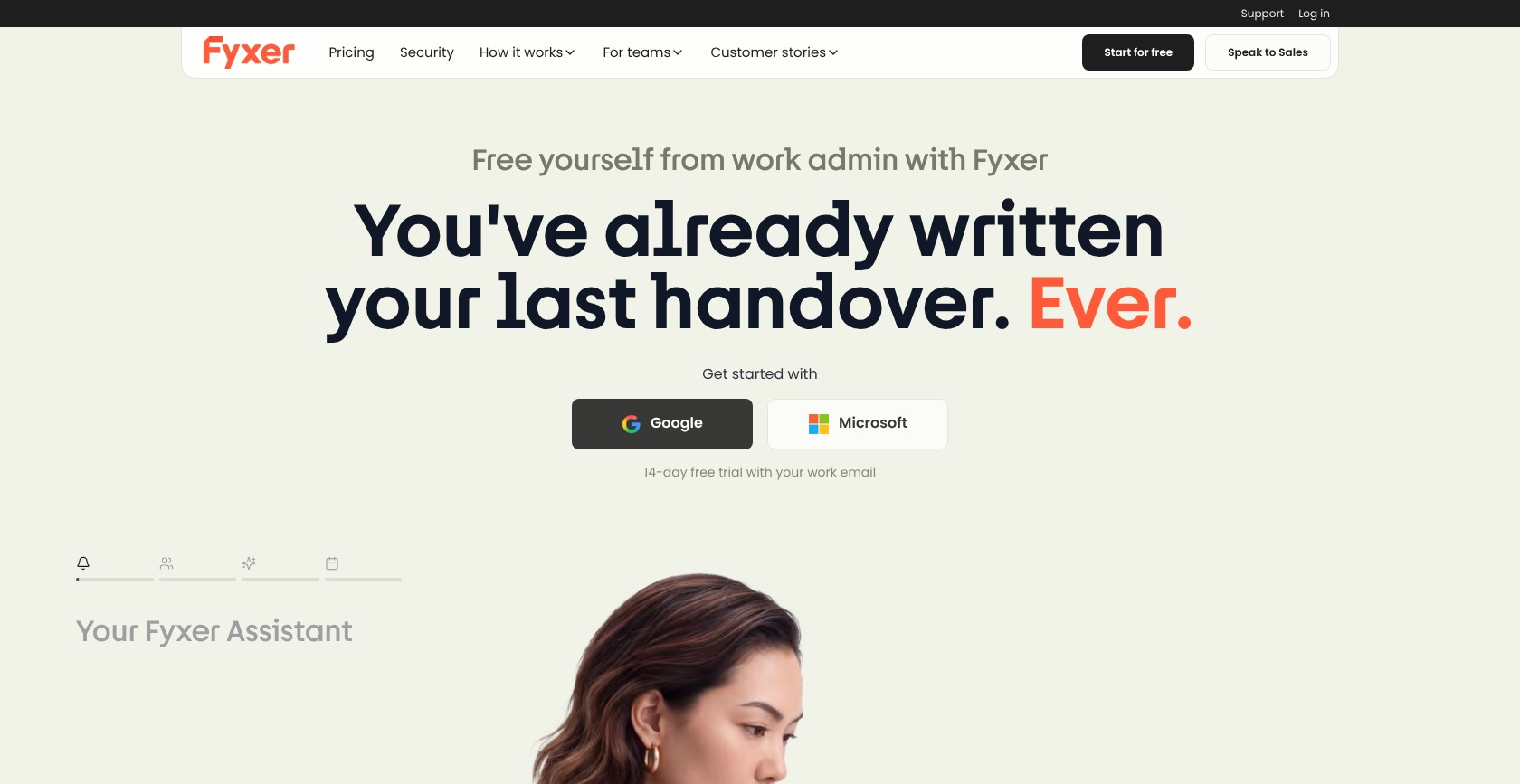
While Gemini already covers occasional writing help for Workspace subscribers, Fyxer does more to keep your inbox in order. For me, sorting mail and handling meeting follow-ups justify its extra seat fee, not simply generating text.
Pros
- Existing Gmail and Outlook interface
- Inbox labels and personalized drafts
- Google Meet and Teams follow-ups
Cons
- Paid-only sorting and drafting
- Credit-metered sorting after the launch offer
- Trial and extra-seat billing complaints
What’s new with Fyxer?
Fyxer added Flows and Spaces in 2026 for automated routines and shared project context. Its current plans use monthly credits instead of the older Starter and Professional structure. I’d watch your credit use during the introductory unlimited-credit offer before deciding whether the ongoing cost works for you.
Why use Fyxer in 2026?
Fyxer connects meeting notes with follow-up emails, so you can move decisions from a call recap into your inbox. If recording is your main priority, I’d compare dedicated AI meeting tools instead. Fyxer says it never sends on your behalf, but you’ll still need to check what its drafts promise.
My Fyxer testing notes
I could keep working in my existing inbox while Fyxer applied labels and left drafts for review. I edited those replies before sending, rather than approving an automatic send routine. Our Fyxer review walks through the inbox experience in more detail. Users flag unintended commitments in drafts, so make sure you check responsibilities and promised dates or prices.
How Much Does Fyxer Cost?
You’ll need Pro for email assistance, while Free covers meeting notes and a weekly briefing instead. Team gives you pooled credits, but I’d skip paid Fyxer if occasional writing help is all you need. Before inviting colleagues, check trial cancellation and seat settings, especially if you’re only trying the tool out.
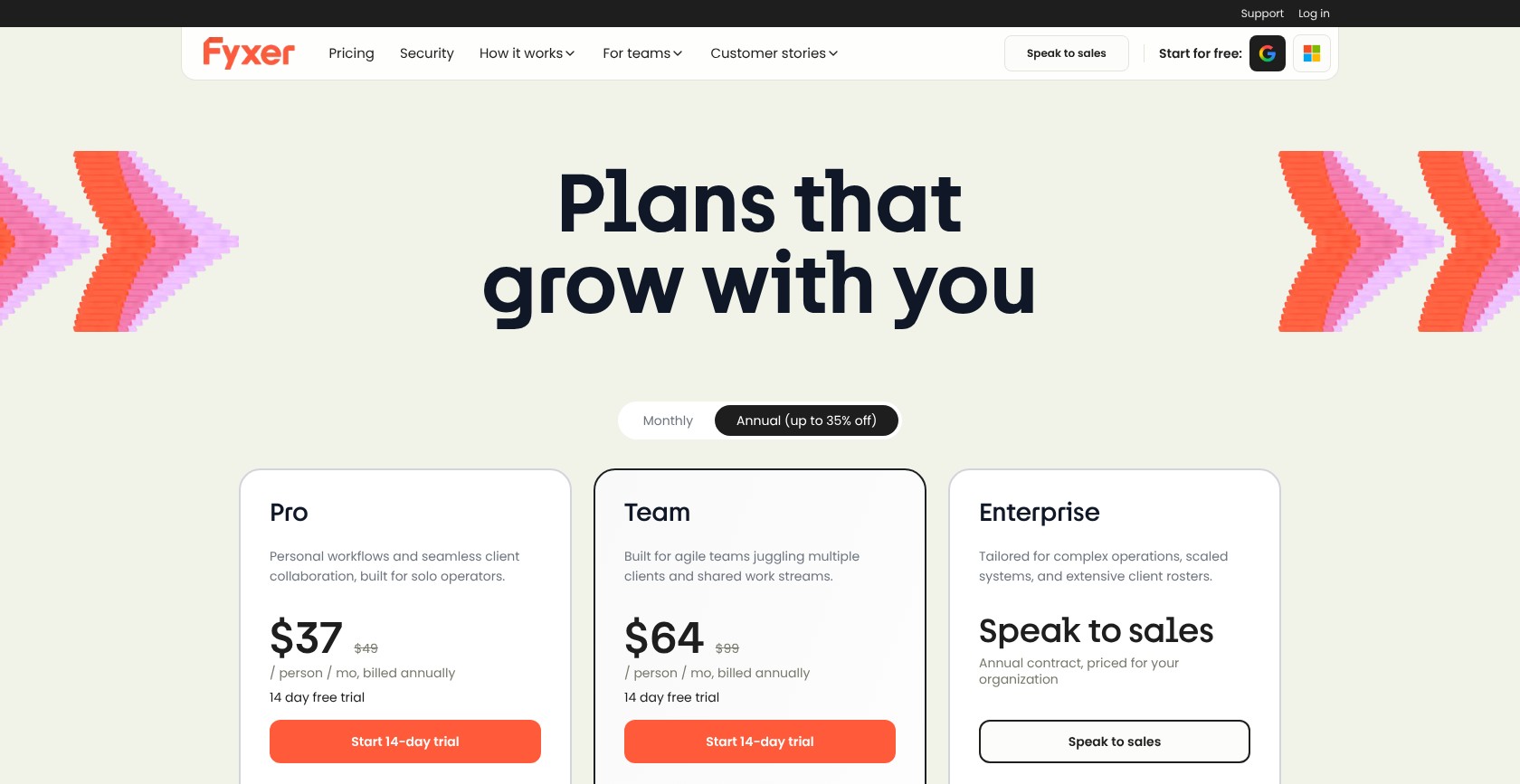
| Plan | Monthly price/user (billed annually) | Monthly price/user (billed monthly) | Free trial | AI drafts and sorting |
|---|---|---|---|---|
| Free | $0 | $0 | Free plan | No |
| Pro | $37 | $49 | 14 days | Yes |
| Team | $64 | $99 | 14 days | Yes, pooled credits |
| Enterprise | Custom | Custom | Ask sales | Yes |
Try Fyxer: Visit Fyxer
2. Superhuman: Best for Follow-Ups
- Best for: Chasing unanswered conversations
- Price from: About $25/user/month (billed annually)
- Free plan or trial: Check current offer
- Works with: Gmail and Outlook (own app)
- Standout AI feature: Auto Reminders and follow-up Auto Drafts
For chasing replies, Superhuman comes out on top because Superhuman Mail pairs reminders with ready-to-edit drafts. It also prepares responses to incoming messages that need your attention.
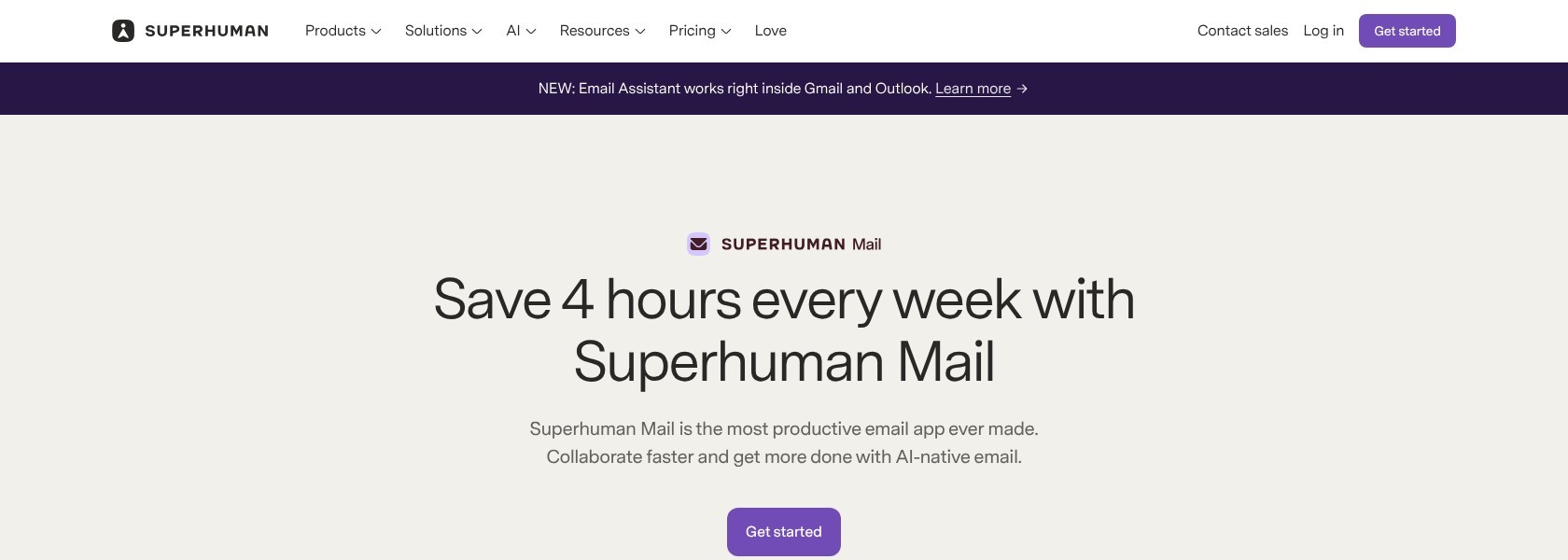
The catch is that Auto Drafts and Ask AI require Business, and you’ll need to switch interfaces. Spark Pro offers automatic reply drafts for less, although its desktop-first rollout limits where you can use them.
Pros
- Automatic reminders and follow-up drafts
- Keyboard-first email workflow
- Gmail and Microsoft 365 support
Cons
- Business-only Auto Drafts and Ask AI
- Replacement interface and shortcut learning curve
- Response Auto Drafts disabling Instant Reply
What’s new with Superhuman?
Grammarly renamed its company Superhuman in October 2025, bringing Mail into a broader set of productivity tools. Superhuman Mail for Outlook now includes Auto Labels and Auto Archive, alongside drafts and reminders. Microsoft 365 teams get those inbox-management features, but you’ll still need to move into Superhuman’s app to use them.
Why use Superhuman in 2026?
I’d choose Superhuman when remembering to follow up is harder than writing the email itself. Reminders bring quiet conversations back, while drafts give you something to review straight away. People who spend much of their day in email value its speed, but I’d choose something cheaper for occasional writing help.
My Superhuman testing notes
I could review follow-up drafts on conversations awaiting a reply, then edit them before sending anything. Automatic drafting left sending in my hands, which is how I prefer to work. Superhuman cautions that early drafts may not fully match your style, so make sure you allow for that adjustment before judging voice matching.
How Much Does Superhuman Cost?
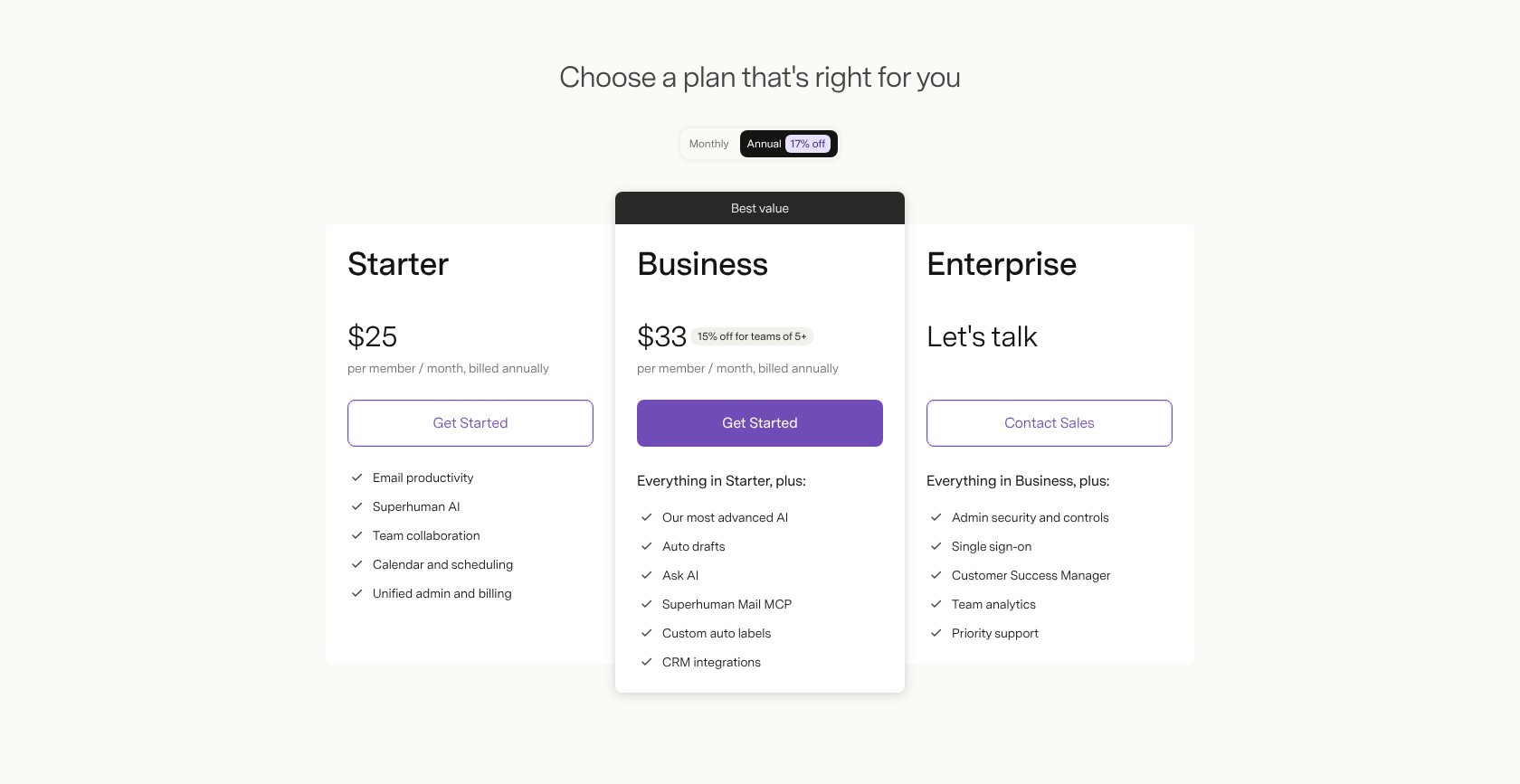
You’ll need Business for proactive drafting, rather than Starter. If searching old conversations matters more than chasing replies and everyone uses Gmail, I’d compare Shortwave instead. Before moving your team, check the current trial offer and whether Superhuman’s keyboard-focused interface suits how you already handle email.
| Plan | Monthly price/user (billed annually) | Monthly price/user (billed monthly) | Auto Drafts and Ask AI |
|---|---|---|---|
| Starter | About $25 | About $30 | No |
| Business | About $33 | About $40 | Yes |
| Enterprise | Custom | Custom | Yes |
Try Superhuman: Visit Superhuman
3. Gemini in Gmail: Best Built-In for Gmail
- Best for: Workspace teams avoiding another subscription
- Price from: Workspace at $7/user/month (annual commitment, billed monthly)
- Free plan or trial: Personal Gmail features; 14-day Workspace trial
- Works with: Gmail
- Standout AI feature: Help me write and side-panel assistance
Gemini in Gmail is the built-in option I’d try first, since every Workspace Business plan includes Gmail AI assistance. You can draft and summarize without giving another email vendor access to your mailbox.
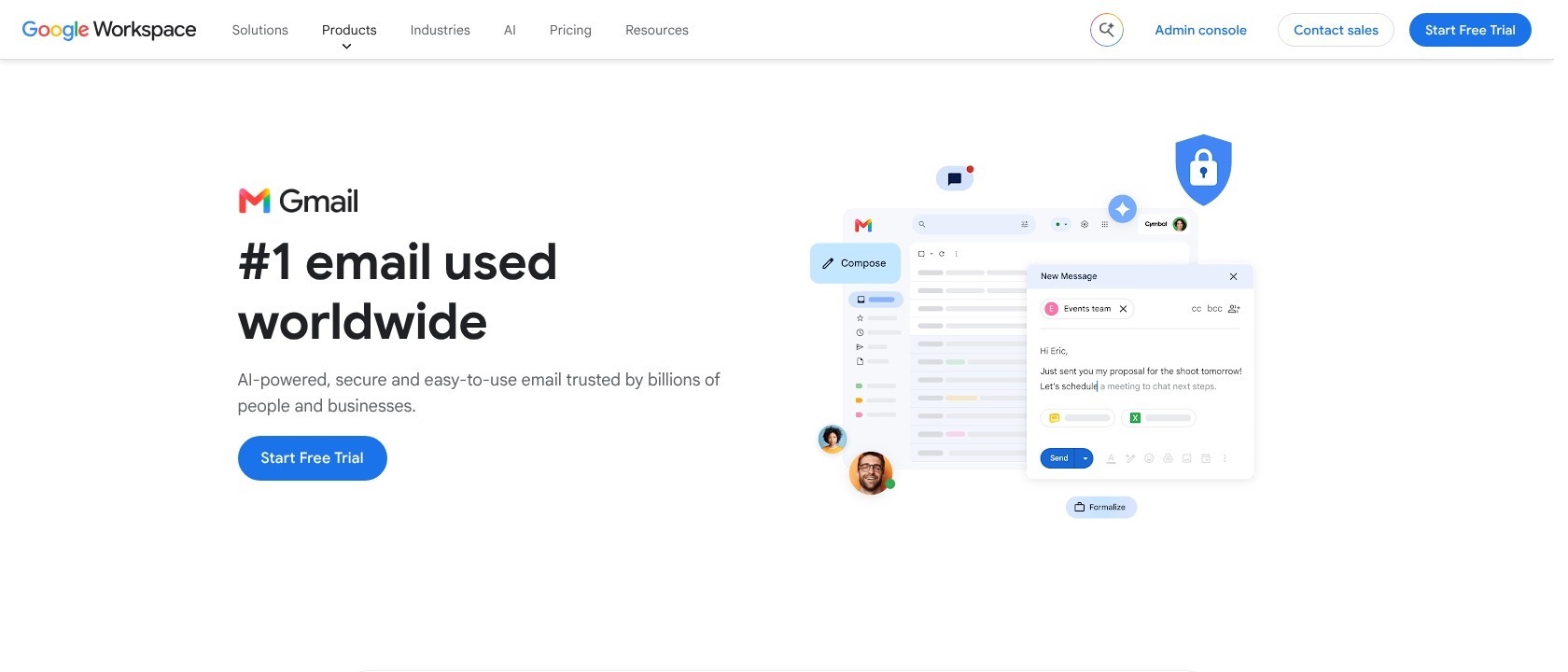
That said, Fyxer adds automatic labels and waiting drafts, which you don’t get here. Gemini is a good starting point for writing help, but I wouldn’t choose it to reorganize an overloaded inbox.
Pros
- Gmail AI included in Workspace Business
- Writing, summaries and side-panel assistance
- Workspace admin controls and data protections
Cons
- Gmail-only availability
- No automatic labeling or follow-up chasing
- Staged availability of newer features
What’s new with Gemini in Gmail?
Google included Gemini in Workspace plans in January 2025, so you no longer needed to buy a separate add-on. In 2026, Help me write and Suggested Replies became free in personal Gmail, alongside conversation summaries. AI Inbox began rolling out to Workspace in stages in October, initially in US English.
Why use Gemini in Gmail in 2026?
For Workspace teams, I’d try the included assistant before paying twice for basic drafting. Google says Workspace interactions stay within your business, which makes choosing a vendor simpler. That said, you shouldn’t assume those business protections apply in exactly the same way to personal Gmail accounts.
My Gemini in Gmail testing notes
I used Help me write to draft from a prompt, then worked through thread context with the side panel. Full replies needed my request, rather than waiting for me automatically. That’s an important difference when mail piles up, so make sure you pair Gemini with Gmail filters or Fyxer if volume is the problem.
Top Tip! Try Gemini on the replies you already write before buying another AI email writing assistant.
How Much Does Gemini in Gmail Cost?
These prices pay for your Workspace seat, rather than an extra Gemini charge on top. New customers can get introductory discounts, so it’s worth checking your eligibility before committing. Personal Gmail includes basic writing features, but deeper inbox Q&A needs Google AI Pro or Ultra rather than the free account alone.
| Plan | Monthly price/user (annual commitment, billed monthly) | Intro price for new customers | Gemini in Gmail |
|---|---|---|---|
| Personal Gmail | $0 | Not applicable | Help me write, Suggested Replies, summaries |
| Business Starter | $7 | $3.50 | Yes |
| Business Standard | $14 | $7 | Yes, plus Gemini in Docs and Meet |
| Business Plus | $22 | $11 | Yes, plus Gemini in Docs and Meet |
Try Gemini in Gmail: Visit Gemini in Gmail
4. Microsoft 365 Copilot in Outlook: Best Built-In for Outlook
- Best for: Microsoft 365 teams
- Price from: Included Chat; add-on $21/user/month (billed annually)
- Free plan or trial: Chat included with eligible business plans
- Works with: Outlook work or school accounts
- Standout AI feature: Inbox and calendar questions within Outlook
For eligible business users, Microsoft 365 Copilot in Outlook makes sense because Copilot Chat doesn’t need an additional license. The paid add-on brings in company-data context and helps prioritize unread mail.
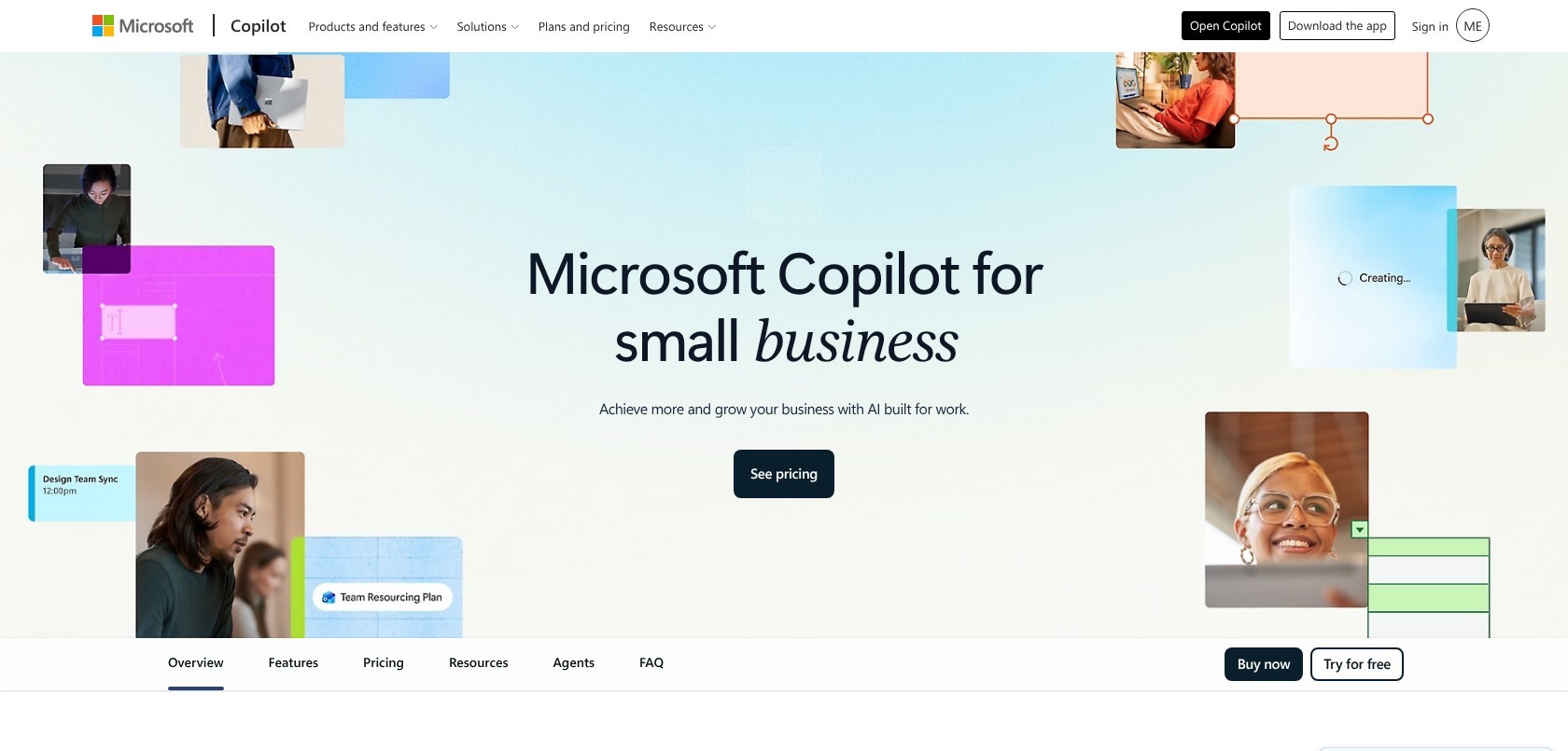
On the downside, neither leaves proactive reply drafts waiting in the way Fyxer or Serif does. Included Chat responds when you ask for help, rather than automatically keeping your inbox in order.
Pros
- Included Chat for eligible accounts
- Paid prioritization and company-data context
- Existing Microsoft 365 administrative controls
Cons
- Additional license for full Copilot
- No proactive reply drafts
- Owner-only Outlook Copilot on Family
What’s new with Microsoft 365 Copilot?
In April 2026, Microsoft removed unlicensed in-app Copilot Chat from several Office apps but kept it in Outlook. The interface separates Copilot Chat from paid M365 Copilot, so you can tell them apart. The Business add-on discount runs through December, but it requires an annual commitment and only applies to the first year.
Why use Microsoft 365 Copilot in 2026?
Copilot Chat gives Outlook teams a no-extra-cost starting point for summaries and updates you ask it to draft. I’d consider the paid add-on when you also need context from Teams conversations and documents. For occasional replies alone, I find it harder to justify paying when Chat is already included.
My Microsoft 365 Copilot testing notes
I asked Copilot Chat to summarize inbox context and help draft an update without connecting another assistant to my account. I still had to ask for help, with no free-tier automatic sorting or prioritization. That suits individual questions rather than ongoing triage, so make sure you try Chat before buying the add-on for everyone.
How Much Does Microsoft 365 Copilot Cost?
The Business add-on needs an eligible subscription, while the Premium bundle includes the underlying plan. I’d check what your purchase includes before comparing its price with a standalone assistant. Consumer Family is separate, and sharing that subscription doesn’t give everyone access to its Outlook Copilot features.
The discounted add-on requires an annual commitment and applies to the first year, not trials. I’d budget for the regular renewal rate, rather than count on keeping the offer price.
| Plan | Price (billed annually) | Monthly price (billed monthly) | Copilot in Outlook |
|---|---|---|---|
| Copilot Chat with eligible business plan | $0 extra | $0 extra | Inbox, calendar and meeting chat |
| Copilot Business add-on, up to 300 users | $21/user/month; $18 first-year offer through Dec 31, 2026 | About $25.20/user | Full Copilot and unread-mail prioritization |
| Business Premium with Copilot | $32/user/month | $38.40/user | Full Copilot bundle |
| Microsoft 365 Family | $129.99/year | Check current offer | Subscription owner only |
Try Microsoft 365 Copilot: Visit Microsoft 365 Copilot
5. Serif: Best Voice Matching
- Best for: Client-facing replies in your style
- Price from: $30/month (billed monthly)
- Free plan or trial: Free tier; 7-day trial
- Works with: Gmail and Outlook
- Standout AI feature: True Voice on Standard and above
Serif stands out for voice matching because True Voice focuses on how you write. Plus, replies stay as drafts inside Gmail or Outlook, so you keep your existing inbox.
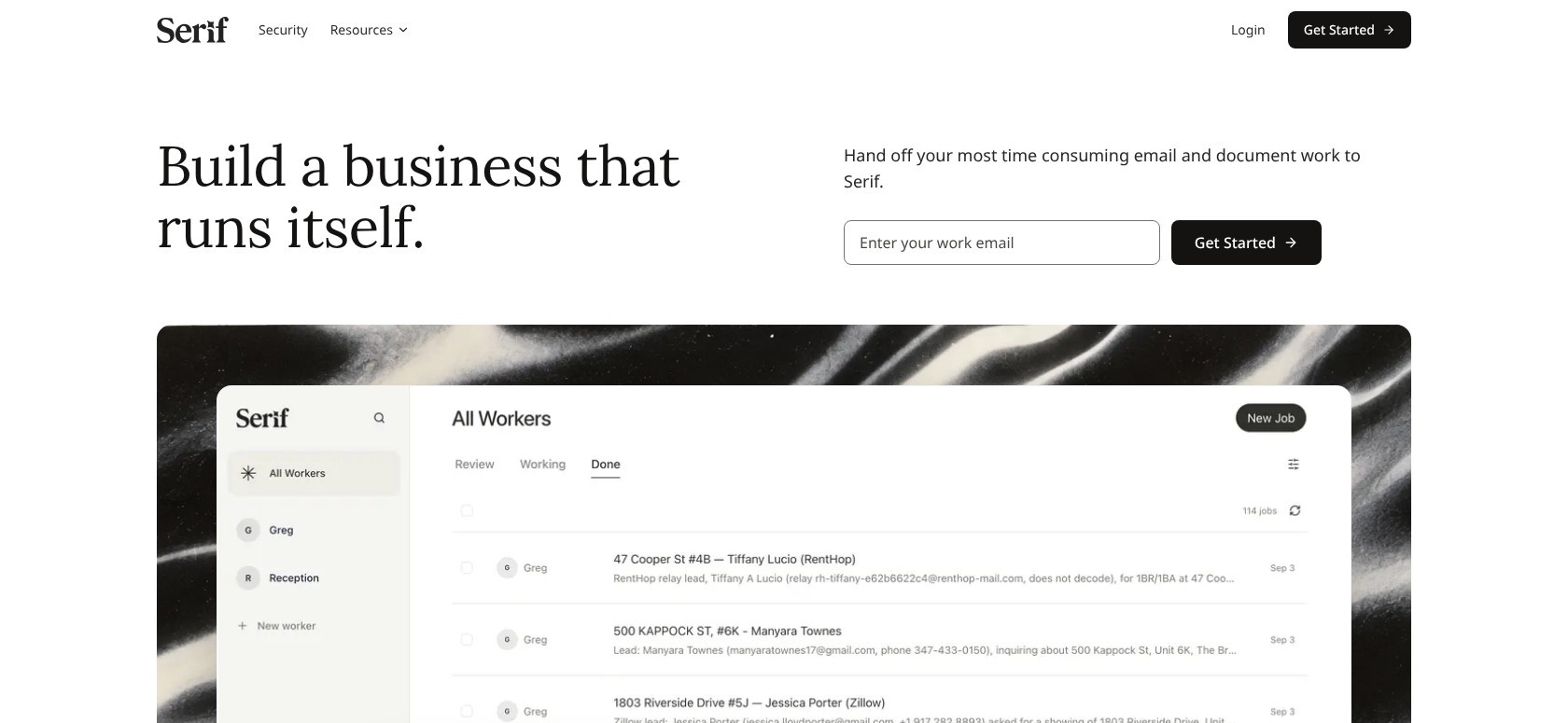
The catch is that True Voice starts on Standard, which costs more than Fyxer Pro with annual billing. I prefer Fyxer if meeting follow-ups matter more to you than personalized phrasing.
Pros
- True Voice personalization
- Draft-only replies in your existing inbox
- Serif-stated SOC 2 Type II and CASA Tier 2 status
Cons
- Standard requirement for True Voice
- Monthly billing without an advertised annual discount
- Usage allowances expressed as plan multiples
What’s new with Serif?
Serif’s current lineup goes beyond drafting, with a meeting recorder and task manager also available. Its knowledge base adds reusable context, while Team includes pooled usage and shared playbooks. I’d choose those collaboration features because you need them, rather than upgrade just because the package includes more tools.
Why use Serif in 2026?
For me, Serif makes sense when the tone of client replies matters as much as getting a draft quickly. True Voice helps personalize your writing, but it can’t guarantee that a reply gets the facts right. Serif says it neither stores emails on its servers nor uses them to train general AI models.
My Serif testing notes
Serif’s replies appeared as drafts in my inbox, leaving sending under my control throughout. Lite doesn’t include True Voice, so the entry plan won’t let you test its main selling point. Our Serif review takes a closer look at the drafting workflow. Usage multiples make it harder to judge how much you’ll need, so make sure you watch your usage during the trial.
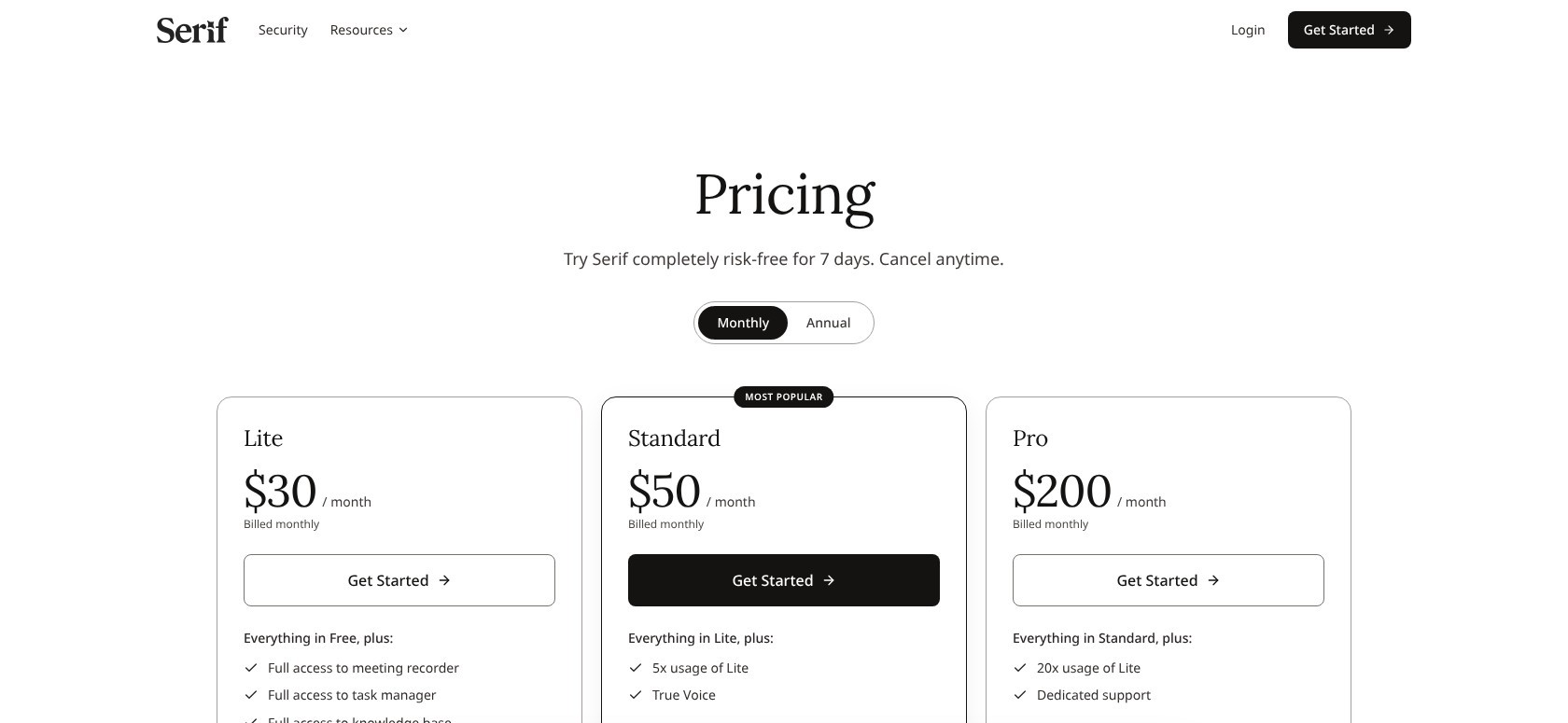
How Much Does Serif Cost?
You’ll need Standard for True Voice, while Lite suits simpler drafting. If clients notice generic phrasing, I’d compare Standard’s drafts with your own writing before paying for a larger allowance. For teams, weigh pooled usage and shared playbooks against the extra seats, rather than assume a higher tier makes every reply better.
| Plan | Monthly price (billed monthly) | Best for | True Voice |
|---|---|---|---|
| Free | $0 | Check current offer | No |
| Lite | $30 | Light solo use | No |
| Standard | $50 | Solo professionals; 5x Lite usage | Yes |
| Pro | $200 | Heavy use | Yes |
| Team | $50/user | Pooled usage and shared playbooks | Yes |
| Enterprise | Custom | Larger organizations | Yes |
Try Serif: Visit Serif
6. Shortwave: Best AI Inbox Search
- Best for: Finding answers in old email
- Price from: $30/user/month (billed monthly)
- Free plan or trial: 14-day trial
- Works with: Gmail and Google Workspace (own app)
- Standout AI feature: Mailbox-history search and prompt-based filters
I’d choose Shortwave for search because its assistant combines questions about mailbox history with summaries and drafting. Its AI filters also turn plain-language instructions into rules for labeling or archiving mail.
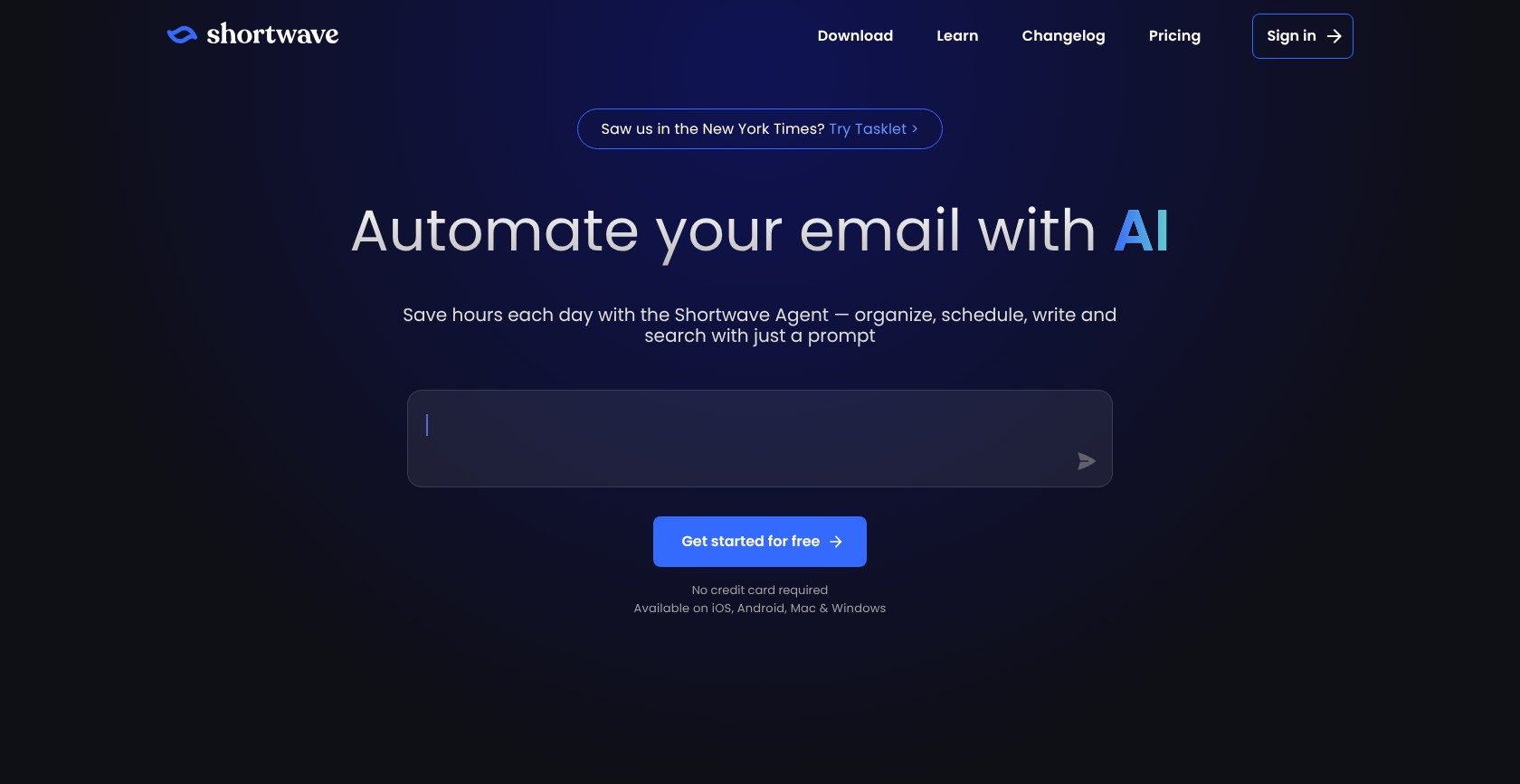
On the downside, Microsoft 365 and Exchange aren’t supported, which rules it out for some teams. Superhuman is the better alternative for mixed Gmail and Outlook teams, particularly if managing follow-ups matters most.
Pros
- AI search across Gmail history
- Prompt-based labeling and archiving filters
- Tasklet integration for automated drafts
Cons
- No Microsoft 365 or Exchange support
- Monthly-only billing
- Plan-based AI usage and filter limits
What’s new with Shortwave?
Shortwave added Tasklet integration in January 2026, so automated draft workflows can run beyond an open inbox session. It upgraded models to the Claude 4.6 family in February. Annual billing disappeared in mid-2026, so older annual discounts won’t give you a useful comparison with today’s prices.
Why use Shortwave in 2026?
Shortwave suits teams that use email as a searchable record of decisions, rather than just a queue of new messages. Its assistant finds context, while AI filters help keep incoming mail organized. Tasklet adds automation, but you’ll still need to review an agent’s permissions and actions before connecting it.
My Shortwave testing notes
I asked the assistant questions about mailbox history and described an AI filter in ordinary language. The filter used my instruction to organize mail, rather than needing a conventional keyword rule. Account compatibility is still the deciding factor, so make sure every teammate connecting to Shortwave uses Gmail or Google Workspace.
How Much Does Shortwave Cost?
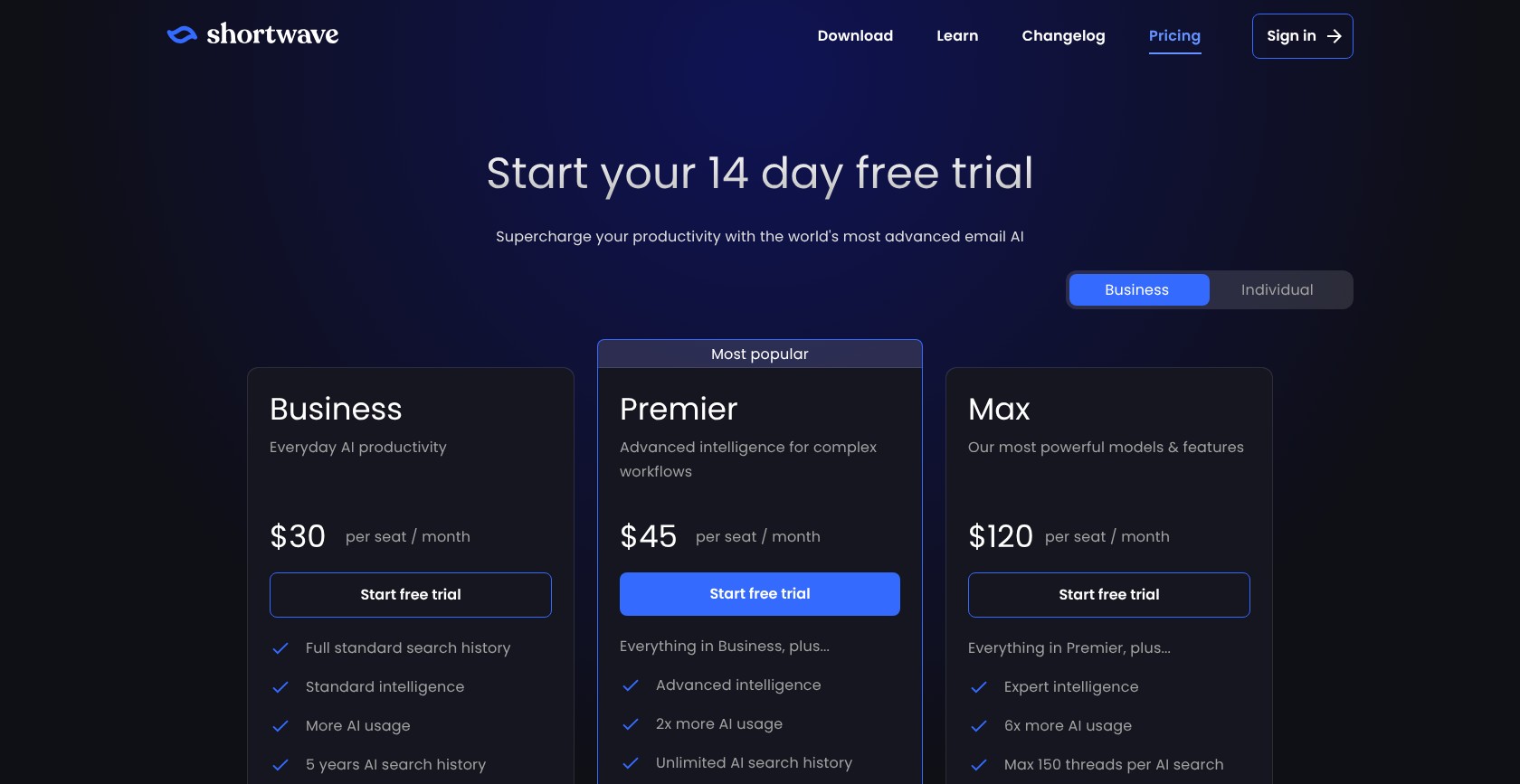
All plans include a trial, but search history and usage allowances vary between them. I’d start with Business unless you need older messages, since Premier removes the history limit without requiring Max. Before upgrading for a larger allowance, compare the filter limit with the rules you actually need to organize your mail.
I’d choose Shortwave over Gemini if searching and organizing email is central to your daily work. It’s a different need from asking the occasional question about a thread.
| Plan | Monthly price/user (billed monthly) | AI search history | AI filters | AI usage |
|---|---|---|---|---|
| Business | $30 | 5 years | 3 | Standard |
| Premier | $45 | Unlimited | 10 | 2x |
| Max | $120 | Unlimited | 50 | 6x |
Try Shortwave: Visit Shortwave
7. Spark: Best Budget Pick
- Best for: Freelancers managing several accounts
- Price from: Free; Plus $8.25/user/month (billed annually)
- Free plan or trial: Free plan
- Works with: Gmail, Outlook and any IMAP account (own app)
- Standout AI feature: Spark +AI; Auto-Drafts on Pro
Spark is our best budget option because Free supports unlimited accounts, while Plus adds lower-priced AI assistance. You also get Smart Inbox to help organize your mail before you upgrade.
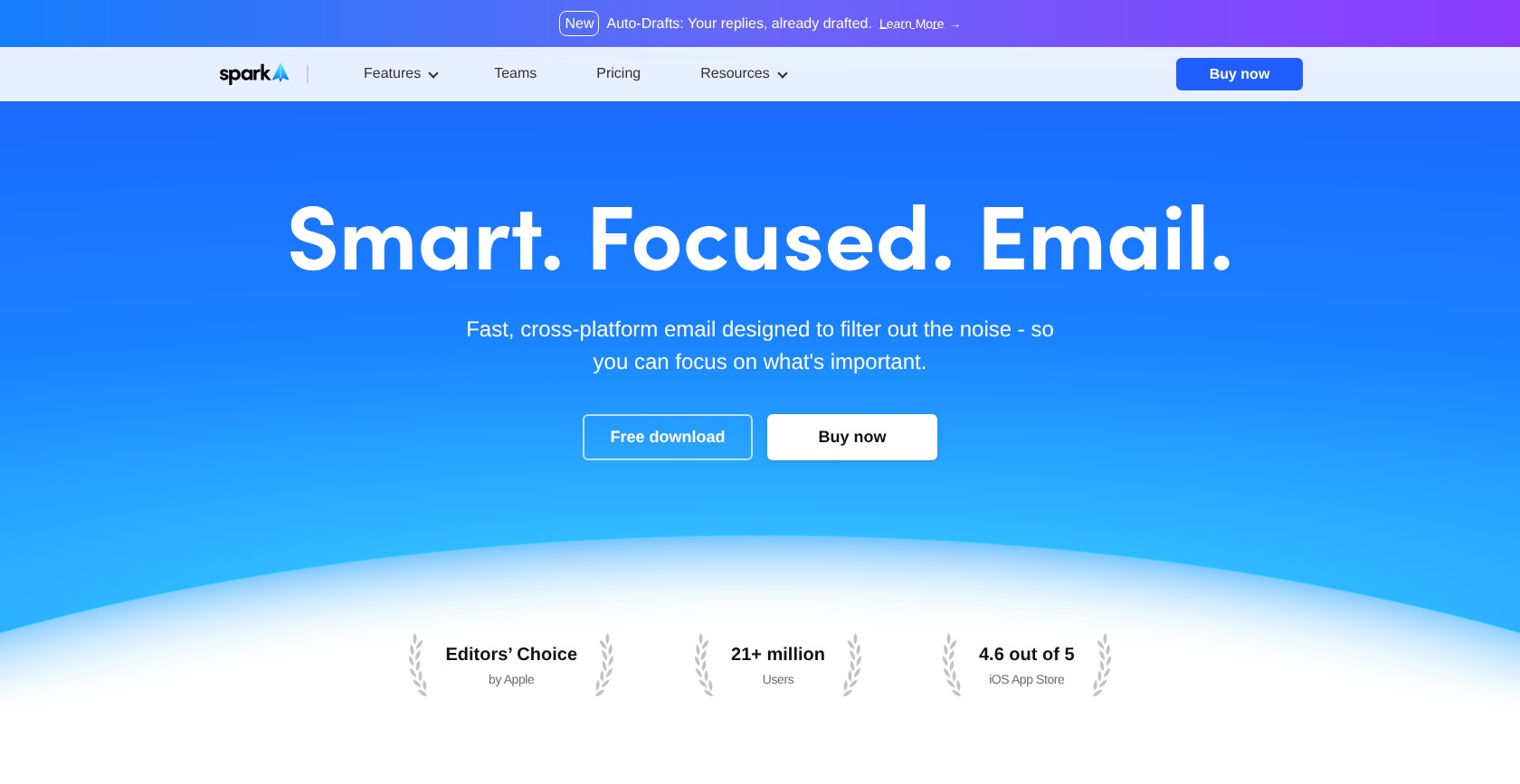
That said, Superhuman-style automatic drafting needs Pro, rather than Plus. Auto-Drafts only work in individual inboxes and roll out desktop first, so make sure you check your device before subscribing.
Pros
- Free Smart Inbox and unlimited accounts
- Lower-priced Plus AI subscription
- Gmail, Outlook and IMAP compatibility
Cons
- Pro-only Auto-Drafts
- Desktop-first rollout and iOS closed beta
- No shared-inbox Auto-Drafts
What’s new with Spark?
Spark’s current Pro lineup includes Auto-Drafts and Autopilot, alongside unlimited AI meeting notes. Auto-Drafts use thread context and writing-style personalization to prepare replies for you. Plus, Pro adds Spark CLI access for triage automation, but that doesn’t remove the restriction to individual inboxes.
Why use Spark in 2026?
Spark makes sense if you want several accounts in one interface, especially as a freelancer moving between business and personal mail. It supports iCloud and Yahoo alongside Gmail and Outlook. While Plus keeps costs down, it doesn’t include every AI feature, so I’d choose by what you need rather than the headline price.
My Spark testing notes
I used Smart Inbox to separate people-focused mail from notifications and newsletters, then reviewed Auto-Drafts in the Drafts folder. Spark left sending those replies to me. Device availability is still the catch, so make sure you try the free client and confirm Pro features on your preferred device.
How Much Does Spark Cost?
I’d choose Plus for inexpensive AI help when you ask for it, while Pro prepares drafts automatically. Free lets you try the client, but it isn’t a free personalized drafting subscription. Before paying for AI features on top, I’d check that switching apps actually helps you manage your accounts.
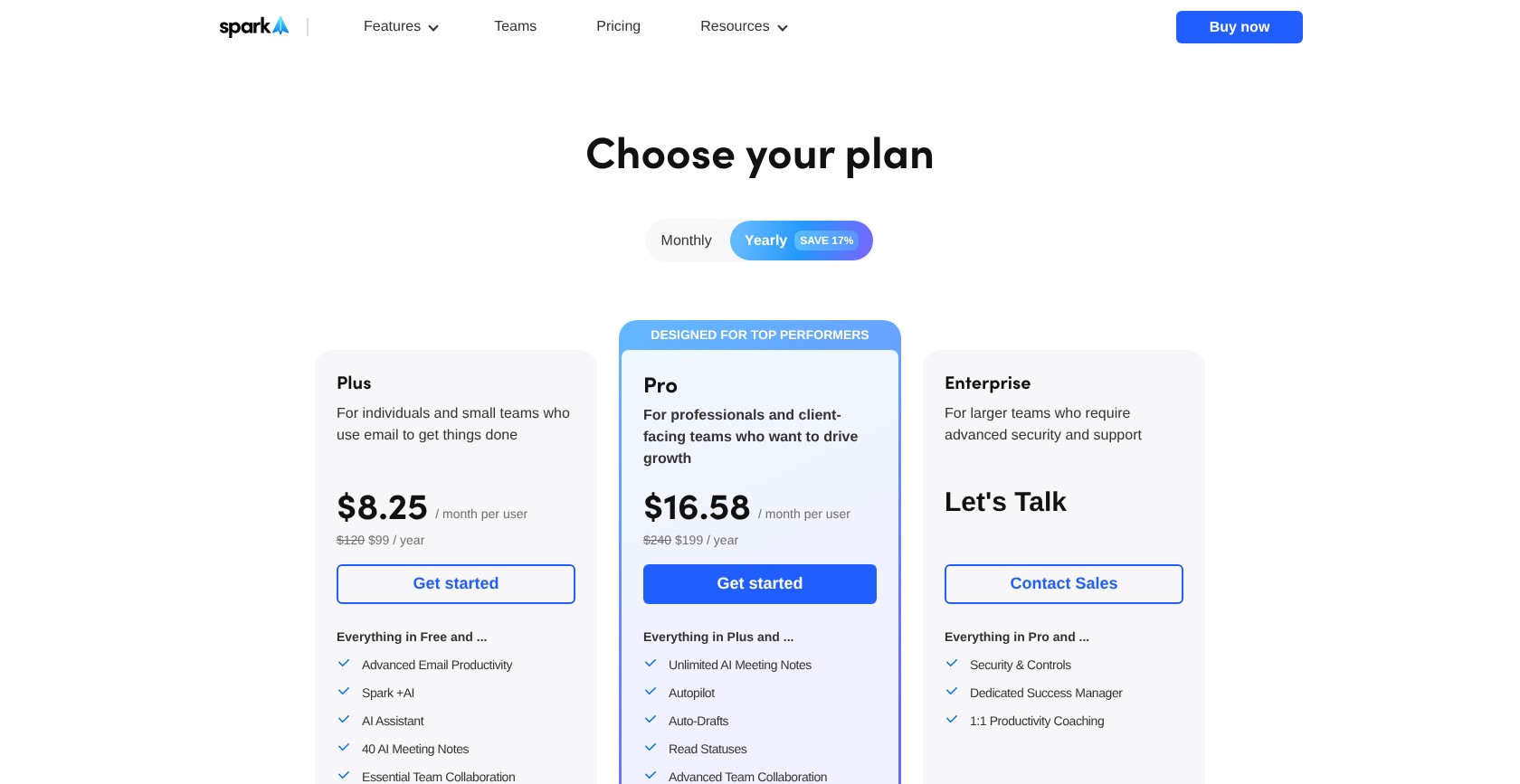
Spark also offers separate Teams pricing, which is worth checking if collaboration matters most. Just remember that Pro Auto-Drafts don’t cover shared inboxes, even if that’s where your team works.
| Plan | Monthly price/user (billed annually) | Monthly price/user (billed monthly) | Auto-Drafts |
|---|---|---|---|
| Free | $0 | $0 | No |
| Plus | $8.25 | $10 | No |
| Pro | $16.58 | $20 | Yes |
| Enterprise | Custom | Custom | Ask sales |
Try Spark: Visit Spark
8. Lindy: Best for Email Automation
- Best for: Connecting email with other work
- Price from: $49.99/user/month
- Free plan or trial: $50 in credits for 7 days
- Works with: Gmail and Outlook
- Standout AI feature: Approval-gated actions across connected apps
For work beyond the inbox, Lindy is our top automation option because it connects email with sender research and scheduling. It doesn’t stop at drafting, but outward-facing actions still wait for approval.
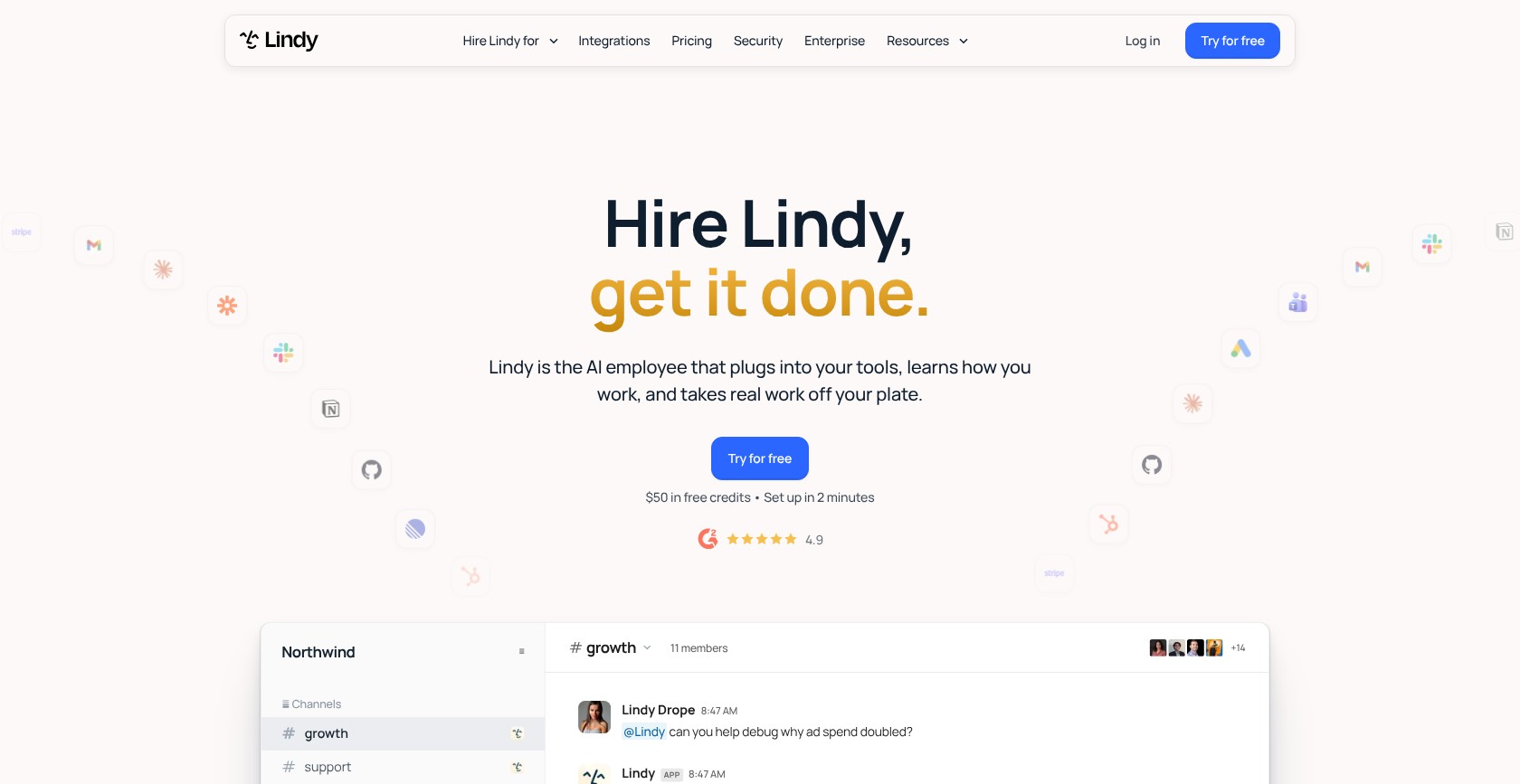
The catch is that active-user billing and credit use make costs harder to predict. I’d choose Fyxer for a simpler setup if you only need sorting and drafts inside your existing inbox.
Pros
- Approval-gated sending
- Sender research and meeting assistance
- App integrations and MCP support
Cons
- Per-user billing and shared credit consumption
- Expiring credits without rollover
- Slack-first experience beyond email
What’s new with Lindy?
In 2026, Lindy presents itself as an AI teammate built around Slack, rather than only a no-code agent builder. Email now sits alongside tools for meetings and scheduling. Its shared credit pool and active-user billing mean bringing your team on board affects both seat costs and how many credits you use.
Why use Lindy in 2026?
I’d choose Lindy when an email should start work elsewhere, such as scheduling or gathering context about the sender. Our guide to AI agent builders covers alternatives for customized workflows. If you don’t need those connections, I’d stick with an inbox-focused assistant, since setting up an agent adds responsibility.
My Lindy testing notes
I could review pre-drafted replies and approve sending, with sender research alongside the email workflow. The approval step kept outward-facing actions separate from preparing drafts, so I still had a chance to check them. Users flag fast credit use during setup, so make sure you build one workflow at a time and watch the trial balance.
Top Tip! Start Lindy with a reply draft requiring approval before adding scheduling or other app actions.
How Much Does Lindy Cost?
I’d budget for active users and credit usage, rather than look at the subscription price alone. Top-ups cover extra demand, but unused credits don’t roll over into the next month. It’s worth checking credit use after adding each action, since a simple-looking workflow won’t necessarily have a predictable cost.
For me, Lindy suits connected workflows, not an inbox you can set up and forget. I’d keep the initial setup narrow until the credit cost and approval steps make sense for your team.
| Plan | Monthly price | Credits | Notes |
|---|---|---|---|
| Free | $0 | $50 in credits for 7 days | No card needed |
| Team | From $49.99/user | 5,000/month, shared pool | Top-ups $10 per 1,000 credits; no rollover |
| Enterprise | Custom | Custom | HIPAA with BAA |
Try Lindy: Visit Lindy
How Do I Choose the Right AI Email Assistant?
I’d start with email-client compatibility, then decide how much control you’re comfortable handing over. An AI email assistant for Gmail can’t solve your team’s Outlook workflow, no matter how well it writes.
- Does it support my account?
- Do I already have Gemini or Copilot?
- Can it send or archive automatically?
- What mailbox permissions does it request?
- Is my email used for training?
- What remains after cancellation?
Which Email Client Do You Use?
- Gmail only: Gemini and Shortwave
- Outlook native: Microsoft 365 Copilot
- Both: Fyxer, Superhuman, Serif, Spark and Lindy
Fyxer and Serif let you keep your interface, while Superhuman, Shortwave and Spark replace it. For me, learning another client is part of the cost, even if it doesn’t appear on the bill.
Should the AI Draft or Send?
I’d start with draft-only assistance, so you can check replies before they go out. Fyxer says it never sends for you, Serif and Spark leave drafts for review, and Lindy requires sending approval.
Shortwave’s Tasklet workflows can act automatically, so I’d keep auto-send and auto-archive disabled until their behavior matches your judgment. You’ll need to check each action rather than rely on a general approval setting.
How Much Mailbox Access Is Too Much?
The OAuth consent screen is worth reading before you connect anything to your inbox. Permission to “read, send, delete, and manage” email gives broader access than reading alone, even when a product promises to only prepare drafts.
- Training: Check the vendor’s specific policy, including which models it covers
- Security: Examine SOC 2 or CASA status; neither makes access risk-free
- Retention: Serif says emails stay off its servers; check what learning data remains
- Administration: Business Workspace and Microsoft 365 controls differ from personal-account protections
Can I Switch AI Email Assistants?
Yes, but canceling doesn’t revoke mailbox access, which is easy to overlook when you’re moving on. Your Gmail or Outlook mailbox stays in place, while labels and rules may remain after you stop using the assistant.
Drafts and snippets stored only in the tool may disappear when your access ends. Notion Mail’s shutdown shows why exporting before cancellation matters, rather than leaving it until you’ve already lost access.
- Export tool-only drafts, snippets and rules
- Cancel the subscription and check refund terms
- Revoke access through Google or Microsoft app permissions
- Request deletion through the vendor’s data controls
- Clean up leftover labels, filters and forwarding rules
How We Test and Rank the Best AI Email Assistants
A polished draft isn’t enough to earn the top spot in our ranking. I connected the shortlisted tools to real Gmail or Outlook inboxes to test how they sort mail, prepare drafts and control follow-ups.
We use the weighted criteria below to rank our picks. These cover the inbox experience as well as privacy, pricing and user feedback.
- Triage and draft quality (30%): We assess sorting behavior and how much review drafts require before sending
- Email client fit (20%): We check account compatibility and whether adopting the tool means switching interfaces
- Privacy and mailbox access (20%): We examine requested permissions, training commitments, security assessments and deletion controls
- Price per seat (15%): We compare billing terms, feature requirements, trials and usage limits for small teams
- Follow-ups and automation (10%): We assess reminders, follow-up drafts, meeting workflows and connected actions
- Reputation (5%): We weigh user feedback on reliability, billing and support
Competing rankings often come from companies that sell an email tool and put their own product first. Fritz.ai doesn’t sell an email assistant, and every pick here, including Fyxer, has drawbacks that could make another option better for you.
I’d judge a trial by the work it leaves for you, rather than how polished the first draft sounds. That includes checking commitments in replies and correcting messages that end up in the wrong place.
Prices current as of November 2026.
Final Verdict: Which AI Email Assistant Do I Recommend?
Fyxer is my recommendation for most small teams because it combines sorting, personalized drafts and meeting follow-ups inside Gmail or Outlook without sending for you. I’d choose Superhuman for chasing follow-ups, or Gemini and Copilot Chat if avoiding another subscription matters most.
I recommend trying the AI you already have first, then moving to Fyxer’s trial if sorting mail and proactive drafting remain the problem. Spark’s free plan is another starting point if you’re happy to switch apps. I’d connect a single inbox before rolling anything out across your team. After checking its drafts, judge the assistant by useful work completed, not simply how much text it generates.
FAQs
Is it safe to let an AI email assistant read my inbox?
Mailbox access always carries risk, even when a tool only prepares drafts for you. Before connecting, check permissions, training policies and security-assessment status. Fyxer, Serif, Shortwave and Lindy say they don’t use email to train general or external models, but those commitments don’t remove the risk. See “How Much Mailbox Access Is Too Much?” above, and make sure you revoke access you no longer use.
Do I need an AI email assistant if I already have Gemini or Copilot?
You may not, since Gemini in Gmail and Copilot Chat in Outlook already cover drafting and summaries when you ask for them. Inbox questions are also available with the relevant account access, so I’d start there if writing is your main problem. They don’t automatically label messages or chase unanswered conversations like dedicated tools. That’s where Fyxer and Superhuman can make another subscription worthwhile.
Will an AI email assistant send emails without my approval?
The draft workflows I’ve recommended leave sending under your control, rather than sending replies as soon as they’re ready. Fyxer says it never sends for you, Serif produces drafts, Spark Auto-Drafts wait in Drafts, and Lindy requires approval. That said, automation tools such as Shortwave’s Tasklet can act automatically when you set them up that way. Make sure you check each workflow and keep auto-send disabled while testing its behavior.
What’s the best free AI email assistant?
Personal Gmail is my free starting point for AI writing, with Help me write and Suggested Replies included. Spark Free is better for organizing multiple accounts, but you’ll need to pay for AI assistance. Copilot Chat comes with eligible Microsoft 365 subscriptions, so it isn’t a separate free subscription. Fyxer Free covers meeting notes rather than personalized email drafts, so I wouldn’t choose it for free reply automation.

Comments 0 Responses