

I’ve used Semrush a lot over the years, first initially for keyword targeting ideas, then for competitor insights and backlinking strategies. More recently, I’ve been paying more attention to its AI tools, from the AI visibility toolkit, to the full AI site audit system.
The Semrush AI writing assistant is another interesting tool added to the expanding Semrush One toolkit for both search and AI visibility, promising content creators and publishers a quick and easy way to get insights into how they can improve their blogs, articles, and other pieces for a chance to get more eyes from customers online.
It works with Google Docs, WordPress, and Microsoft Word as an add-on, and it can connect straight to your SEO data within Semrush, although it doesn’t actually offer suggestions to help you with things like technical SEO or backlink analysis.
If you’re wondering whether this tool could become the combined writing assistant and SEO content editor you’ve been looking for, here’s what I found out when I tried it myself.
My Quick Verdict
The thing I like most about the SEO Writing Assistant is that it gives you a very helpful starting point if you know your content needs a little something “extra” but you’re not sure where you should begin making tweaks to things like keywords or titles.
It works in the tools you’re already using, so you’re not switching back and forth between tabs, and the color-coded highlights are genuinely easy to understand. It doesn’t give you things like deep competitor analysis, and you’ll probably still need to use other Semrush tools alongside it, but I do think it’s genuinely useful.
Pros:
- Great for immediate SEO, readability, and originality recommendations in one place
- You can add it to the tools you’re already using for writing
- Can help you preserve the same tone of voice and identity across content
- Helpful AI tools for rephrasing specific parts of text
- The color-coded highlights are easy to understand
Cons:
- Can end up being expensive, especially alongside other Semrush tools
- You don’t get competitive analysis and topic insights in real-time
What is the Semrush AI Writing Assistant?
The Semrush AI writing assistant, or SEO writing assistant (SWA) is a tool from Semrush that can analyze content as it’s produced inside of Google Docs, WordPress, or your Word Docs, and give you various suggestions on where you can make improvements.
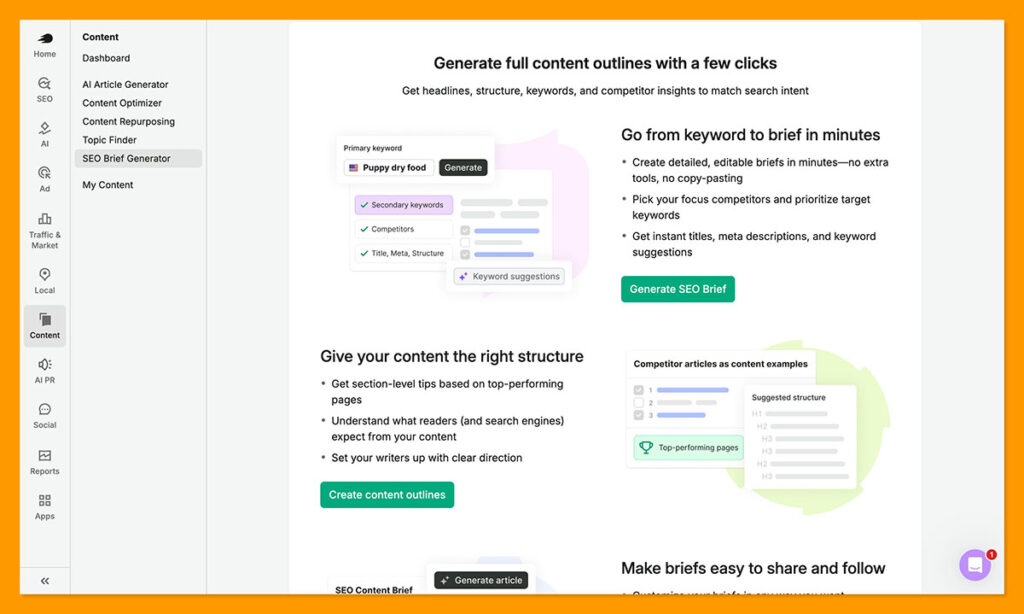
It’s mostly intended for SEO, to help you boost your chances of ranking higher with search engines like Google, but it doesn’t just check for keywords. It can assess your tone of voice, making sure it’s consistent with how your brand usually writes, improve readability, check for originality with a plagiarism checker based on Copyleaks, and give you various helpful scores to work from.
The data you get comes from the top ten organic competitors you already have listed in your Semrush account, which means you can’t really use it as a standalone tool.
Still, it’s a brilliant helper if you already have Semrush, and want something to support you when you’re in the middle of producing a campaign or an article.
Semrush Writing Assistant Review: How it Works
There are a few ways you can actually use this tool. The first option is to just use it on the Semrush platform. You log into the account, click on “SEO Writing Assistant” in the sidebar, and start entering in the content you want to check.
The other options revolve around adding the tool to the systems you’re already using. There’s a Google Docs add-on available on the Google Workspace Marketplace, which adds the assistant to your “Extensions tab”. For WordPress, there’s a plugin that gives you a new sidebar on your content editing pages, and with Microsoft Word, you just download an add-on.
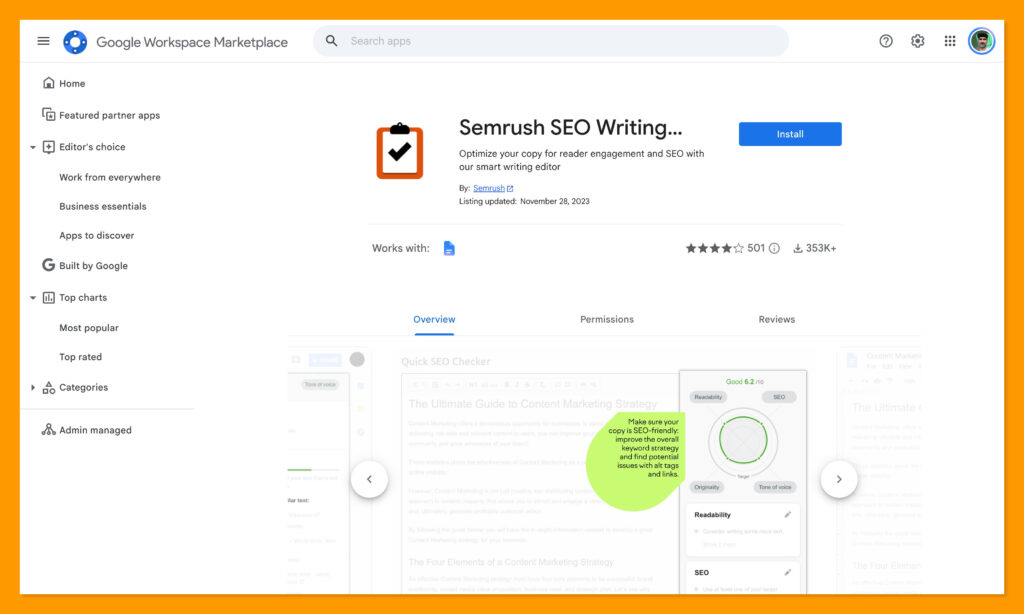
Whichever route you pick, once you’ve got the system installed, you’ll go through a small setup process where you add in the keywords you’re trying to rank for. The tool can also suggest keywords after you’ve entered a piece of content too, if you’re really starting from zero.
Once those keywords are in the system, the AI tool will scan your content, and display an “overall” score out of ten straight away, with four main categories covered: readability, SEO, originality, and tone of voice. You can customize the view to see all of the recommendations at once in the “Switch View” tab, or check them one at a time.
Users can also enable issue highlighting, with different colors for specific issues, like yellow for originality problems, or purple for readability, although that feature’s only available if you’re using SWA inside of Semrush, it’s not part of the add-ons yet.
I also appreciate the fact that you can adjust keywords or generate new ones whenever you like, just in case you decide to change your strategy half-way through a project.
Semrush AI Writing Assistant Review: The Scores
I know it’d be easy to assume that an “AI writing assistant” is more about using AI to help you write or edit your content, Semrush does give you features to do that, but the scores are genuinely the most useful part, and it’s worth breaking them down first.
First, you get your overall score, which is just a score out of ten based on how well you’re doing in all four of the areas that Semrush checks, you’ll see a little visual which immediately tells you which your worst area is, which I find particularly useful.
The Readability Score
The readability score does exactly what you’d expect, telling you how likely it is someone will understand whatever you’re writing about. The analysis is based on the Flesch reading ease formula, similar to what tools like Grammarly also use. Semrush, however, also checks how that readability score compares to the average score for the top ten competitors ranking for similar keywords.
That lets it give you a more accurate “benchmark” to aim for, since some pieces of content will naturally be more complex than others.
The readability tool also checks your total word count, and again compares that to the average word count for similar articles, so you know how long your piece should probably be.
Beyond that, you get specific suggestions for title issues, such as whether the title includes the keywords, or whether it’s too long for Google’s limits, or too short for readers.
Then there’s the overall review of content problems, such as too many overly long paragraphs, complicated sentences, excessive use of the passive voice, or too many difficult words. You can use the “simplify” button here to get AI’s assistance fixing those issues.
The SEO Score
When you click on “SEO” the right-hand-side menu expands to show you all the different things Semrush considers to evaluate your potential search engine ranking performance. The first thing you’ll see is the list of target keywords you should be aiming to include in your content, based on what you entered during the setup process. Every term you’ve included gets a green highlight, so you can spot the ones you’re missing pretty quickly.
The most helpful part, in my opinion, is the recommended keywords that display under the ones you entered. Semrush generates a bunch of semantically related terms that you might not have thought about, including terms your competitors are using. Adding more of them can increase your score, and SWA even shares a warning if you start stuffing in too many terms, which is particularly valuable.
Beyond the keyword reviews, Semrush shows you:
- Alt attribute issues: Such as missing attributes from your images.
- Link issues: Any problems with broken external or internal links, or if you have too many links in the content, which can make it harder to read.
- Title issues: Whether the page title includes your target keyword.
The Tone of Voice Score
The tone of voice score is one of the more interesting ones to me, especially for publications that work with a lot of different writers, but want to make sure they maintain one cohesive voice. The system checks how your writing will probably “sound” to readers based on things like pacing, specific word choices, rhythm, or word order, then gives you a “tone” reading.
For instance, the tool might define your tone as more casual, or formal, and it’ll display that on a scale so you can decide for yourself if you need to move more in one direction or the other.
After you see your score, you can choose a “target tone”, which tells the AI assistant what it should be flagging for you to fix. The same feature also highlights obvious filler words and fluffy phrases that don’t really need to be in the text in the first place.
The Originality Score
The originality score is useful for me, because I tend to use a lot of quotes in my work, but I don’t want the content I’m publishing to be flagged as “plagiarized”. Usually, I’d end up using another tool to double-check that, but with SWA, originality checks are part of the parcel.
You need to manually apply this check in the originality tab, and it immediately highlights anything that looks like it’s been directly copied from another site, using a tool based on Copyleaks, one of the more popular plagiarism checkers.
If you notice something looks a little “unoriginal” you can click a button and get the AI tool to rephrase it for you, or you can make little tweaks yourself. There’s also the option to exclude certain domains from the plagiarism check, which is helpful if you are including a direct quote, and you know some of the same phrasing is going to appear elsewhere.
Semrush AI Writing Assistant Review: The AI Editing Tools
The AI features here are simple, but genuinely helpful. There are a few different things you can do when you’re working through all your checks and scores.
Rephrase with AI
The first option is to rephrase content with AI, which I mentioned above in the “originality” score section. Even if a paragraph doesn’t have readability or originality problems, you can still highlight it and click the “Rephrase” button to get the AI tool suggest a variation.
Next to the “rephrase” button, you’ve also got buttons to simplify, expand, or summarize the section. I quite like all of those features, because they give me a few different ideas to work with if I know part of a piece of text doesn’t sound quite right.
Everything you rephrase, for instance, comes with three ideas to choose from, so you can explore a few and choose the one that works best, or combine them. Although I would say to be careful about how many times you click the “Rephrase” button, because you’re limited on the number of smart writer words you can generate.
Composing Content with AI
I’m not a huge fan of using AI to create content, but I can definitely see the value of the Compose button if you’re struggling to think up a new section for your article, or you need to expand on an idea and you’re not sure how to start writing.
This works very much like any of the other tools you might use for content production, you just tell the system what you want it to write about, and it produces something in the same document. I’d still recommend editing whatever you get, and it’s worth checking how the extra content affects your score too, sometimes just adding more words makes the overall piece’s score a little worse.
One thing worth mentioning is that you can only use Compose in Google Docs or the Semrush interface too, it’s not available for WordPress or Microsoft Word yet, and once again, everything you generate will count towards your smart writer words limit.
The Ask AI Feature
Ask AI is a little more interesting, because instead of just generating content to plug into your existing article or document, you can ask a specific question that might help you improve your writing yourself. For example, if you were writing an article about common SEO techniques, you might ask about the ways marketers typically improve backlink profiles.
You just click a button, ask your question, and the AI answer shows on the left side of the page, highlighted to show you if adding it directly to your piece will make any difference to your various scores.
Semrush AI Writing Assistant Review: Pricing and Limits
Pricewise, there are two ways you can use the Semrush AI writing assistant. The first option is to pay for the Semrush content toolkit for $60 per month, which gives you data-driven content ideas, content optimization tools, SEO briefs, and a certain number of SEO boosted articles every month.
Alternatively, you can buy one of Semrush’s more expensive Semrush One plans, starting at $199 for the Starter option. All plans include access to the writing assistant, as well as a range of other Semrush tools, like the AI visibility toolkit, AI brand insights, keyword research tools, site audits, and so on.
Since you get the most value out of this tool if you’re already using Semrush, I think that route is going to appeal more to most users. Honestly, the Starter plan is also very good value for money, particularly when you consider all the functionality you’re getting each month.
The limits are a bit complicated, because they depend on the plan you have. If you’re a free user or on the Pro tier of the SEO toolkit subscription, you can generate 2 documents per account. On the Guru and Business tiers, you can generate an unlimited number of documents.
Then the limits change for the plagiarism checks and smart writer words.
| Plan | Plagiarism Checker | Smart Writer Words |
|---|---|---|
| Pro | 3 in total | 500 words (lifetime) |
| Guru | 5 per month | 1,000 words per month |
| Business | 10 per month | 2,000 words per month |
On the Guru and Business tiers, you can buy extra Plagiarism and Smart Writer credits, too. 10 extra plagiarism checks costs $5 per month, while 10,000 smart writer words start at $20 per month.
The difficult part is that different AI tools use a different number of “smart writer” words for each word in your text. For split sentences, you pay 10 words per split, for expansion, you pay 2 smart writer words per word in your text, while rephrase, simplify and summarize all cost one smart writer word per word.
Is Semrush AI Writing Assistant Worth It?
I personally like this tool, especially for getting direct insights into where I might be able to improve my work while I’m still in the process of writing it. The scores and highlights are easy to understand, the suggestions are genuinely useful, and I could see companies producing a lot of content getting a lot of value out of the system.
I like that the tool works in the systems I’m already using for writing, though I do think you get a better experience using it within the Semrush interface. I also appreciate that the tool works in real-time, rechecking your document as you’re writing, so you’re not running scan after scan, and saving your work in the background.
Even if you lose your internet connection, you don’t have to worry about losing your work. You can even see a version history, so you can go a couple of steps backwards if you need to.
All around, it’s a very convenient tool, just one you’ll need to be careful with if you think you might end up going through a lot of credits quickly.

Comments 0 Responses