

If you didn’t know already, HubSpot has a lot more free tools to offer than just a CRM. The free AI website builder, for instance, is a tool inside Content Hub that generates a complete business website from a few simple prompts. It connects directly to HubSpot CRM and takes around ten minutes to set up — making it one of the best options for small businesses that want more than just a website.
Now I will say, it’s not as comprehensive as some of the more dedicated website building tools out there like Shopify, Squarespace, or WordPress. But, if you want a quick and convenient way to build a business website without hiring a pro, you’re going to love this tool.
It’s similar to the AI website tools from companies like Wix, letting you build a website with a combo of AI prompts and smart templates. You can even add-in ecommerce features later on if you like.
Here I’m going to give you a clean, simple and honest rundown of everything this system can and can’t do, so you can decide if it’s worth giving it a try. Spoiler, it probably is.
What is HubSpot’s AI Website Builder?
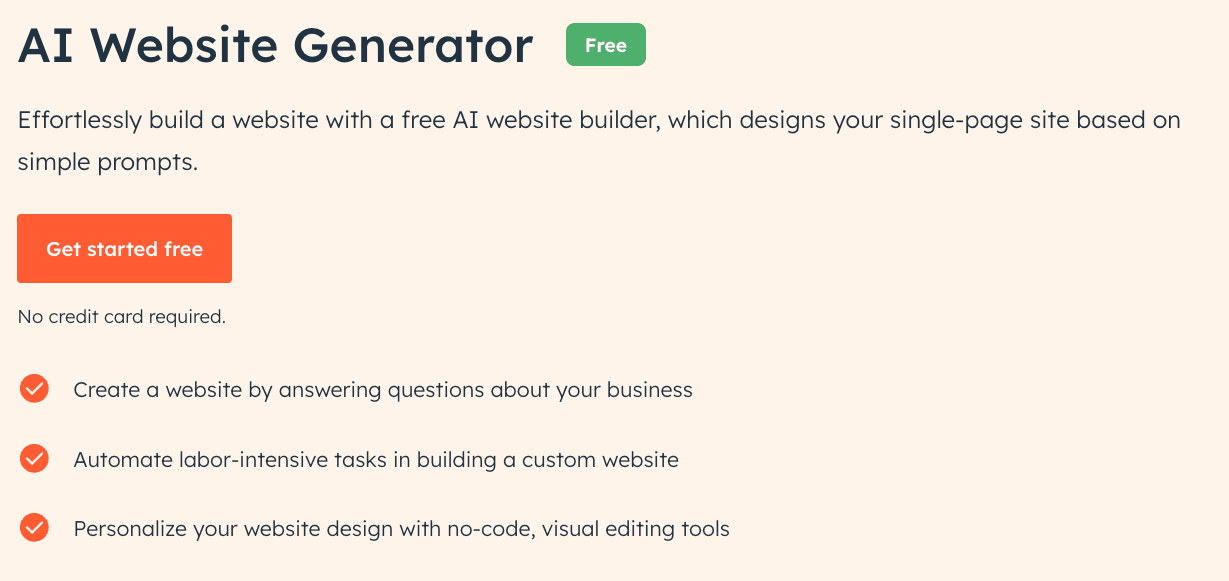
Basically the HubSpot AI website builder is part of HubSpot’s Content Hub — available on the free tier as well as paid plans.. That’s the section of HubSpot that lets you create content, build customer journeys, and even generate stuff like case studies with AI.
It’s not a huge tool like WordPress. Really, it’s built for people who just want to get a website up and running in a few minutes. You tell the system what you want, pick a style, answer some questions, and the AI designs something you can tweak and use.
What’s really important to understand here is that this isn’t just a website builder. It’s one part of the (frankly) massive HubSpot ecosystem. Your site automatically gets wired up to the HubSpot CRM, as well as all the additional hubs you might want to link in later, like the Commerce, Sales, Marketing, and Service hubs.
It also works with the same Breeze AI tools you’d use to create content for your product pages, landing pages, and so on. This solution is built for:
- Non-technical users who need to build a site fast
- People who want to build connected customer journeys
- Anyone who doesn’t mind experimenting with AI
HubSpot Website Builder: The Features
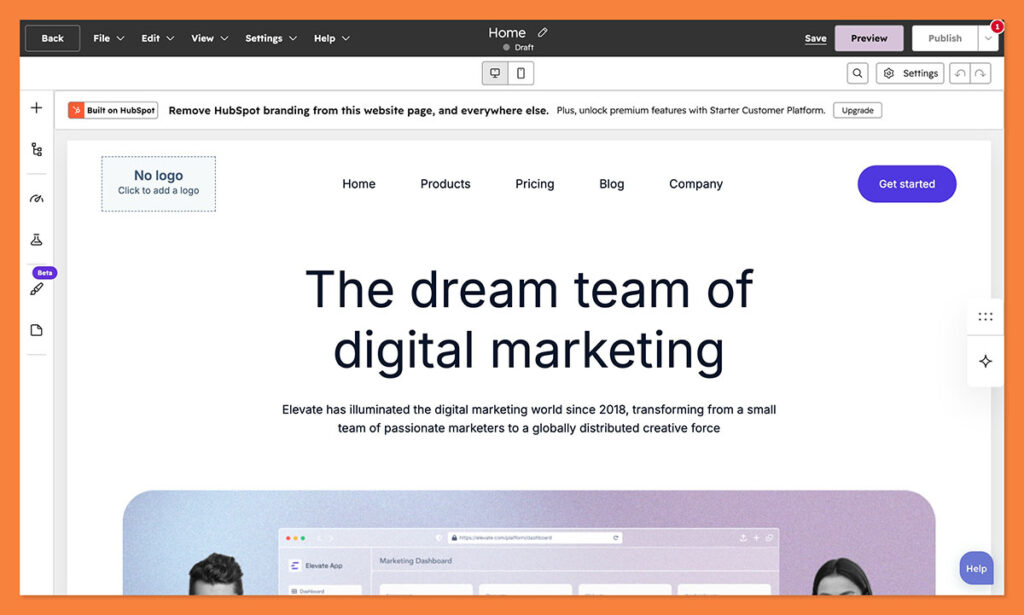
Like I said, you’re not going to get as many “advanced” features in HubSpot’s website builder as you might from other platforms, but you get more than enough to design a powerful website. There’s a full theme library, cloud hosting, web analytics, and a drag-and-drop editor.
There’s also:
- AI-Powered content creation: HubSpot Breeze Assistant helps you create or refine the content you already have for all your website pages, blog posts, landing pages, even CTAs and social media posts.
- Brand voice: You get to share your brand voice with the AI, so there’s less worry that certain pages are going to sound “off” or machine-like. You can even switch between tones like witty and friendly as you build.
- Editing tools: Obviously, you’re going to want to make tweaks, and HubSpot makes that simple. You can refine your text with AI, shorten or expand sections, and adjust the positioning of different sections on your website.
- Valuable analytics: The reporting tools are genuinely good, showing everything from views to session lengths. You can even track how many form submissions you get over a certain period of time.
- Integrations: HubSpot’s website builder doesn’t just connect with other HubSpot tools. There’s a full app market for connections to your booking tools, conferencing apps, calendars, or anything else you might be using.
Plus, if you want to expand further, adding things like ecommerce functionality, you can add in HubSpot Payments, or features from the Commerce Hub.
HubSpot’s AI Website Builder: Getting Started
If you ask me, the best thing about HubSpot’s website builder, and most HubSpot tools for that matter, is how easy it is to get set up. As soon as you create a free account with HubSpot, you can start playing instantly. There’s even a helpful checklist to walk you through things like customizing your themes and connecting a domain.
Here’s how the initial process works:
Go to the “Free CMS tool” page on HubSpot’s website, and click “Get Started Free” then create your account. At this stage, you’ll be able to give HubSpot information about your industry, role, and whether you want a business or personal website.
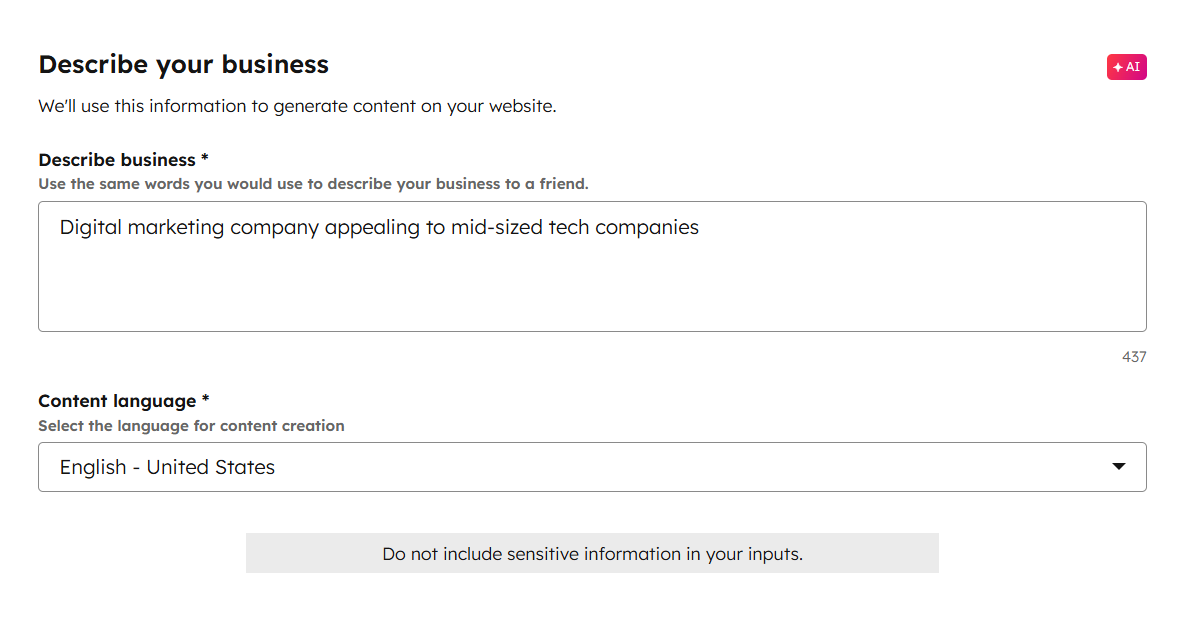
After HubSpot sets up your account, you’ll be asked to describe your business and choose your language:
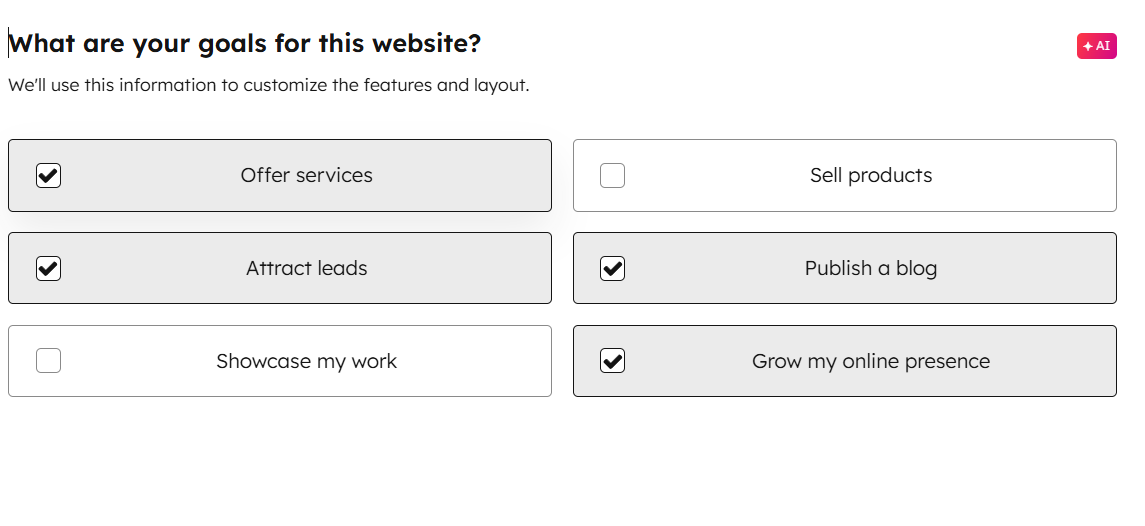
From there, you’ll move onto selecting a goal, like offering services, publishing a blog, and growing your online presence. You can choose more than one:
Next, you select the style you want for your website. I picked “Modern” for my imaginary tech advertising brand, since it seemed to make sense. After you add all those details, you just click “Generate Website”, and HubSpot gets to work.
Where Things Might Get Tricky
As you can see, this whole process is pretty straightforward to begin with. The only thing that actually requires you to use a little bit of brain power is editing. The drag-and-drop editor is simple enough, but certain things can feel a little tricky at first, like changing text in the footer or replacing images while keeping the layout from breaking.
Nothing is painfully difficult, but do expect to spend a little bit of time clicking around to explore theme styles, buttons, and other design choices you can play with. Honestly, I personally think the fact that you can edit so much of the AI generated website is a good thing.
If you were stuck exclusively to one specific, rigid theme, you’d probably end up with a website that looks exactly the same as everyone else’s.
My Thoughts on HubSpot’s AI Generated Websites
So, what do I actually think of HubSpot’s AI-generated websites? Well, that depends on who’s asking. If you’re looking for an amazing enterprise-grade website that feels like it was made by a specialist, you’ll have a lot of tweaking to do. If you just want a site that works quickly, HubSpot will get you 90% of the way to the finish line.
Design Quality
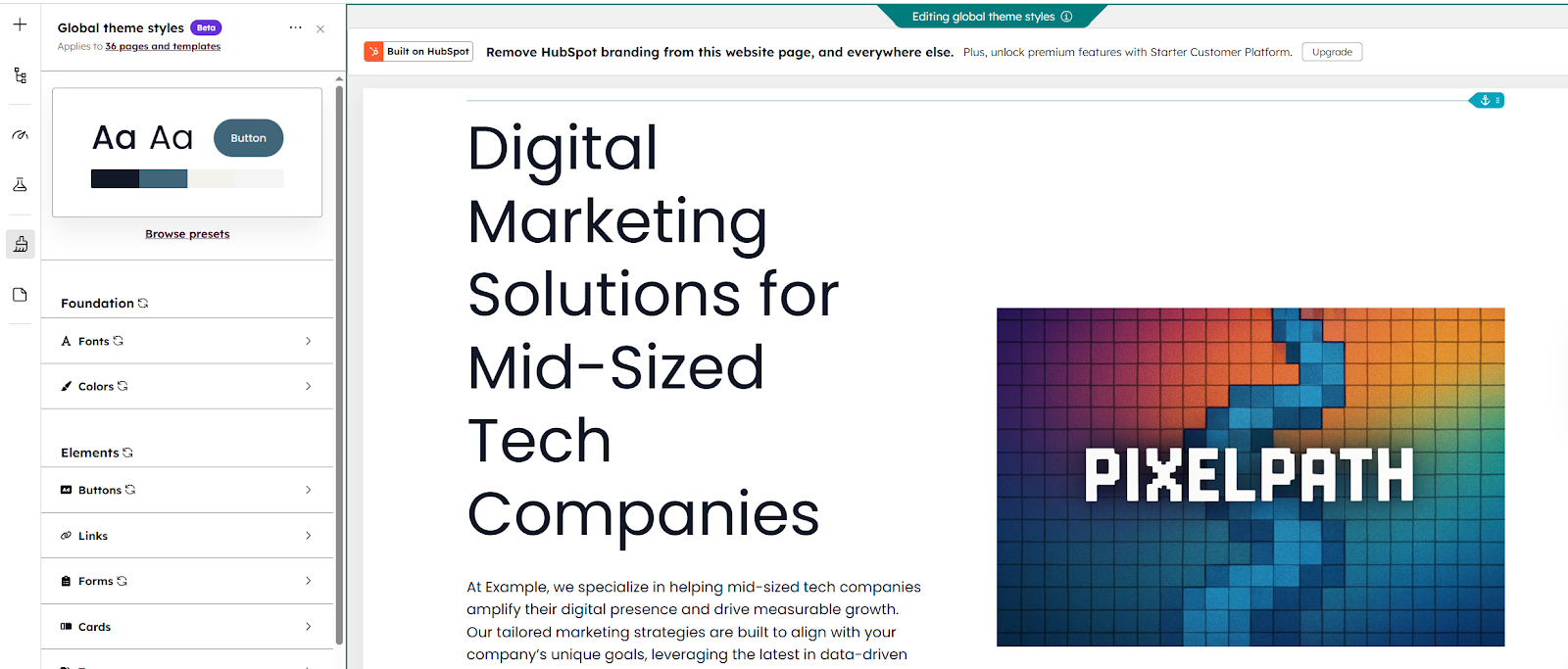
Minimalistic is the word that comes to mind. The overall design you end up with (at least at first), can feel a little simple and boxy. Personally, I think that’s a good thing if you’re just looking for a straightforward business website, but you’re not going to blow anyone away with the design.
There are limitations on color palettes, depending on the theme you choose, and you can’t add advanced things like animation without getting creative yourself. On the plus side, you can do that, adjusting elements like alignment, font size, spacing, and imagery.
You’re not going to get the same level of flexibility you’d get from something like Webflow, but you can still make your website feel like you.
The AI Content
I honestly believe no great website can be built entirely from AI-generated content, but it can definitely give you a good “leaping off” point.
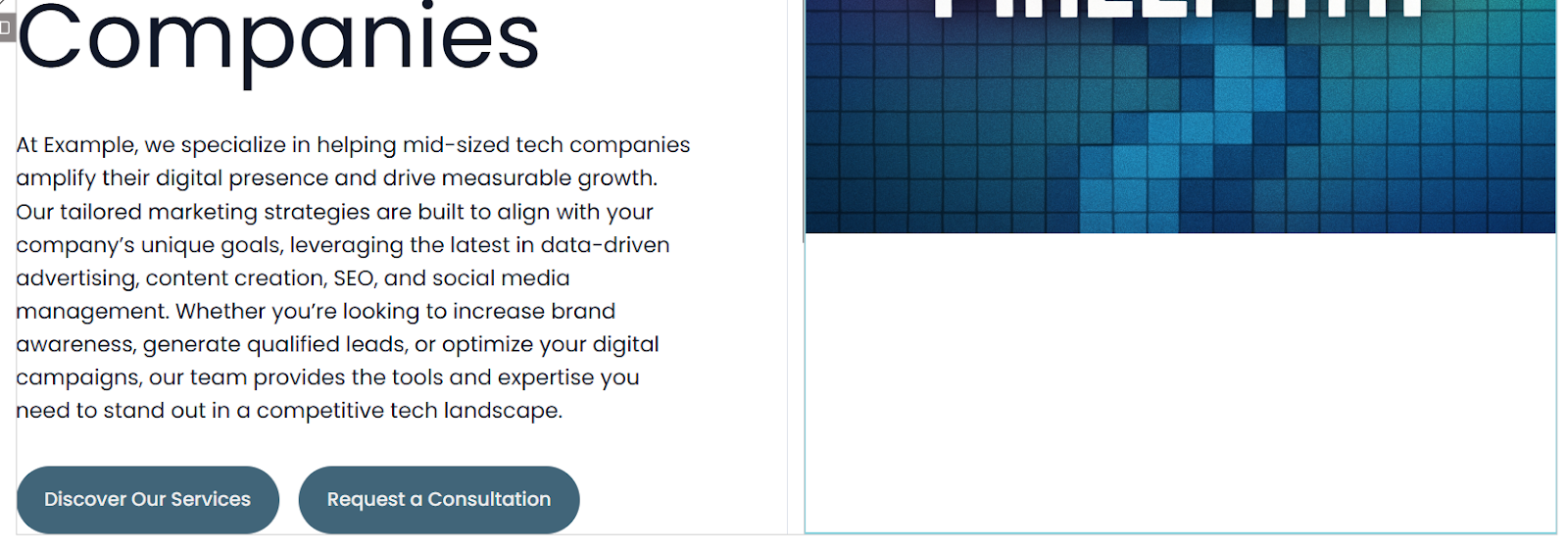
As you can see from the example above, the initial text HubSpot generates can be pretty generic. Fortunately, you can edit and personalize it, adjust the tone or style, and make tweaks that suit you. It’s extra work, yes, but honestly, you can’t expect the AI to do everything for you.
A good idea is to regenerate the “suggested” text for sections a few times for inspiration, and then create something from a combination of everything you see, in your own voice.
The Visual Content
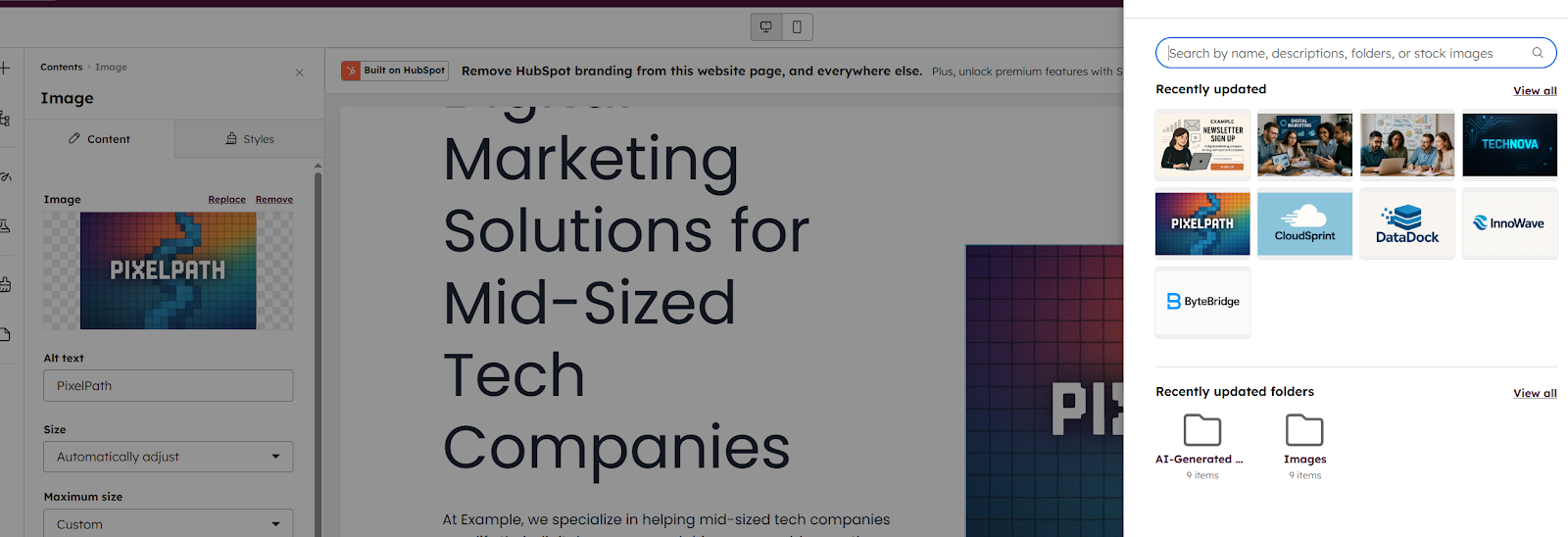
Just like I wouldn’t recommend relying on the text generated by any AI website builder entirely, I’d probably advise against using the suggested images too. They’re usually basic stock images chosen to match your goals and industry. Most are fine, but I’d think of them as placeholders at best.
The good news is that replacing images is pretty straightforward. There are more than 60,000 stock images already available on the platform, and you can upload your own photos too. Plus you can change placement, alignment, sizing, and other elements.
The User Experience
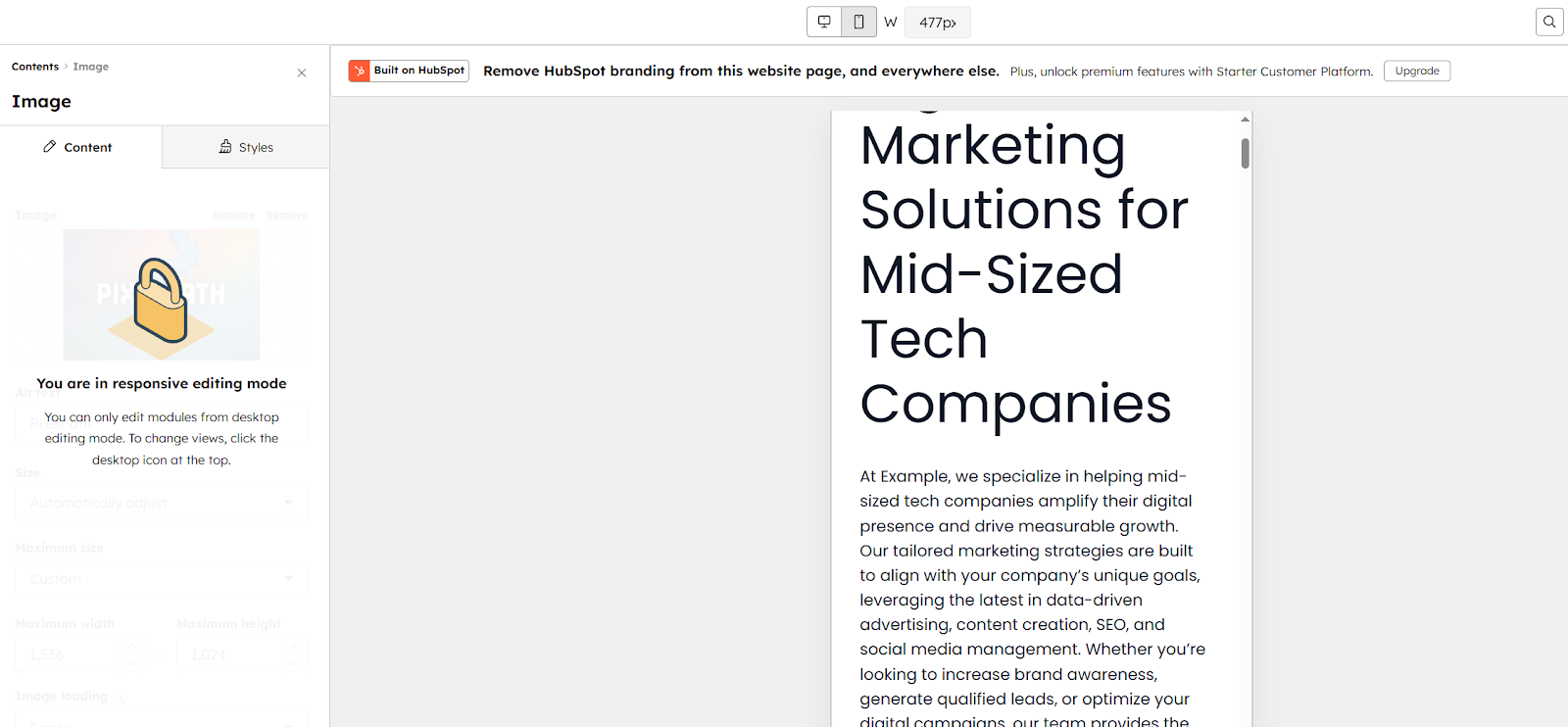
The user experience is definitely what I love most about HubSpot’s AI website builder. It’s so simple to use even my 12-year-old nephew could handle it.
You can check what your website will look like in mobile mode with a single click, which is great for most modern ecommerce companies, plus customization (as mentioned above), is pretty simple once you get a good idea of what each feature in the editor actually does.
One thing I would keep in mind is that it can be a little frustrating to make very detailed tweaks to things like spacing between modules. It’s easy to make mistakes when you’re adjusting things, so I’d recommend taking your time here.
The Extra Features
A few other things definitely worth mentioning here. First of all, though the initial website you build with HubSpot won’t be ecommerce enabled, you can connect it to other tools, or use HubSpot Payments to enable sales.
It’s also worth remembering that you can add in other HubSpot features, like the customer agent from the support hub (to automatically answer customer queries), the email and social media marketing tools from the Marketing Hub, and sales features from the Sales Hub.
Everything automatically ties together, so as your business expands, you can build out as much as you want. That’s really the biggest benefit of using HubSpot to design a website.
Pricing: How Much Will You Pay?
I mentioned above that the AI website builder from HubSpot is free, and it is, but it’s worth remembering that anything you can access for free is going to have limitations.
The free plan is pretty impressive. You still get themes and the drag-and-drop editor, Facebook Messenger integration, website traffic analytics, live chat for customer support, and access to Breeze Assistant. You can also store details for up to 100 products.
Still, if you want more features, and you want to remove HubSpot’s branding from your website entirely, you’ll need to upgrade. The Starter Content Hub price is pretty cheap at just $15 per month per seat. More advanced packages start at $500 per month, so there’s a big jump there.
It’s worth remembering, though, that when you do upgrade with HubSpot, you get to consolidate a lot of other tools you might have been using separately for things like content creation, analytics, customer support, and commerce.
Verdict: Who Should Use HubSpot’s AI Website Builder?
If you ask me, HubSpot’s AI website builder is one of the best tools out there for any business owner that just wants an online presence fast. Is it the most advanced website creation tool on the market? Obviously not, but it’s not meant to be either.
It’s a tool made for people who want to get a website going without spending too much money or getting tangled up in technical stuff. Plus, it really does benefit from being tied into all of HubSpot’s other tools, like the CRM, marketing hub, sales hub and service hub.
Once you start connecting the dots, you can build so much more than a website. You get a system for creating a comprehensive customer journey.
Ultimately, if you’re looking for a website builder that’s quick, easy, and reliable, it’s hard to go wrong here, particularly since you can start for free. My advice is to give it a try for yourself, what have you got to lose?
Try the HubSpot AI website builder free.
FAQs:
Is the HubSpot AI Website Builder Really Free?
Yes, and so are a bunch of other things from HubSpot, like live chat tools, basic CRM functionality, and solutions for managing email and social media campaigns. You really only need to upgrade when you’re ready for more advanced stuff, like end-to-end automation.
Do I need any technical background?
Zero. If you can fill out a form and click through a few prompts, you’ll be fine. The tool handles the hard work for you, and you’re mostly choosing options rather than building anything complicated.
Can I connect my own domain?
You can. Even on the free plan, HubSpot lets you hook up a domain you already have. If you’d rather buy one through them, that’s also an option.
What kinds of sites can I build?
A little bit of everything, simple business websites, landing pages, blogs, portfolio-style pages. There’s also options to connect in payments or link to ecommerce sites if you want to start selling stuff.
How customizable is everything?
You can adjust the basics: colors, typefaces, layout sections, and your content. It’s not the kind of editor where you can tear the whole thing apart and rebuild it from scratch, but it gives you enough room to make the site feel like your own.

Comments 0 Responses