

I’ve been using Semrush for years now, and one of the things I’ve always liked about the platform is how quickly it adapts. You’ll know if you’re in this industry how quickly marketing and content production changes. Semrush has handled every major SEO update and industry shift with surprising agility, it’s even dealing with the AI revolution impressively well.
Semrush MCP is a great example of that adaptable approach. It’s really just a way to give your AI tools direct access to Semrush data, so your teams in marketing, SEO, and product development can all use the same tools and insights to achieve better results.
It’s also not nearly as complicated to use as most people think, as you’re about to find out.
What is Semrush MCP?
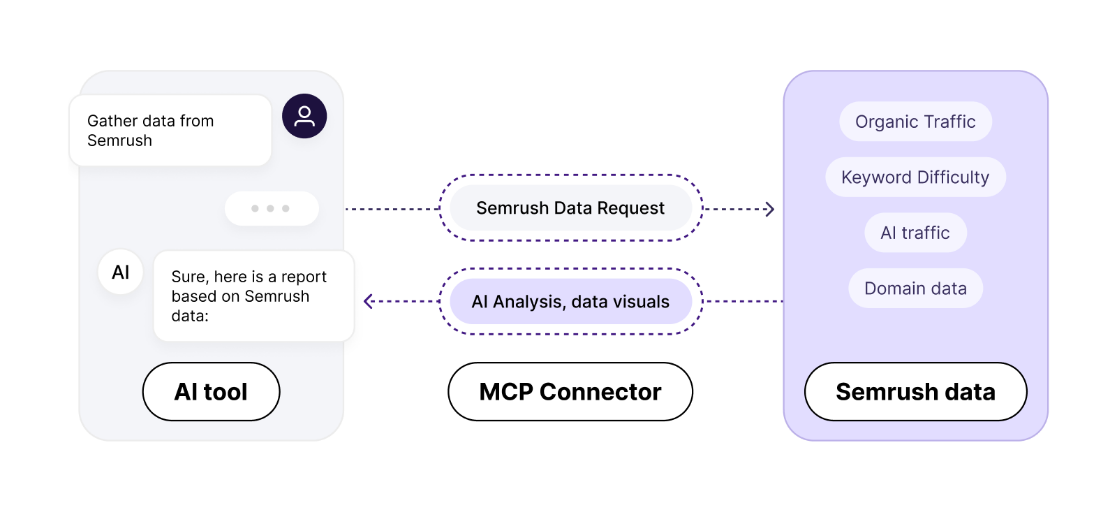
If you’re familiar with AI and how large language models work, you might have already heard about “MCP” or Model Context Protocol. If not, all you really need to know is that it’s a bridge between an AI system and a live source of data.
Without an MCP, AI assistants are blind to your SEO stack. ChatGPT doesn’t know what your rankings are. Claude can’t see competitor traffic patterns. The model can only work with whatever text you paste into the prompt. That’s why most “AI + SEO” workflows still involve exporting spreadsheets and copying blocks of numbers into conversations.
The Semrush MCP immediately exposes marketing intelligence from Semrush to the tool you’re using through APIs, so your assistant can answer questions with more context.
For instance, you can ask it to compare the traffic insights for two companies (say Nike and Adidas), and the AI agent will connect to the Semrush Trends APIs, and fetch real-time market data, giving you something that looks like this:
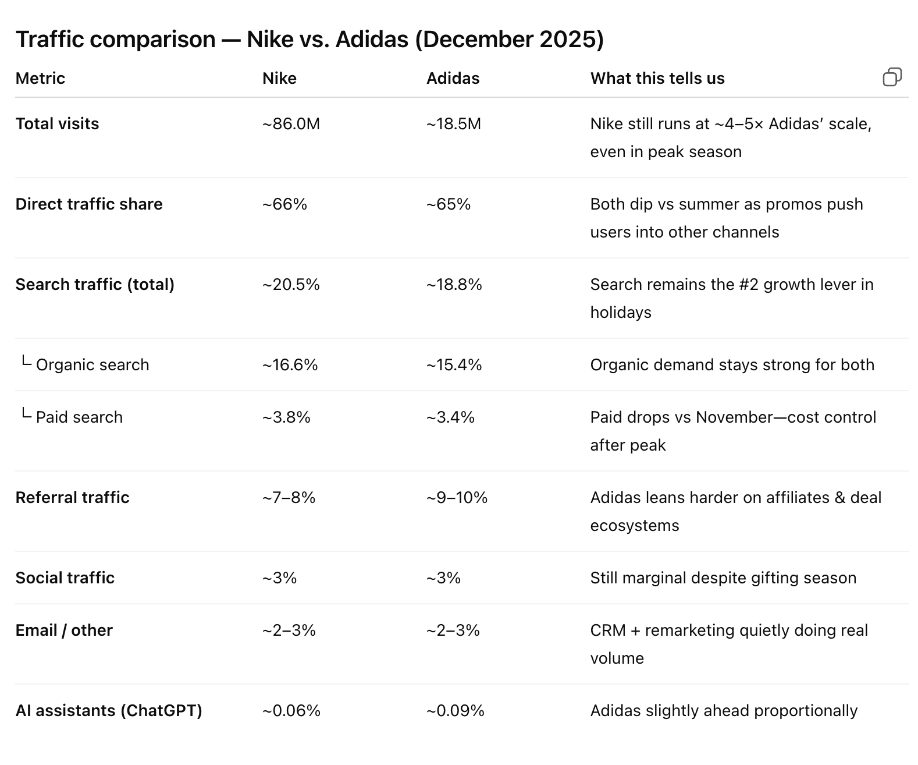
You can connect to a bunch of different AI tools right now, including ChatGPT, Claude, Cursor, VS Code, and a few custom models.
What Semrush MCP Actually Does for Marketing Teams
I won’t go too deep here, since this isn’t a review, more of a how-to guide. But just in case you’re wondering why Semrush MCP matters, here’s the quick rundown.
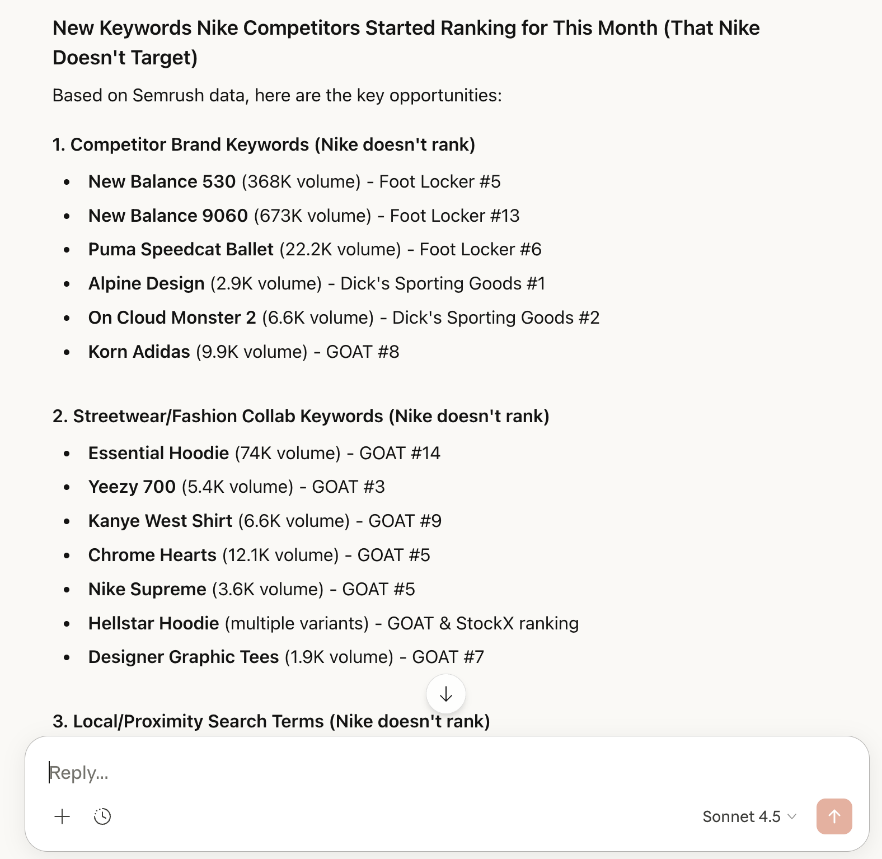
What Semrush MCP really does is give you a huge amount of valuable data to share with AI tools, and it lets you share it faster than you’d be able to if you were copy-pasting everything. For instance, Semrush’s keyword database alone covers more than 27.9 billion keywords worldwide.
Normally that data lives behind dashboards and filters inside the Semrush platform. MCP changes the interface entirely. Instead of navigating reports, an AI assistant can query that dataset directly. Even if you were just looking for keyword gaps, the time-savings would be massive.
But the MCP goes beyond keywords. Depending on your account access, the MCP server can pull data from several parts of the Semrush ecosystem, including:
- Analytics API for rankings and domain insights
- Trends API for traffic sources and market intelligence
- Projects API (read-only) for campaign or audit data
That means you can use the solution when you’re asking your AI assistant questions about competitors, market intelligence, product roadmap decisions, ranking changes, content optimization opportunities, and so much more.
How to Setup Semrush MCP
Semrush MCP is shockingly easy to set up, but there are a few steps to get your head around. The first step is making sure you have all the right stuff in place to begin with.
You’ll need:
- An Semrush account with API Access: The MCP is available through Semrush One, SEO, and Trends API plans. Check your subscription if you’re not sure.
- Enough API units: Again this depends on your plan. There are ways to purchase unlimited API units if you need them.
- A compatible AI client: Semrush MCP currently works with several AI clients, including: ChatGPT, Claude, Claude Code, Cursor, VS Code, Gemini CLI
One other thing you need is authentication. Most MCP clients authenticate through OAuth, which means you log in to your Semrush account and approve access.
Connecting Semrush MCP to Your AI Client
Once you’ve got your Semrush account set up, actually linking the MCP to your AI tools is simple, although it does work slightly differently depending on which tool you use.
Connecting Semrush to ChatGPT
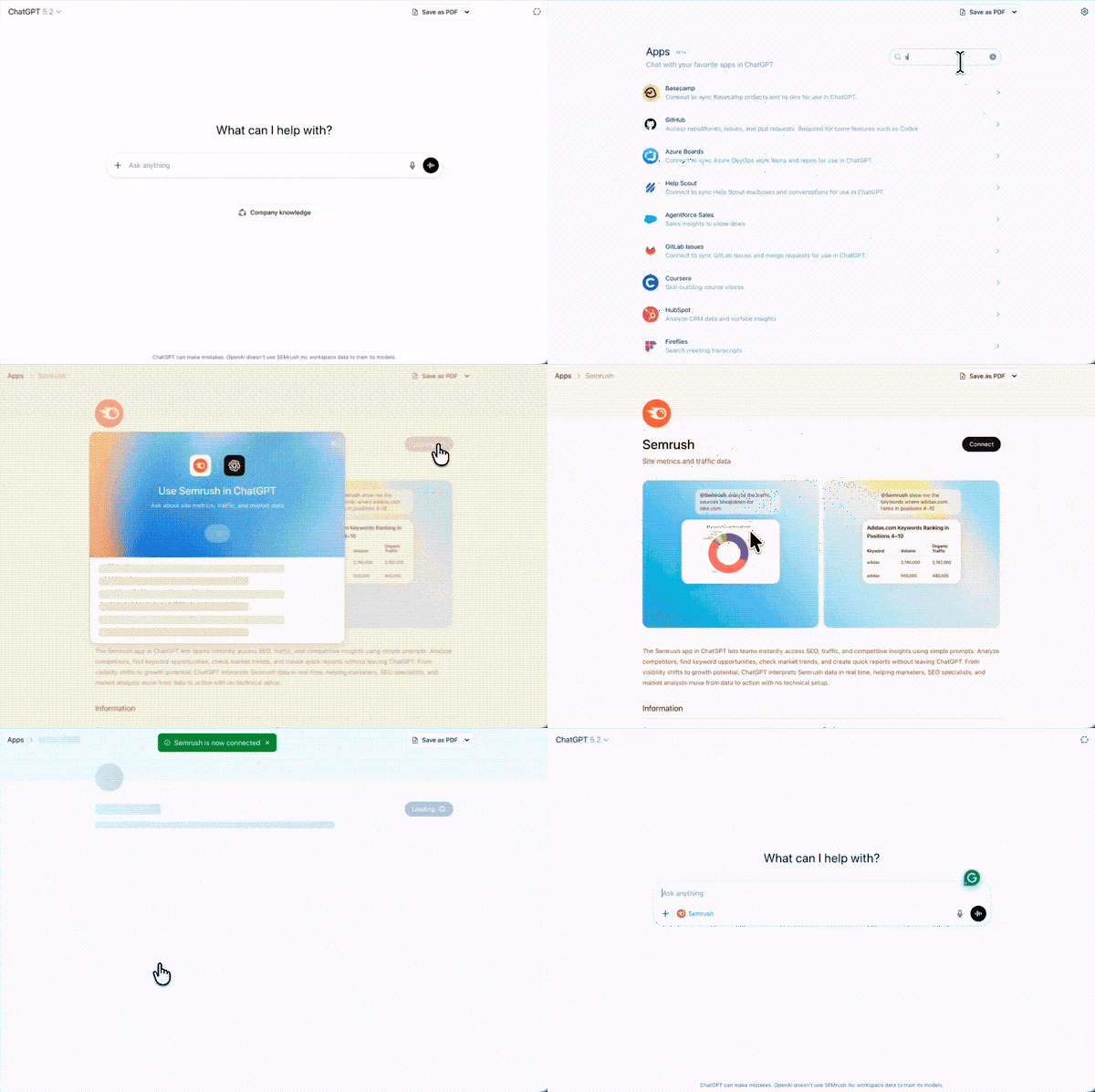
ChatGPT is probably the easiest platform to use with Semrush MCP. Inside the ChatGPT platform, you’ll find the Apps section underneath Account and Settings.
Just look for Semrush, click Connect, then Continue. You’ll have to approve a few permissions, but that’s it. When you start chatting to ChatGPT again, any time you want to use Semrush data, just tag @Semrush and write your prompt normally.
For instance: @Semrush Find the top organic competitors for example.com in the United States.
If the connection worked, the response would include real metrics instead of generic advice. Keyword overlap, estimated traffic, sometimes even the pages driving the rankings.
Connecting Semrush to Claude or Claude Code
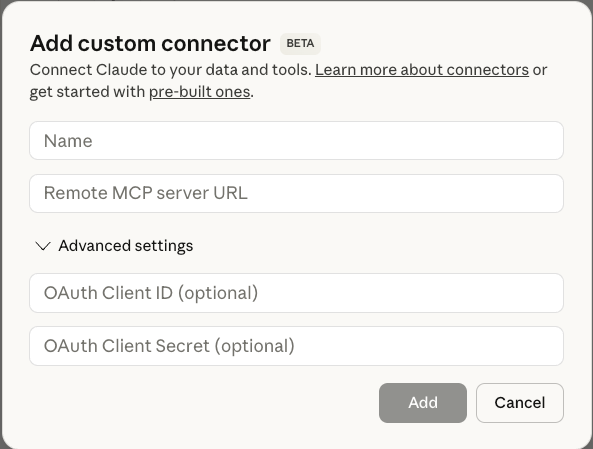
Claude handles MCP connectors slightly differently.
Instead of an app directory, you add the server manually.
In Claude’s settings there’s a Connectors section. Create a new custom connector and paste the Semrush MCP server address:
Save it.
Claude will immediately redirect you to Semrush for authentication. Once you approve access, the connection is live.
From that point forward Claude can query Semrush the same way ChatGPT does. The prompts don’t change; the model just has a data source it didn’t have before.
Connecting through developer tools (Cursor, VS Code)
The developer tools look a bit more technical at first glance, but the underlying idea doesn’t change. You’re still pointing the client to the same MCP server and authenticating with your Semrush account.
Cursor and VS Code store MCP servers in a small JSON configuration file. You just add the Semrush endpoint and the tool picks it up automatically.
Something like this is enough:
{
“servers”: {
“Semrush”: {
“url”: “https://mcp.Semrush.com/v1/mcp”
}
}
}
After saving the file, the editor detects the server and asks you to authenticate.
Claude Code does the same thing through a terminal command instead of a settings panel.
Once the connection is approved, every prompt inside the editor can call Semrush data through MCP.
Connecting Through Gemini
Gemini works a little differently. Instead of OAuth, you authenticate the Semrush MCP server with an API key. Open your terminal and run something like:
gemini mcp add –transport http \
–header “Authorization: Apikey YOUR_API_KEY” \
Semrush https://mcp.Semrush.com/v1/mcp
Swap the “YOUR_API_KEY” part with the key you actually got from Semrush. Once you’ve verified the server was added, then you can run:
Gemini MCP list
You should see Semrush added next to any other MCP servers you already have.
Testing the connection
I usually run one prompt just to make sure everything is actually wired up.
Competitor comparisons are a good first test because they pull several datasets at once.
Try a prompt like: “Compare the traffic breakdown for Nike and Adidas for July 2025.”
If MCP is connected properly, the answer includes traffic sources like organic, direct, referral, and paid, along with a quick explanation of which brand leads in each channel. Without MCP, the model simply wouldn’t have access to those numbers.
If you’re looking for prompt ideas to test with, Semrush has a handy library here.
How to Use Semrush MCP Once It’s Connected
The connection itself takes a few minutes. After that, you need to start putting the system to good use. There’s no single way to do this.
Semrush actually lists a bunch of ways to use MCP depending on what you’re trying to figure out. You might be looking at market shifts, competitor growth, keyword gaps, content opportunities, or something else entirely. A few workflows worth trying:
Competitor discovery and market movement
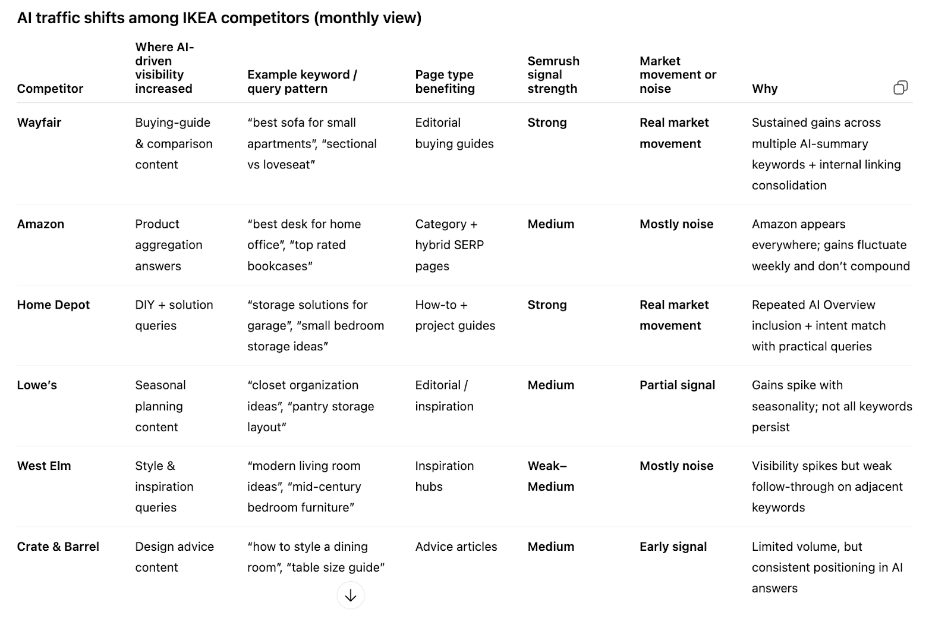
Competitor analysis is the obvious place to start. MCP speeds this up because the assistant can pull data from several Semrush reports at once. Instead of checking Domain Overview, Keyword Gap, and Traffic Analytics manually, you can just ask:
“Find the top organic search competitors for example.com in the United States, ranked by keyword overlap and estimated traffic share.”
The assistant retrieves:
- Domains ranking for similar keywords
- Overlapping keyword counts
- Estimated organic traffic
- Relative market visibility
The real value comes from the follow-ups. Once the assistant surfaces the competitors, you can keep pushing the analysis further. For instance: “Which of these competitors gained the most organic visibility in the last month?”
Now the model starts digging into ranking movements instead of just listing domains.
You can also ask about share of voice impact or competitive risk signals.
Keyword gap analysis
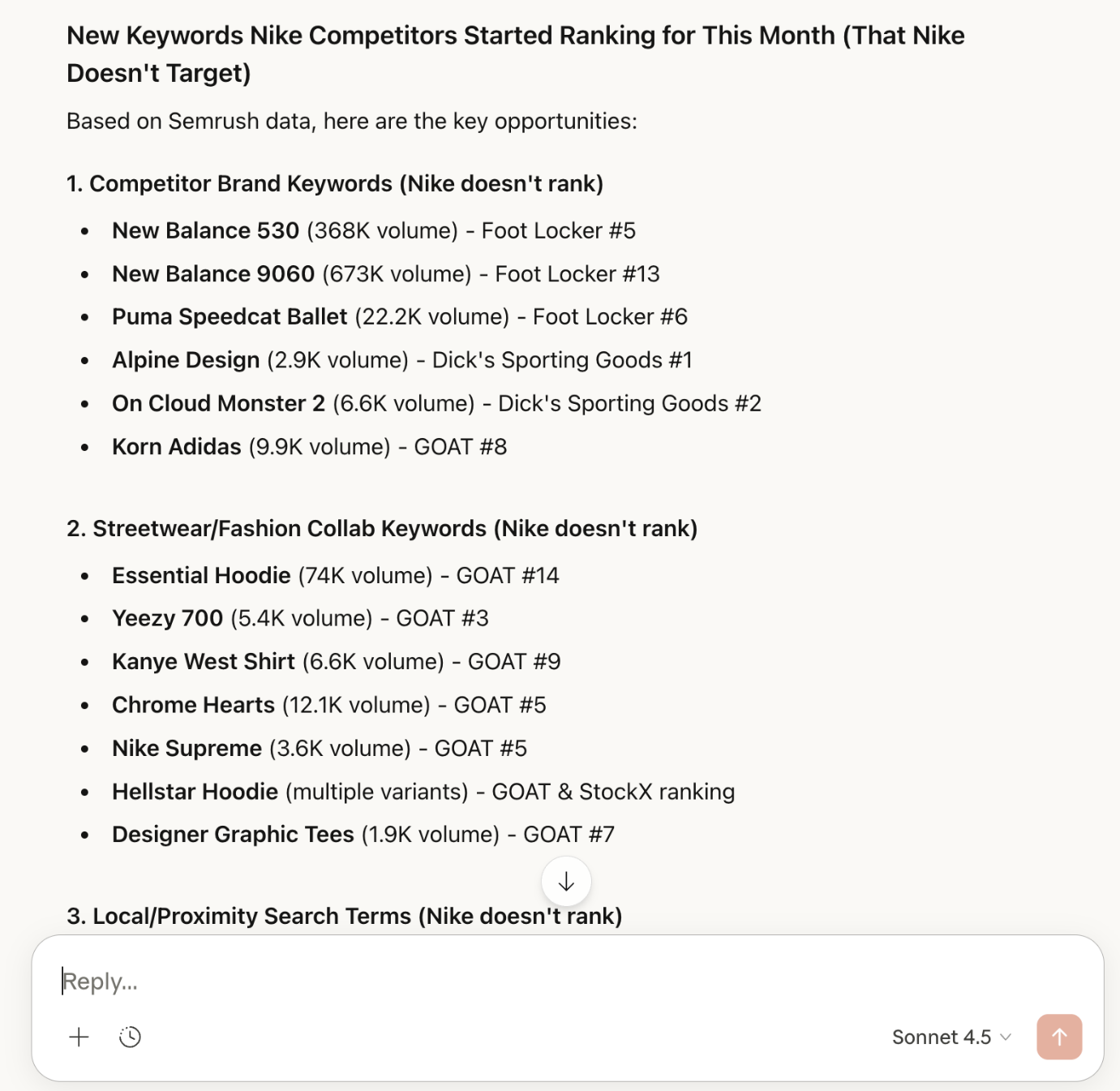
Keyword gaps are one of the most obvious MCP use cases because they normally require several steps inside the Semrush interface.
With the connector active, you can ask something like:
“Identify high-intent keywords that shopify.com ranks for but example.com does not.”
Behind the scenes, the AI retrieves keyword gap data through the Semrush analytics API.
The response typically includes:
the missing keywords
- Search volume
- Keyword difficulty
- Ranking pages for the competitor
This becomes even more useful when you add context to the prompt.
Something like: “Prioritize keywords with commercial intent and difficulty below 60.”
Now the assistant filters the dataset before explaining the opportunities. I’d also recommend checking out the “content opportunity discovery” options. For instance, ask your assistant to tell you which content updates you should make based on recent competitor keyword or ranking gains. It’s a handy way to plan what’s next in your strategy.
Or you might ask it to tell you if there are any backlink opportunities you’re missing, without having to dive into the “Backlink Gap” report inside Semrush yourself.
Growth and Product Marketer Research
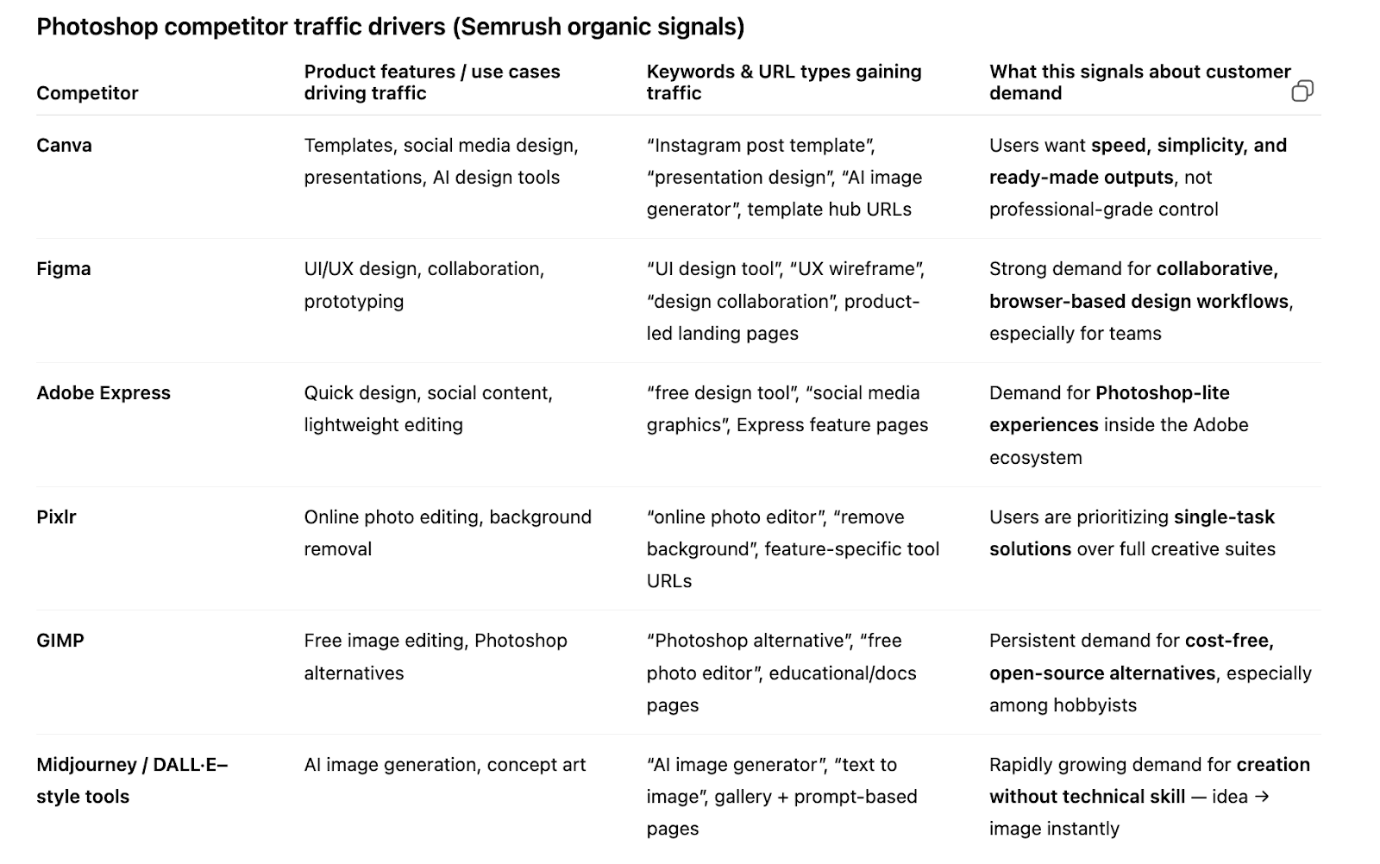
Another way to use Semrush MCP is to help out your product strategy teams. For instance, you can use demand signal discovery prompts to find out which use cases and product features are driving the most attention to competitor websites with a quick prompt like:
“Tell me which product features and use cases are driving traffic growth for competitors, and explain what this says about customer needs.”
You can also ask about roadmap gaps, prompting your AI assistant to look for product development opportunities you’ve been missing.
If you’re planning on launching something new, you might also ask your assistant to use Semrush data to find out whether newly launched features or positioning changes could help you out-perform other brands. There’s even the option to detect emerging keyword clusters that competitors are using, for insights into whether there are any new use cases for your products you should be exploring.
Getting the Most Out of Semrush MCP: Quick Tips
After the novelty wears off, the best way to use MCP is to build a few repeatable workflows around it.
The connection itself isn’t the value, the questions you consistently ask are.
I’ve noticed a handful of habits that make MCP significantly more useful.
- Be specific with your questions: A vague question like: “Analyze my competitors” doesn’t give the assistant enough direction. Something like this works far better: “Identify competitors gaining organic traffic in the US market this month and list the keywords driving that growth”
- Use MCP for exploration, not just reports: Traditional dashboards are great for fixed reports. MCP works best when you’re exploring questions like “Which of my competitors are gaining traffic right now, and what are the keywords driving that growth?”
- Monitor API usage: Because MCP uses Semrush APIs, each request consumes API units. Simple queries usually consume very few units, but large datasets or repeated analysis can add up. You can check usage inside your Semrush account under the API unit summary
Also, remember human judgement. Yes, your AI assistant now has live data access, but it’s still AI interpreting numbers. It can make mistakes. It’s always worth opening Semrush directly and checking the data if something looks surprising.
Unlocking the Value of Semrush MCP
Semrush MCP might not seem like the most exciting thing the company has ever produced, but it really does make a difference to how work flows in the marketing world.
Instead of navigating dashboards and exporting reports, you’re interacting with the data conversationally. The AI assistant retrieves the relevant information and explains what it finds. It’s just an easier way to handle the whole analysis process.
To get started, you’ll need access through one of two paths: Semrush One or the standalone SEO Toolkit.
Semrush One bundles everything under a single subscription. It includes the full SEO toolkit, advertising research, social media management, content marketing tools, and the Trends data that powers some of the most useful MCP workflows (like competitor traffic breakdowns and market intelligence).
The Starter plan begins at $199/mo and comes with 50,000 API units included, which is your “budget” for MCP queries. The Pro+ plan also includes 50,000 units, along with expanded limits across the rest of the platform. For teams running MCP queries regularly, those 50,000 units go a long way, since most individual prompts only consume a small number of units per request.
If you don’t need the full Semrush One bundle, the SEO Toolkit plans also support API access and MCP. These are better suited if your focus is purely on organic search, keyword research, and technical audits rather than the broader marketing stack.
Either way, once your plan includes API access, connecting MCP takes minutes. And from there, the difference is noticeable immediately. You stop exporting spreadsheets. You start asking questions.
Comments 0 Responses