

Most of us don’t find AI logo makers and website designers that exciting these days. I think you pretty much expect every design tool to be “smart” at this point.
You also expect them to follow more or less the same script. Type in your business name, pick an industry, scroll until you find something that works, and edit. Design.com gives you the same experience, but it’s impressive for another reason.
It’s not just an AI logo maker. It’s a full brand platform. More than 50 AI tools help you customize over 1 million templates for everything from flyers, to email signatures, and websites. That’s what I think makes it so valuable. It’s an all-in-one system from taking a business idea all the way to “launch-ready” without unnecessary expense or frustration.
The question, of course, is whether it’s right for you.
Quick Verdict: My Thoughts on Design.com
I’ve tried quite a few platforms like Design.com at this point: BrandCrowd, Canva, and Looka, to name a few. Design.com isn’t a world away from those tools, and it’s still not a system you can rely on to replace an entire design team, particularly as your business grows.
However, it is one of the more affordable, reliable, and consistent brand-kit builders I’ve seen. It’s also the one that seems to pack the most “AI value for your money” into one kit.
What I like:
- More than 50+ AI tools, including a background remover and name generator
- Over 1 million customizable templates
- Logos, websites, social assets, business cards and more in one package
- Affordable subscription-style pricing
- Straightforward editing tools (ideal for beginners)
What I don’t like:
- The AI models aren’t cutting-edge. They’re helpful, not revolutionary
- The websites you can generate are only basic (portfolio site more than store)
- Some templates are still a little generic
Design.Com Overview: What Design.Com Is
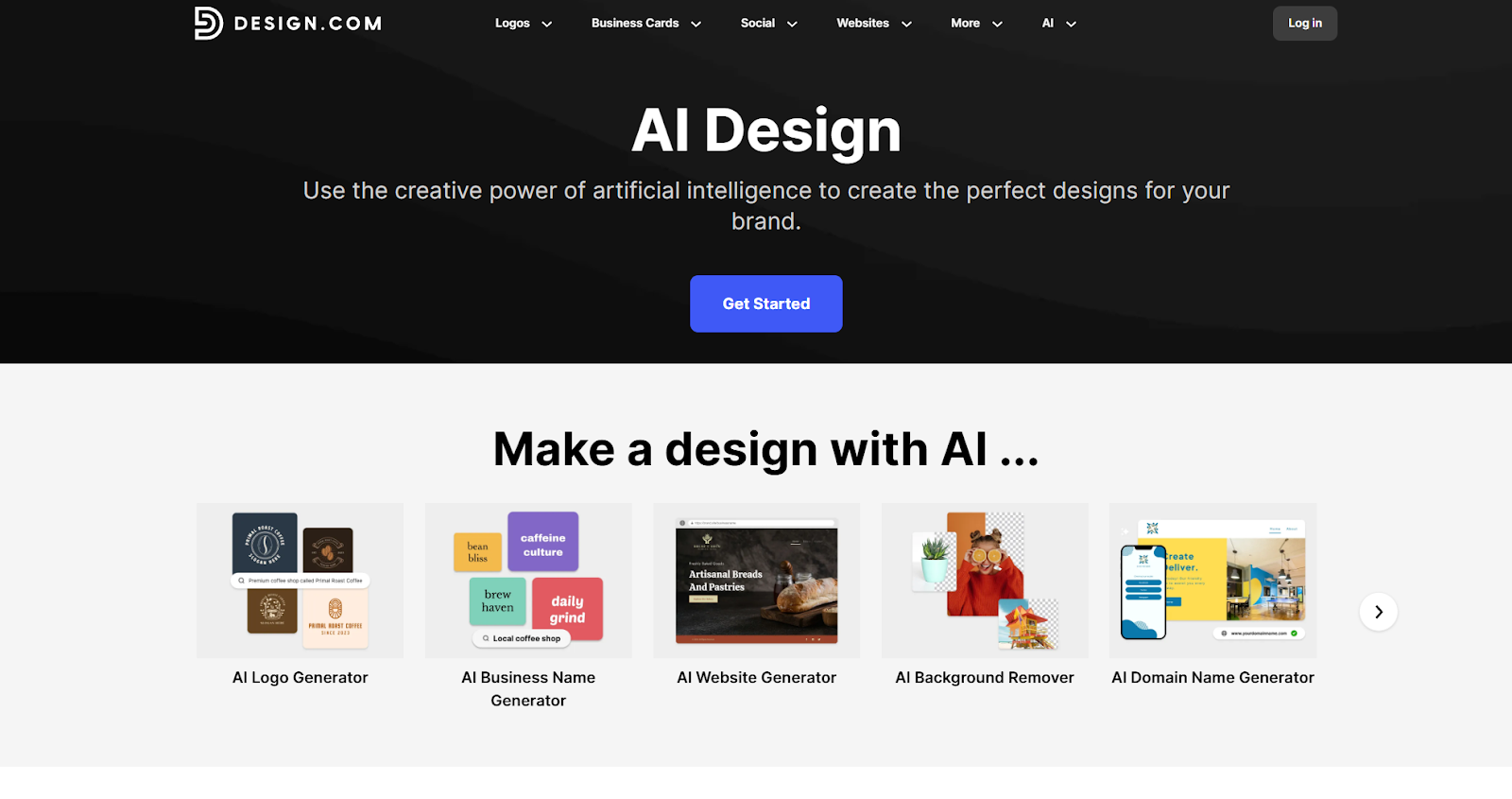
Design.com feels like a design studio with AI running the engine. More specifically, an AI design studio meant to help you build an impressive brand quickly. The AI logo generator is the big selling point for most people, but there are a lot more tools to explore here. AI can help generate:
- Business and domain names
- Websites (just not ecommerce stores)
- Link in Bio sites
- Presentations
- Business cards
- Posters and flyers
- QR codes
- Letterheads and email signatures
There’s also an AI background remover, and a handful of design tools that focus less on AI, like the social media templates, gift cards, invoices, postcards, and gift certificates.
That’s really what makes Design.com so different to most tools. A lot of them give you one AI-powered asset. Design.com gives you dozens, and it gives you a place to store, align, and maintain all of the assets you create.
I will mention, you’re not getting Midjourney-level artistic quality here, or state-of-the-art video generation. The AI tools are simple; they feel a bit like generating something with ChatGPT. But if you’re in the early stages of launching a business and want to get something ready quickly, without prompt engineering, that might be exactly what you need.
The AI Logo Generator: How it Works

The AI logo generator is what draws most people to tools like Design.com in the first place, which is why I tested it first. It follows the same workflow as most AI tools like this I’ve tried. The system asks you to explain your business in a few words to start with.
Hit “Generate” and the page fills up fast. You’ll get a spread of logo options to scroll through. If it’s too broad, add a few extra keywords or apply filters to narrow the style down.

Choose a logo and you’ll need to log in. Free account, quick setup. Then you land in the editor. This is where you start messing around with layouts, shapes, colors, fonts. You can tweak opacity, stack layers, flip elements, even animate it.
I particularly like the fact that you can “preview” your logo too. When you do that, Design.com shows you what the design might look like in various formats:

You can do all the edits yourself if you want, or ask for AI help. Tell the tool what you want to change, and it’ll tweak things for you.
You can ask it to do things like “make the image more dynamic”, and it’ll experiment with a few extra variations. Once you’re happy, you can download your logo in all the formats you might need: PNG, JPG, SVG, EPS, and PDF formats. Transparent backgrounds are also included.
Are the Designs Unique?
Overall, the logos aren’t totally “unique”, even with AI’s help.
Most AI logo generators converge toward a similar “safe modern” look. Clean lines. Geometric icons. Sans-serif type. Design.com isn’t immune to that.
The difference is depth. With this many templates and structured variations, you’re less likely to get stuck with something that feels generic after five scrolls.
Design.com Review: The Other AI Features
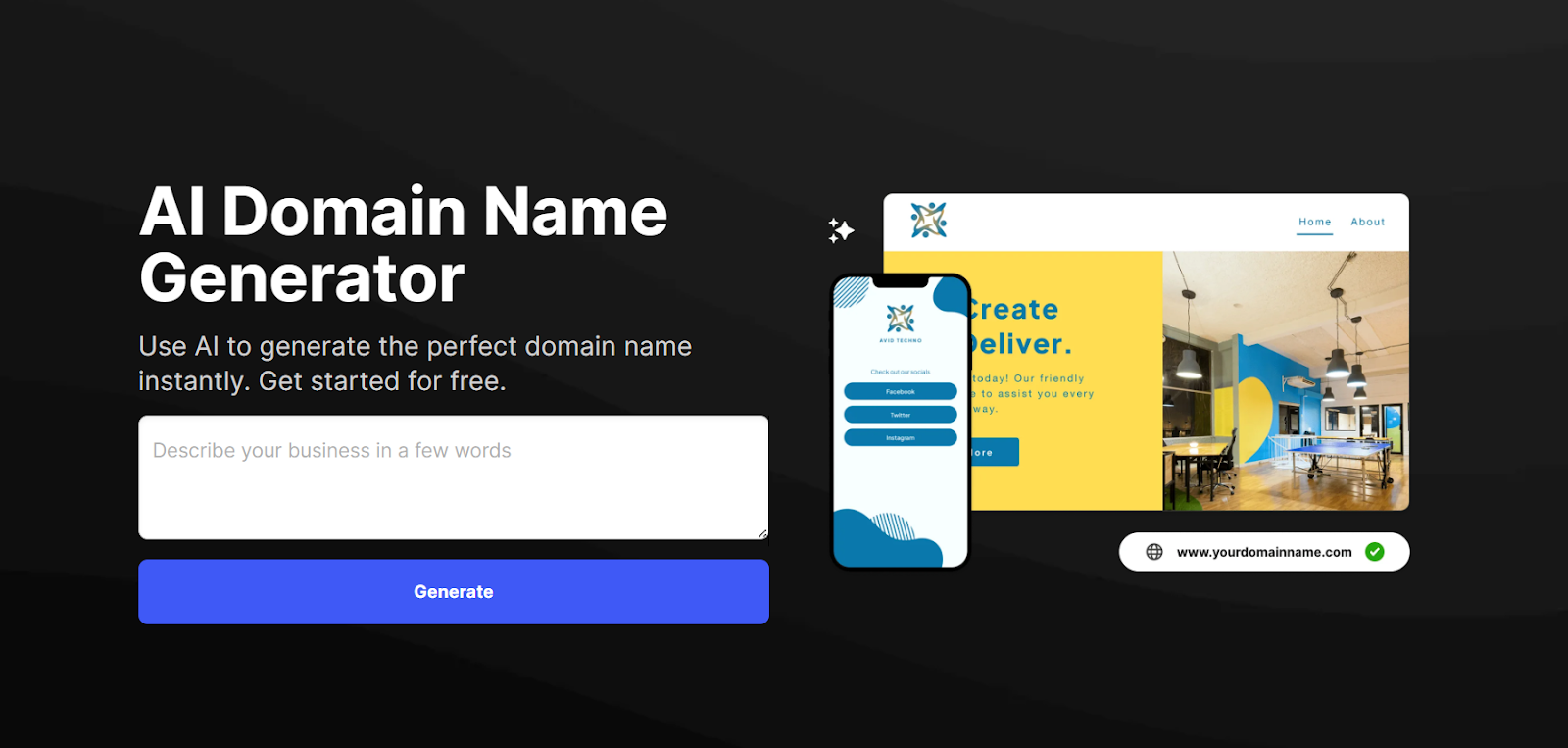
Most of the other AI features on Design.com work exactly the same as the logo generator. You go through the same process whether you’re creating a website, poster, flyer, or business card. The only real difference is that if you’ve already created your logo with the platform, you can ask the AI to use that design as the basis for whatever else you’re creating.
The domain and business name generators are obviously a little different, because you’re not really creating anything visual to begin with. You still have to tell the system about your business, and you can still select filters, though.
One thing I do like is that the domain generator deliberately only suggests “available” domains you can buy straight away. If you want to buy one, you can do it right there on Design.com’s website.
Then there’s the background remover, which is a totally different type of AI tool that doesn’t appear on most other brand building platforms. You upload a photo, and the AI tool does all the work. You don’t even need to help it separate the background from the focal point of the image. It does that automatically for you.
Design.com Review: The Other Design Options

As I said, the other AI-powered asset creation tools work much in the same way as the logo generator. You give the system a basic idea of what you want, and it gets to work suggesting templates. From there, you can edit yourself, or get help from AI along the way.
I will say, the AI website builder is pretty basic. It’s fantastic if you want to generate a site structure in seconds. You get a hero section, about section, contact section, even a space for social media icons. The tool can also pull brand colors and fonts from your logo automatically.
Just keep in mind what you’re really getting here is a website skeleton. Design.com doesn’t give you a CMS, or ecommerce tools for accepting payments or managing inventories. You need to add those parts yourself.
The same goes for the business cards and other assets you can create with AI. You get the “visual elements”, but you have to do the printing and distribution work yourself.
It’s also worth mentioning that Design.com lets you create a lot of other assets without AI, such as:
Social Media Assets

You get more than 30 social design tools here, with hundreds of templates for every campaign and promotion you can think of. Businesses can create post templates, banners, covers, and profile pictures for just about every platform, such as:
- Snapchat
- TikTok
- Tumblr
- YouTube
- Twitch
Not every template hits. Some definitely lean generic. Still, you’re not starting from zero each time. Your colors are already there. Fonts stay consistent. The icon style carries through without you having to babysit it.
I generated a handful of Instagram posts just to test cohesion. Same logo. Same spacing rhythm. Same type pairing. It felt like one brand, not a collage of templates pulled from different websites. I think that’s really helpful.
Business Cards and Print Collateral
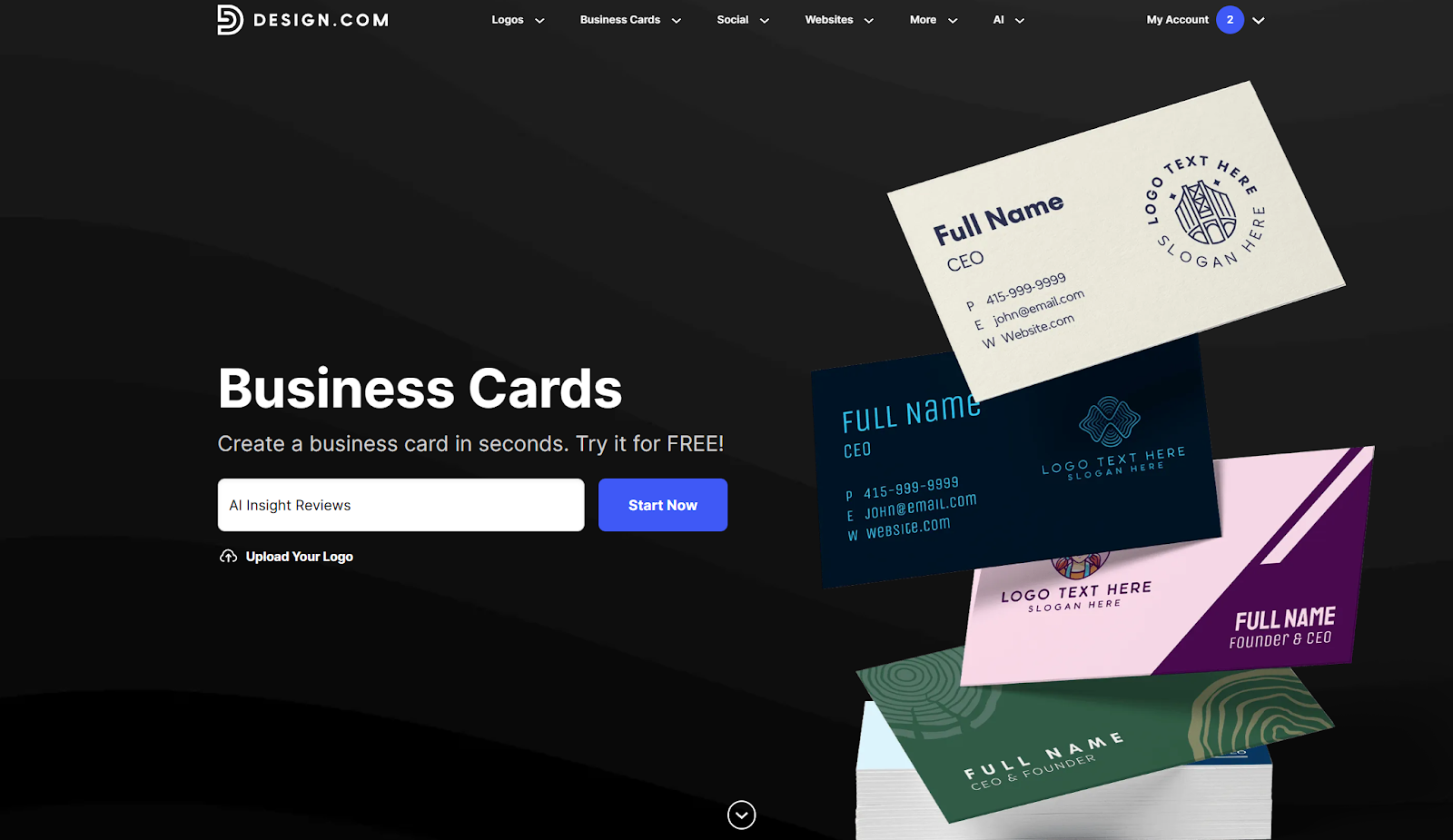
The business-card generator is AI powered, so are the tools for creating posters and flyers, but there are other extras you can create without AI too. That includes invoices, gift cards, vouchers, postcards, menus, flyers, thank-you cards and invitations.
You can even create t-shirt designs. Notice I said “designs” there. Design.com isn’t a print-on-demand company, so it won’t produce merch for you. However, if you do want to produce a t-shirt with your logo without having to trust that the design tools on something like Printful will get your color scheme right, Design.com is very helpful.
What I cared about was export quality. PDF and vector formats are available, which means you can actually send these to a printer without awkward conversions.
QR Codes, Email Signatures, and Digital Extras

For “digital” extras, you’ve got a few additional options. You can create Etsy banners, QR codes, presentations for your corporate team, and email signatures. There are also tools to help you create short videos and animations.
The animations aren’t studio-level, obviously. But if you need something lively for a quick promo, they do the job. You can pull in your brand elements easily, which means your campaigns don’t end up looking disconnected from each other.
Pricing: What You’re Actually Paying For
Now the scary part: pricing.
The platform runs on a subscription model. You can create an account for free and test most of the tools. Some downloads won’t cost you anything either. They’re clearly marked, so you won’t get surprised at checkout.
Most of the high-quality assets, though, require a plan. Those plans vary depending on what you need:
- Saver: $15 per month
- Value: $24 per month
- Premium: $29 per month
The higher the tier, the more you get in terms of downloads, asset options, and licensing. Paying $15 per month (at a minimum) might sound like a lot to begin with, but I think it’s incredibly fair.
You’re not paying for one logo file. You’re paying for access to the ecosystem. The logo generator. The social templates. The business card tool. The website builder. The QR codes. The presentation maker. Ongoing downloads in usable formats.
You’re also not paying the price you’d be splashing out for a full design team. Hiring a designer for a bundle of assets costs significantly more than $29 per month. Even buying individual assets from separate tools adds up.
Who Should Use Design.com?
Would I hand this to a seasoned ecommerce founder building a global brand? No. And I wouldn’t use it for a business where visuals carry the whole identity, like high-end fashion or cosmetics. It’s solid. It’s not couture.
The people I would suggest it to are the ones who want to get an attractive brand up and running in as little time as possible, without spending a fortune, or getting lost in frustration.
If you’re launching a small ecommerce brand and your to-do list includes logo, Instagram posts, packaging insert, business card, and a quick site, this tool makes life easy. You pick a direction once and it keeps echoing that decision everywhere else.
If you sell at pop-ups or wholesale events, the vector exports matter. Printers ask for SVG or EPS files. Design.com gives them. That alone separates it from some cheaper logo tools that quietly hand you a flattened PNG and call it a day.
If you post constantly and don’t want to rethink your brand every time you open a template, the built-in social layouts help.
Design.com works if you want to get a brand launch-ready, fast. That’s exactly what most smaller businesses are looking for.

Comments 0 Responses