

Blackbox AI is an AI coding assistant designed for developers who work inside Visual Studio Code.
It positions itself as more than just an autocomplete tool. Instead, it acts like a smart teammate, capable of refactoring your code, debugging issues, writing tests, and understanding your entire repository.
If you’ve outgrown tools like GitHub Copilot or want an agent that can support full-project workflows, Blackbox AI is worth looking at.
In this review, I’ll walk you through my experience with Blackbox AI, covering everything from setup and key features to pricing and how it compares to other AI tools.
Whether you’re an individual developer or part of a growing team, this breakdown should help you decide if Blackbox AI deserves a spot in your toolkit.
Why You Can Trust This Review
I’ve spent several weeks testing Blackbox AI in my daily development workflows across multiple JavaScript and Python projects.
I explored its features in depth using the official VS Code extension, tested its Chrome browser extension, and evaluated its capabilities for real-world tasks like debugging, generating boilerplate code, and reviewing commits.
This review also incorporates external user feedback, including public reviews from the Chrome Web Store and Trustpilot, to ensure a balanced and honest evaluation of the product.
Blackbox AI Pros and Cons
Here’s a quick summary of what I liked and didn’t like about Blackbox AI after testing it thoroughly.
What I Like
- Blackbox AI can read your entire project, not just the current file, which allows for more accurate and useful suggestions.
- It supports practical workflows such as debugging, writing unit tests, generating documentation, and running CLI tasks in the background.
- The setup process is fast and painless. I was up and running in minutes inside Visual Studio Code.
- Voice mode and auto mode offer hands-free options for navigating and controlling the AI agent.
What I Don’t Like
- The Chrome extension has a low rating, with many users reporting inconsistent behavior.
- Support and billing complaints appear frequently in public reviews.
- Plan limits and usage caps are not always clearly communicated, especially on the pricing page.
- Blackbox benchmarks itself against Copilot but lacks third-party validation of those results.
My Experience Setting Up Blackbox AI
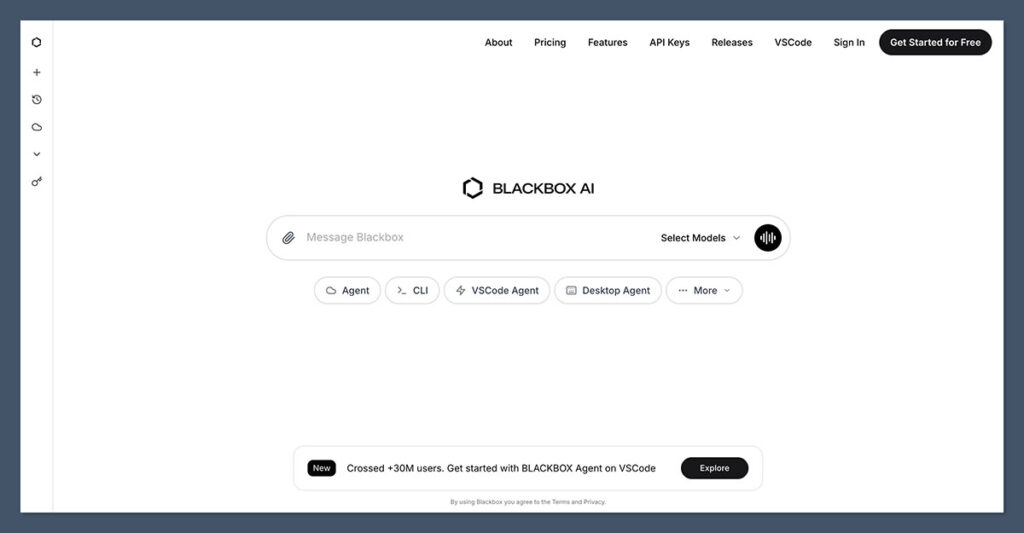
Getting started with Blackbox AI inside VS Code was refreshingly simple.
Here’s what the onboarding process looked like for me:
- I installed the extension from the VS Code Marketplace by searching for “Blackbox AI”.
- Once installed, a new icon appeared in the sidebar. Clicking it launched a welcome screen that prompted me to log in.
- After connecting my account, I was able to immediately start assigning tasks using a chat panel inside the editor.
I liked that the chat panel was flexible and could be moved to different parts of the screen. I also appreciated that Blackbox remembered past interactions, which made it feel more like an intelligent assistant and less like a stateless chatbot.
No additional setup steps were needed. There were no API keys to paste or terminal commands to run. If you use Visual Studio Code regularly, this will feel like a natural extension of your workflow.
Blackbox AI Features That Matter
While some AI tools offer surface-level help, Blackbox AI digs deeper by focusing on context and developer-centric workflows. These are the features I used the most during testing:
Project-Level Context Awareness
Blackbox AI stands out by importing context from:
- Entire folders
- Git commits
- Specific files or URLs
This made a big difference when I was working on larger codebases. I didn’t have to spoon-feed it context. I could just say, “Find where this function is used,” and it handled it accurately.
Code Actions
Blackbox AI supports a range of actionable coding tasks directly from the chat panel. These include:
- Generating and editing tests
- Refactoring messy functions
- Diagnosing bugs from logs
- Writing documentation based on function definitions
The agent responded well to natural language prompts. I didn’t need to memorize commands or keywords. For example, when I said “Write tests for this function,” it generated readable unit tests using Jest, including mock setups.
Voice Mode and Auto Mode
I tested the voice interaction feature, and while I don’t always prefer using voice when coding, it worked smoothly. I could issue tasks like “Refactor this method” or “Explain what this block does” without typing.
Auto mode was another helpful feature. When enabled, it allowed the agent to suggest improvements in real time or even run tasks in the background based on current activity. This reduced the friction of switching between code and AI suggestions.
Background CLI Tasks
Blackbox AI can run tasks in isolated environments known as worktrees. I used this to:
- Run tests in the background while I edited other files
- Format code using CLI tools without disrupting my workflow
- Experiment with branches without affecting the main repo
This feature will be especially useful for developers who want to offload repetitive tasks to the agent without cluttering their terminal or workspace.
Where Blackbox AI Could Improve
No tool is perfect, and Blackbox AI has its weak spots. Here are the areas where it fell short in my testing.
Browser Extension Issues
Blackbox also offers a Chrome extension that lets you use the AI in browser environments. Unfortunately, the experience is inconsistent.
The extension has a 2.7 out of 5 rating on the Chrome Web Store, with over 1,200 reviews.
Users report issues such as:
- Frequent login timeouts
- Inaccurate suggestions in non-code pages
- UI bugs and missing functionality
For casual use like grabbing code snippets or cleaning up short scripts, the extension is fine. But it’s not on the same level as the VS Code integration.
Support and Subscription Complaints
Trustpilot reviews of Blackbox AI raise some concerns. The tool has an average rating of 2.8 out of 5, and recurring complaints include:
- Confusing billing practices
- Difficulty canceling plans
- Unresponsive support channels
In my case, I didn’t run into any billing issues during testing, but I would still advise users to approach the subscription with caution. Stick to the free plan until you’re confident it meets your needs.
Pricing and Plans
Blackbox AI offers four pricing tiers, which vary based on features and usage limits.
The pricing is not very clearly explained on the official site, but here is the most commonly cited breakdown:
| Plan | Price (per month) | Features Included |
|---|---|---|
| Free | $0 | Basic autocomplete and limited queries |
| Pro | $15 | More context, higher request caps, core agent features |
| Pro Plus | $30 | Includes auto mode, voice commands, better models |
| Unlimited | $60 | Unlimited usage, team features, priority model access |
I started with the free plan and then upgraded to Pro to test additional features. The jump in functionality was noticeable, especially when working with larger repositories.
I would recommend the Pro plan for solo developers and the Unlimited plan for teams or advanced users. Always check the current pricing on the official site since features and limits can change without notice.
Comparing Blackbox AI to GitHub Copilot
If you’re already using GitHub Copilot, you might be wondering how Blackbox AI compares. While both tools aim to help you write better code faster, their approaches are different.
Here’s a side-by-side comparison:
| Feature | Blackbox AI | GitHub Copilot |
|---|---|---|
| Full-repo context | Yes | Limited |
| Agent-like behavior | Yes | No |
| CLI task execution | Yes | No |
| Voice control | Yes | No |
| Chat with project memory | Yes | Yes (via Copilot Chat) |
| Model transparency | Somewhat unclear | Uses Codex or GPT-4 (varies by plan) |
| Pricing | $0 to $60 per month | $10 per month (Individual plan) |
In my experience, Copilot is excellent for quick suggestions and inline completion. Blackbox AI is better when I need the tool to think across files or help manage broader tasks like debugging or generating tests with full context.
I wouldn’t say one is better than the other. They simply serve different purposes. Some developers might even benefit from using both side by side.
Final Verdict: Is Blackbox AI Worth Using?
Blackbox AI is a strong option if you’re looking for more than just code suggestions. It acts more like a development partner that understands your entire project, not just the file you’re working on.
Use Blackbox AI if:
- You work inside VS Code and want deep integration with your IDE
- You prefer having an AI assistant that can reason across your whole project
- You are interested in using voice commands or background CLI tasks
Think twice if:
- You rely heavily on browser-based tools or extensions
- You want a smooth billing and support experience
- You need airtight usage limits and enterprise-grade clarity
Blackbox AI has a lot of potential. It’s not flawless, but its feature set is among the most ambitious in the AI coding space.
If you’re curious, I recommend starting with the free plan, testing it on your existing repo, and deciding if the agent fits your coding habits.

Comments 0 Responses